Vandana Shopping Mall
User Guide
From opening the site to placing an order, tracking it and sending it back if you need to — every screen and every button is covered here, each step paired with a screenshot of the real site.
What this guide covers
- Opening the site
- A tour of the homepage
- Finding a product
- Filters and sorting
- The product page
- Creating an account
- Signing in
- The account dashboard
- The cart
- The wishlist
- The address book
- Checkout and payment
- Confirmation and invoice
- Orders and tracking
- Returns, refunds and exchanges
- Leaving a review
- Profile and settings
- Help and support
- Policy and information pages
- Common questions and problems
1Opening the site
There is no app to install — everything runs in a browser.
- Open any browser on your phone or computer — Chrome, Safari or Edge.
- Type the store address into the address bar and press Enter.
- The homepage opens. You can browse the whole store without signing in — an account is only needed for the cart, the wishlist and placing an order.
2A tour of the homepage
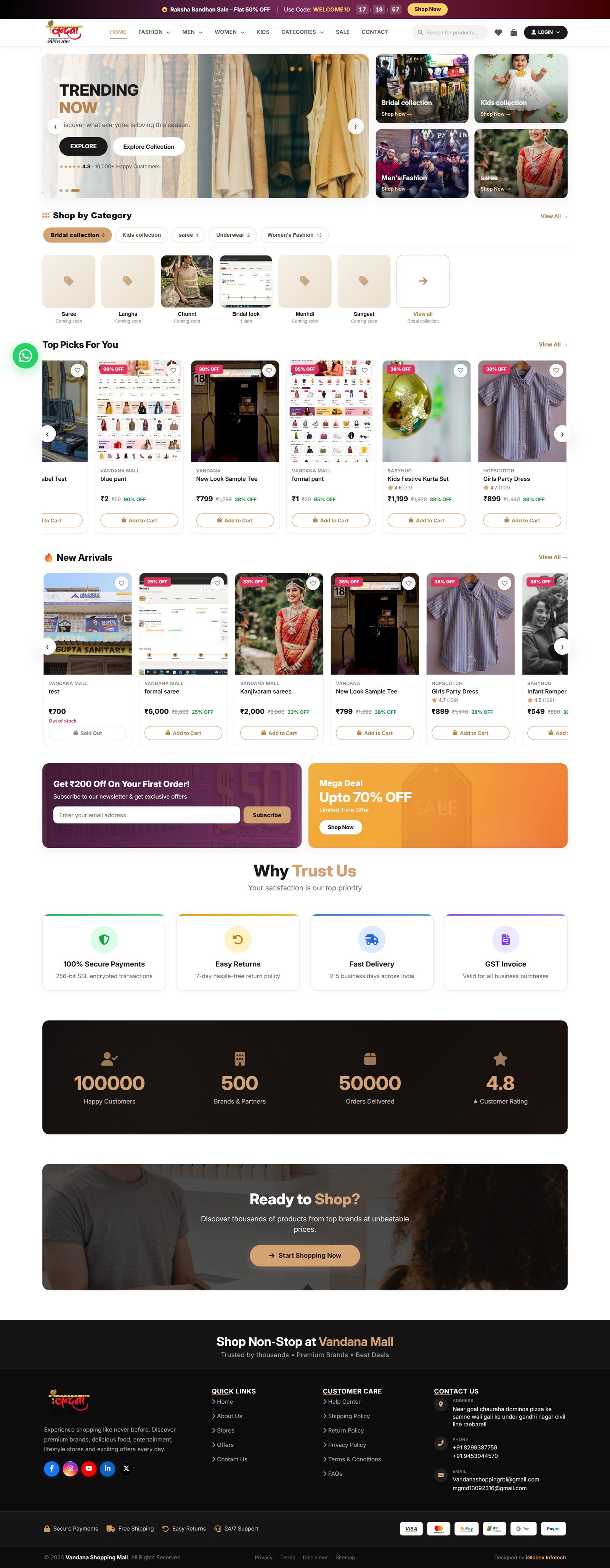
The homepage is built as a series of strips — just scroll from top to bottom.
2.1 The header
The header stays on every page, so the cart, the wishlist and your account are always one click away.

- Offer strip — a scrolling sale or coupon message, such as WELCOME10.
- Search box — type a product name, category or brand.
- Wishlist (heart) — where saved items go.
- Cart — the number shows how many items are in it.
- Sign in / LOGIN — the account menu.
- Menu bar — Women, Men, Kids, Sale and the other category links.
2.2 The hero banner
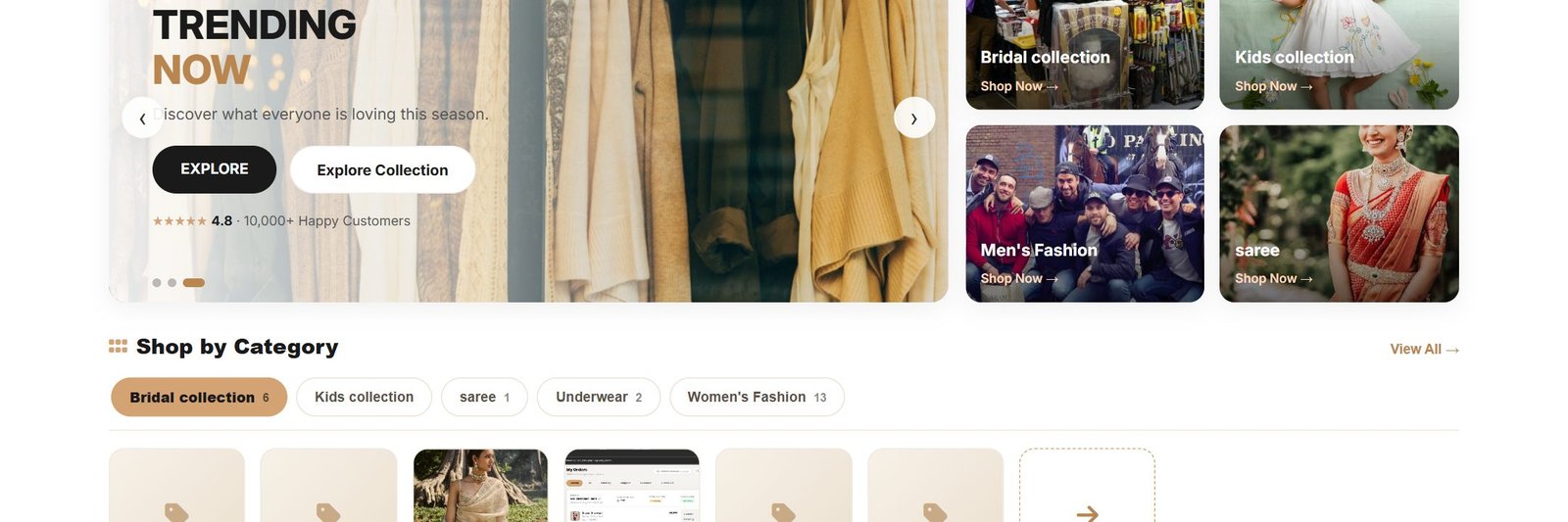
Large banners rotate at the top — new collections, big offers and whatever is trending. Clicking one takes you straight into that collection.
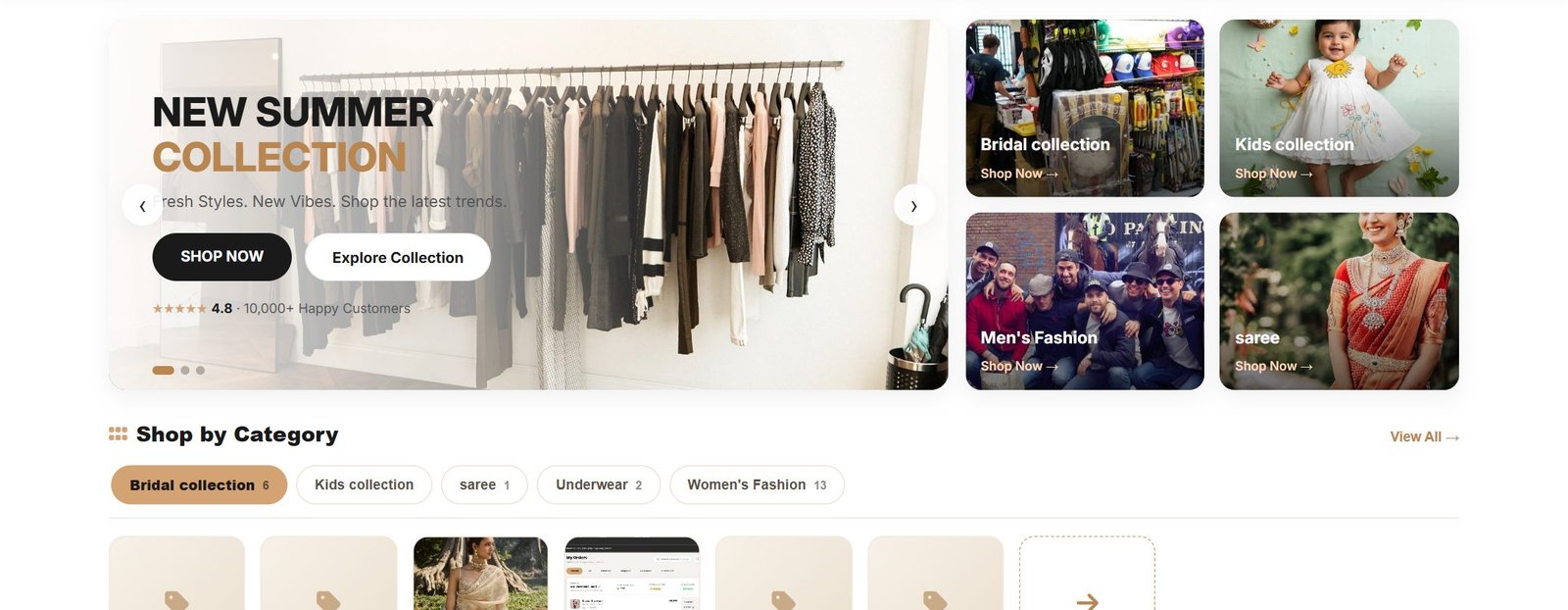
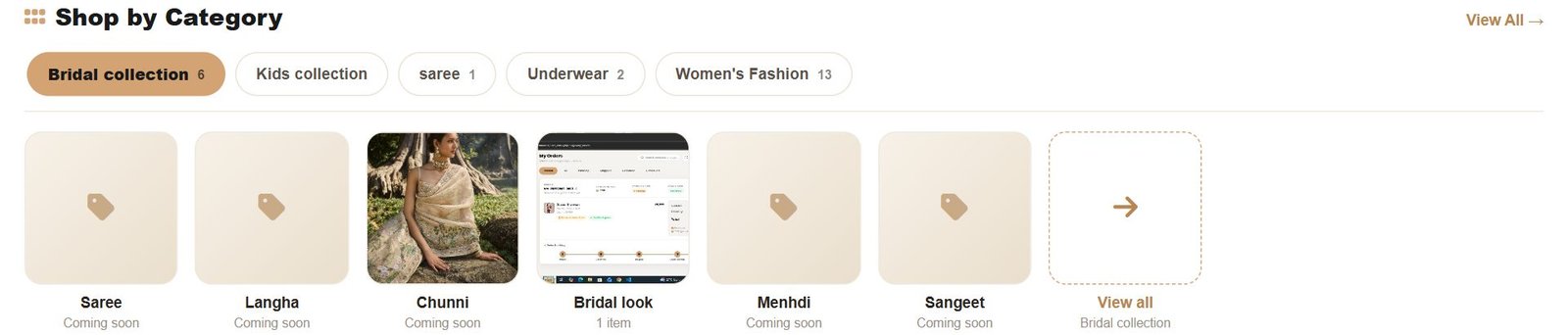
2.3 Shop by Category
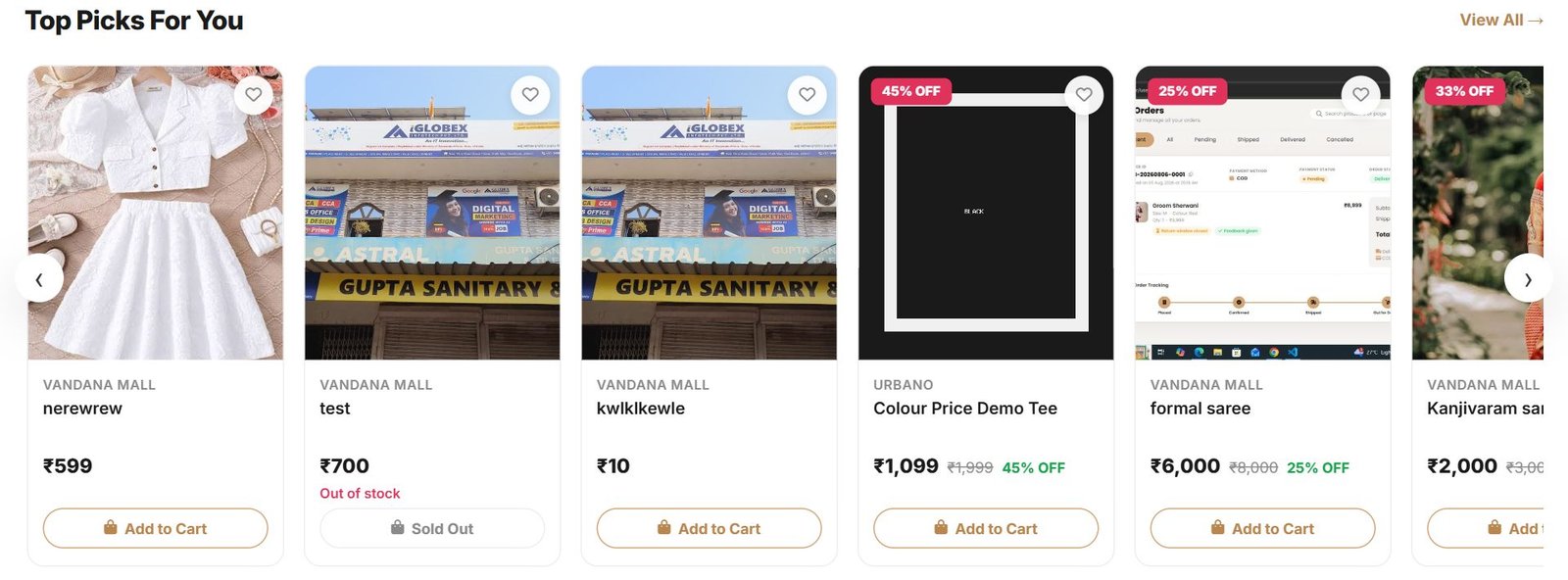
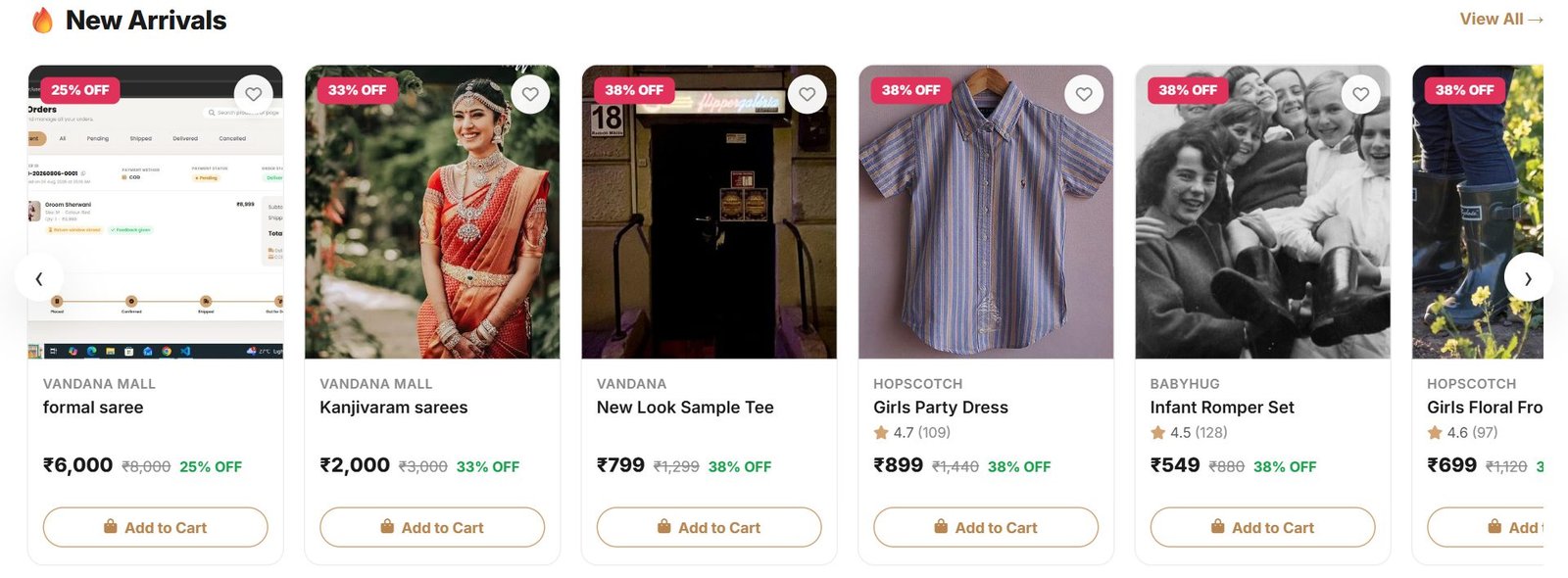
2.4 Top Picks and New Arrivals
These two rails are the most useful — a curated pick and the newest stock. Every card carries a photo, the name, the price and an Add to Cart button.
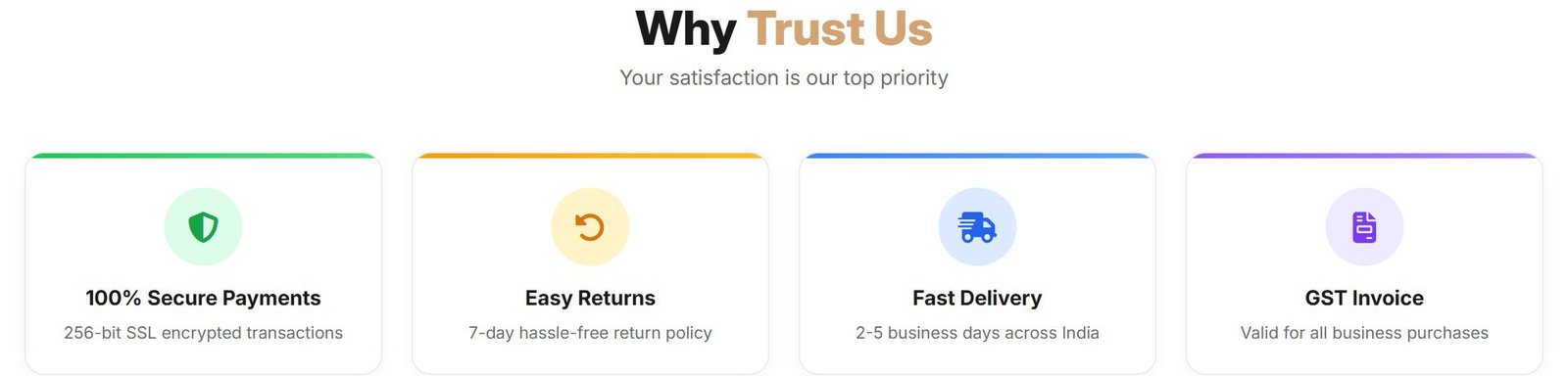
2.5 Newsletter and trust badges

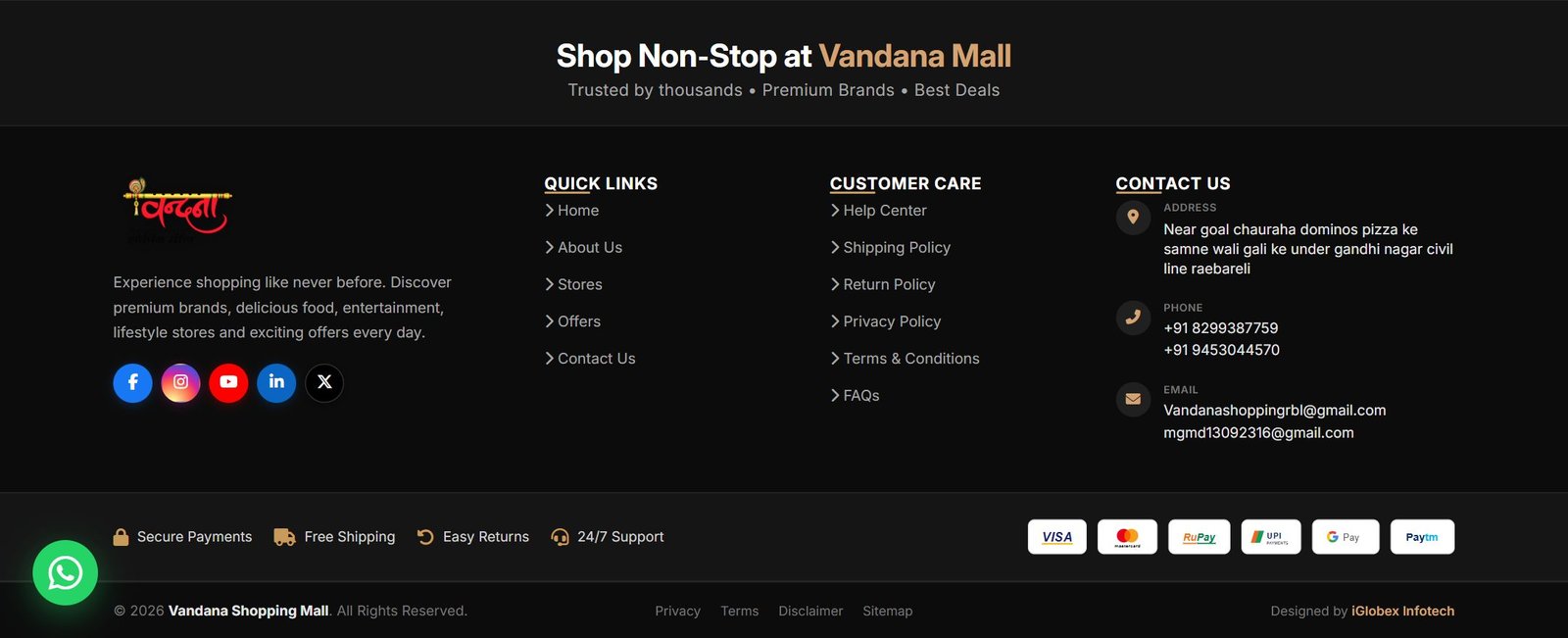
2.6 The footer
2.7 The whole homepage
3Finding a product
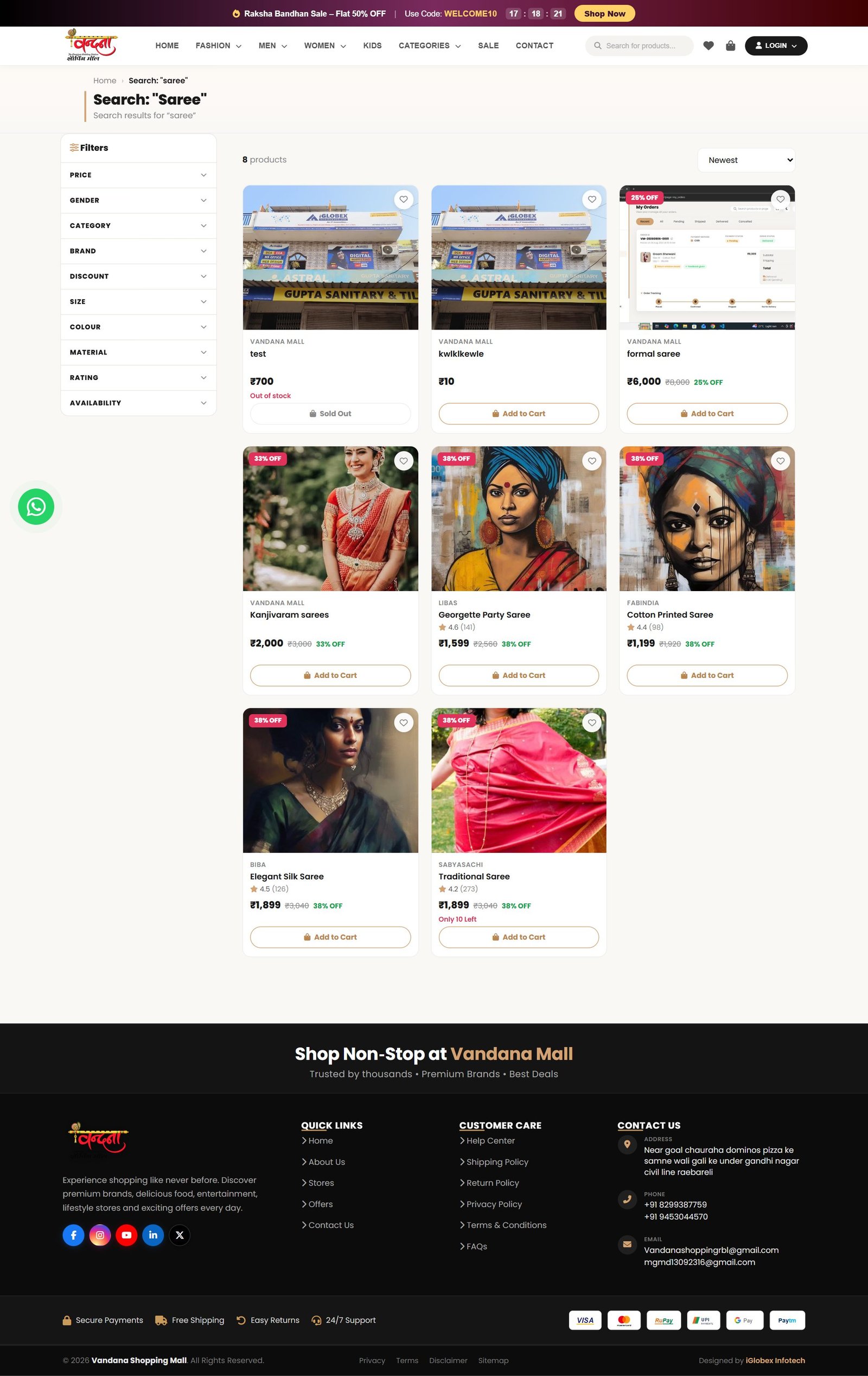
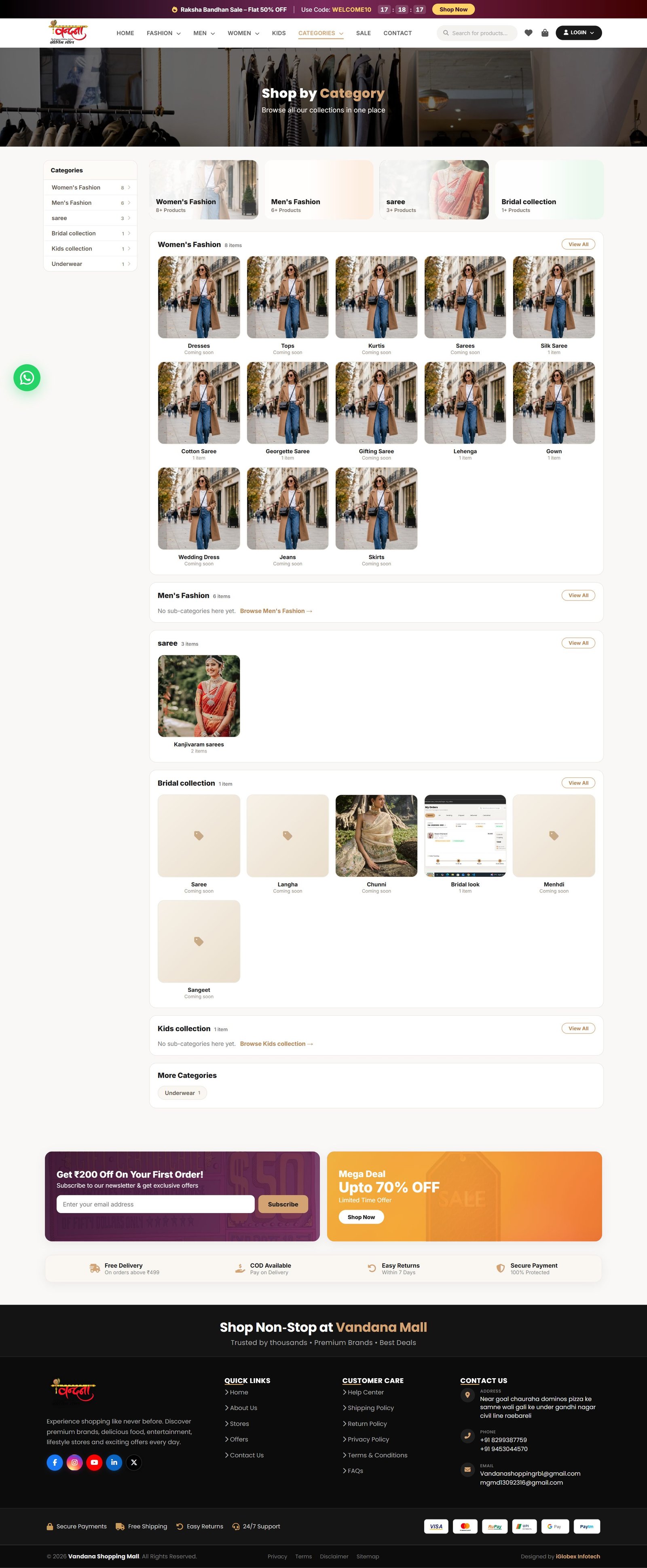
Three ways: search, go through a category, or open All Products.
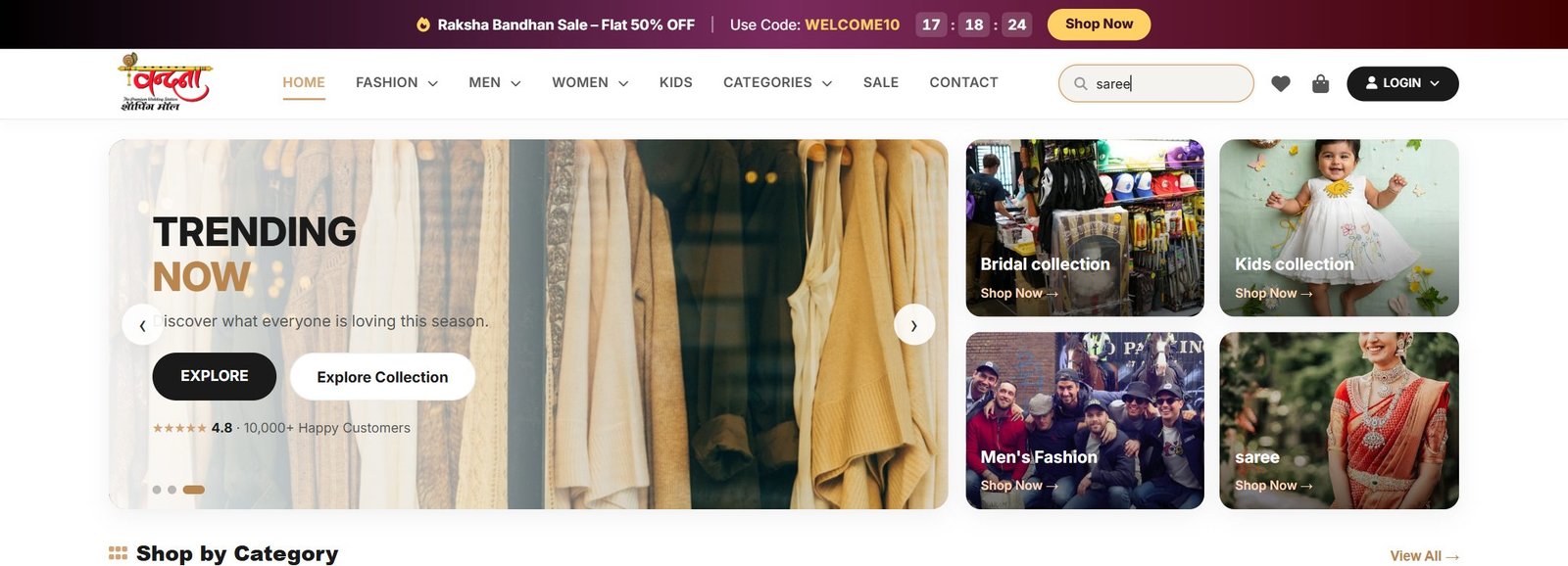
3.1 Using the search box
- Click the search box in the header.
- Type what you are looking for —
saree, for example. - Press Enter and every matching product is listed.
3.2 From the categories page
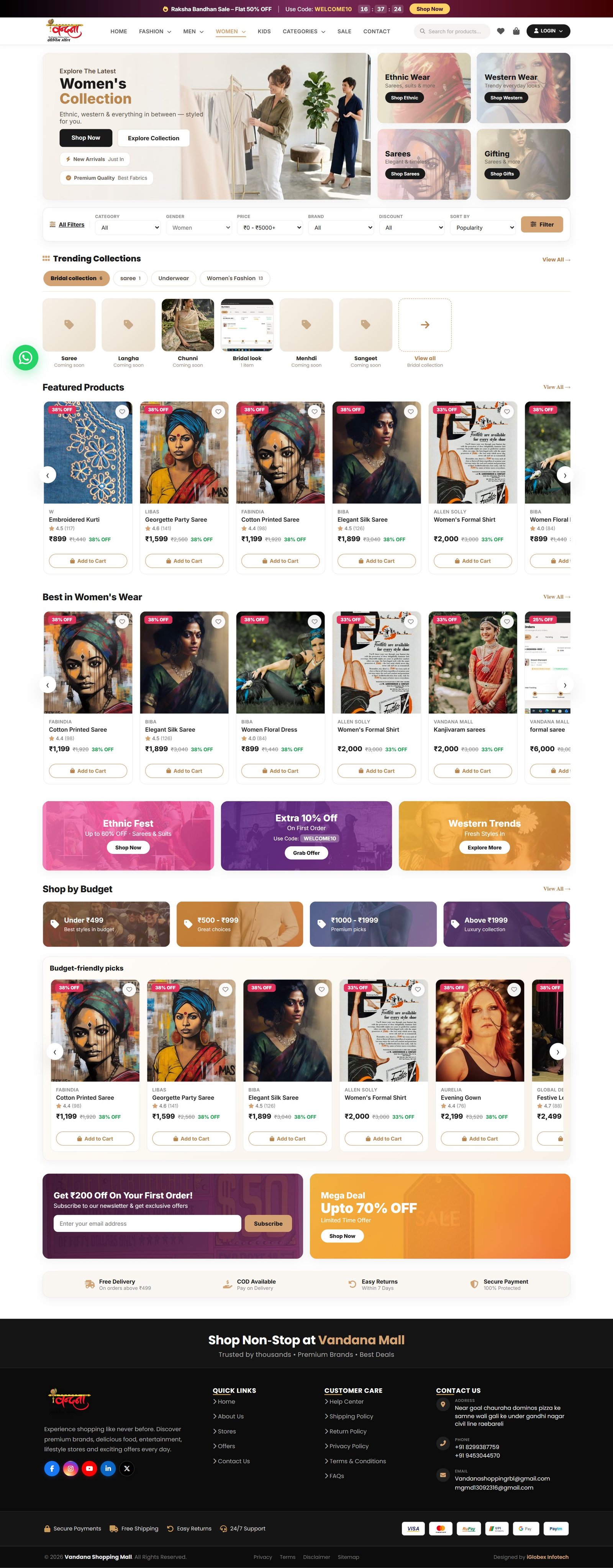
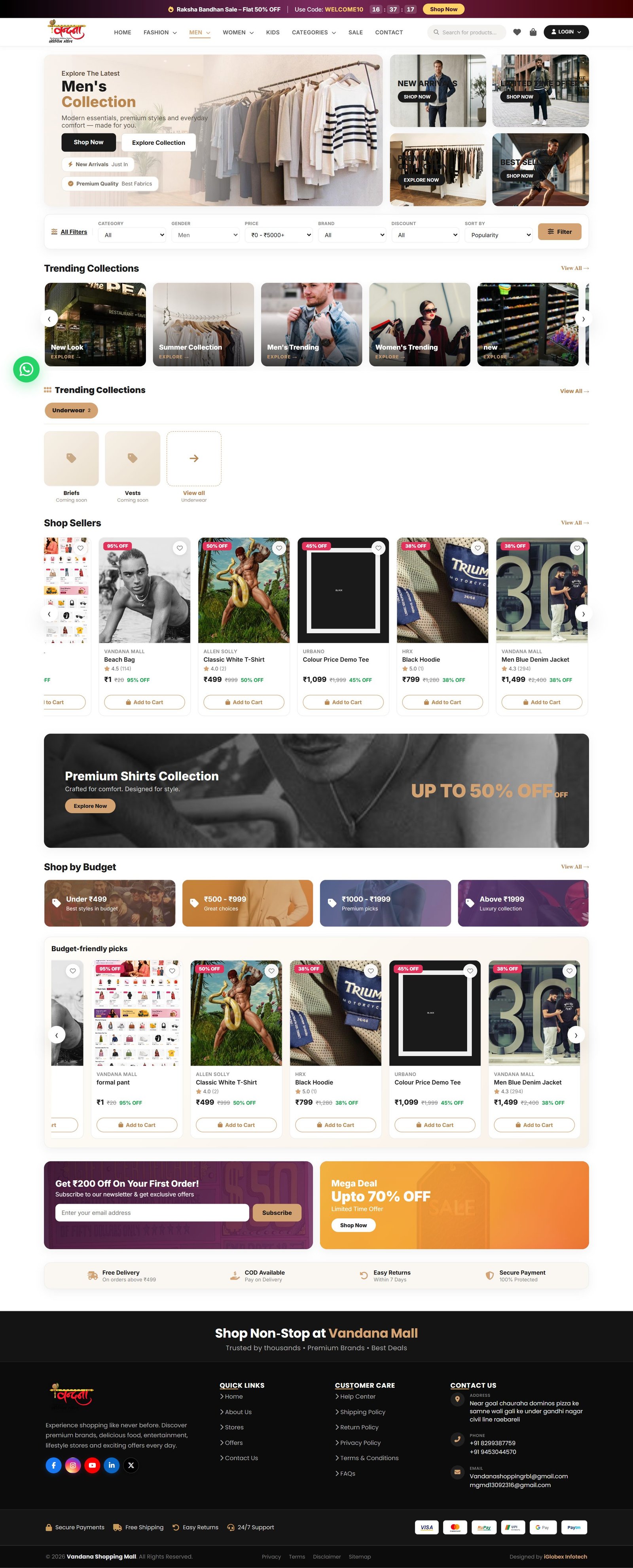
3.3 The category pages in the menu
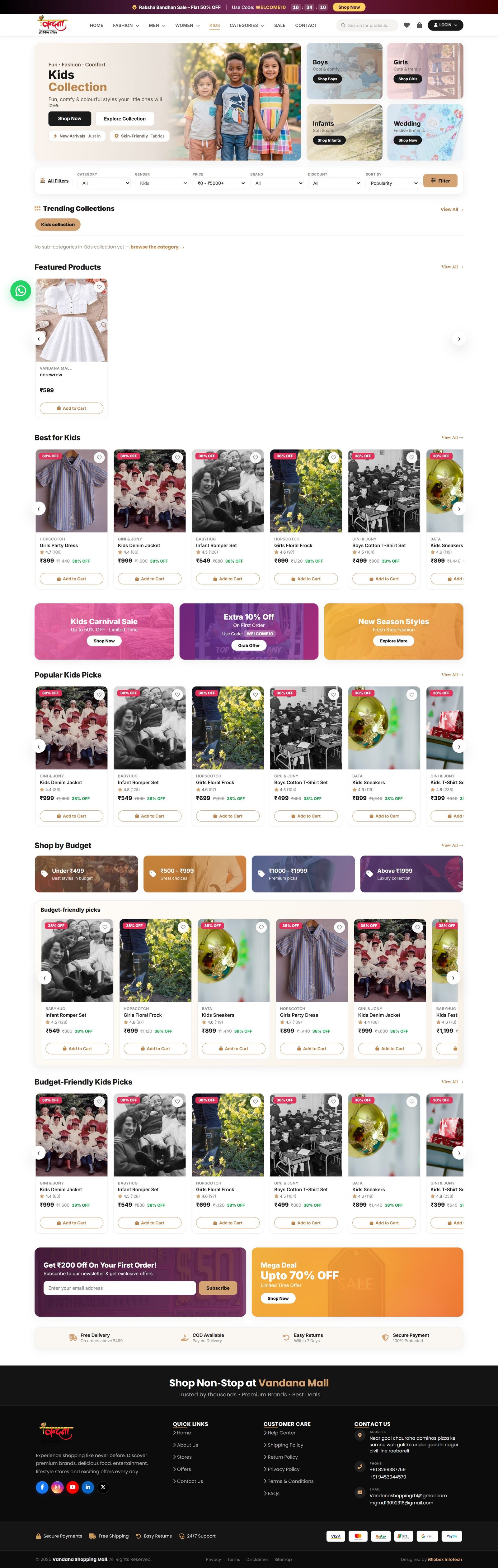
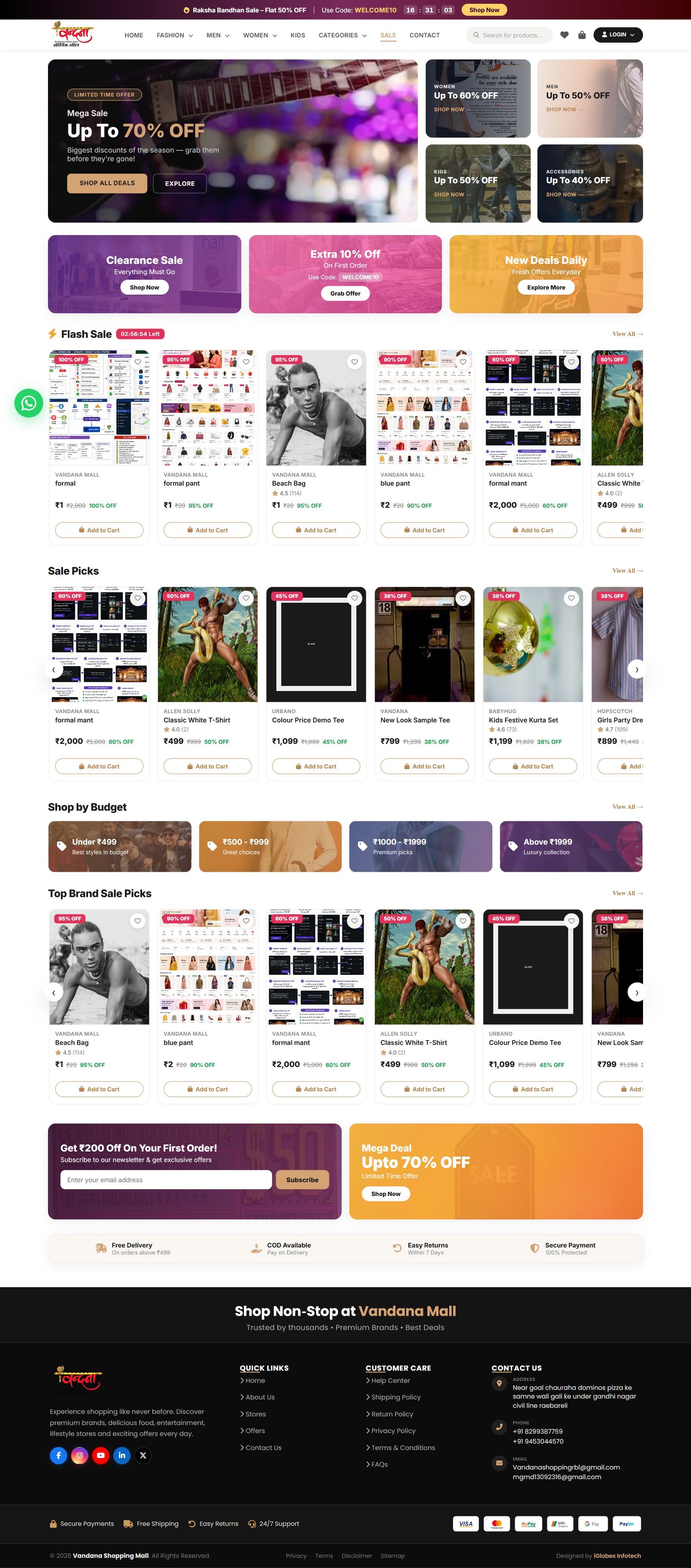
Women, Men, Kids and Sale each have their own landing page in the header menu, showing only that category.
3.4 All Products

4Filters and sorting
4.1 The filter rail
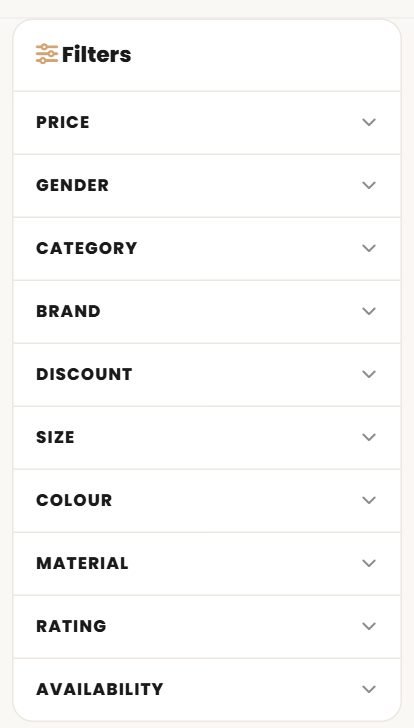
The filter rail sits to the left of the listing. Click any heading to open it and pick an option — the list updates straight away.
| Filter | What it does |
|---|---|
| Price | Set your budget — a minimum and a maximum. |
| Gender | Women, men, kids or unisex. |
| Category | The sub-category — saree, kurti, jeans and so on. |
| Brand | When you only want one brand. |
| Discount | For example, 30% off or more. |
| Size / Colour / Material | Your size, the colour you want and the fabric. |
| Rating | Products rated four stars and above. |
| Availability | Only what is actually in stock. |
4.2 After a filter is applied

4.3 Sorting
The dropdown on the right reorders the list: Newest, Most Popular, Price low to high, Price high to low, and Top Rated.
5The product page
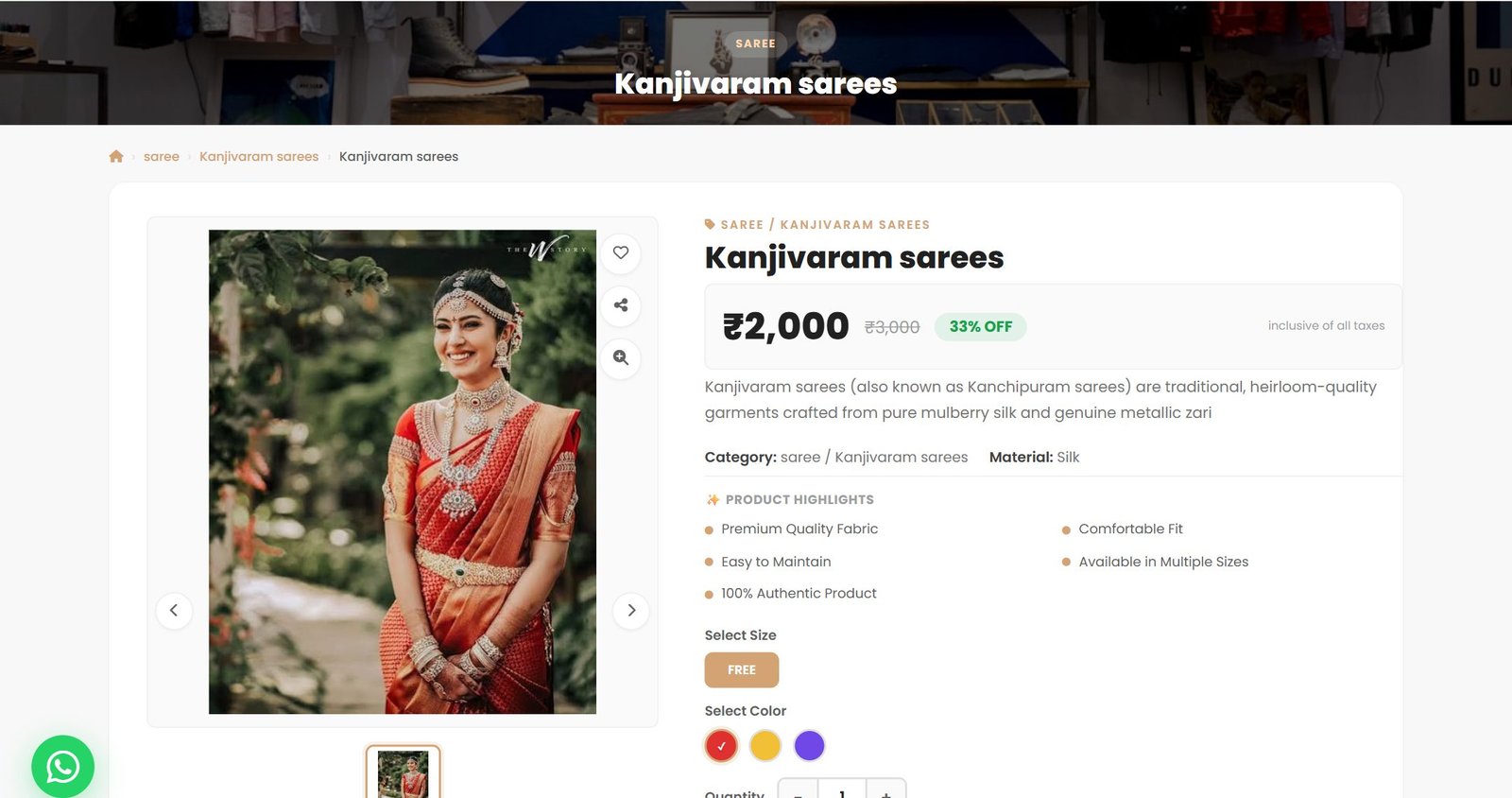
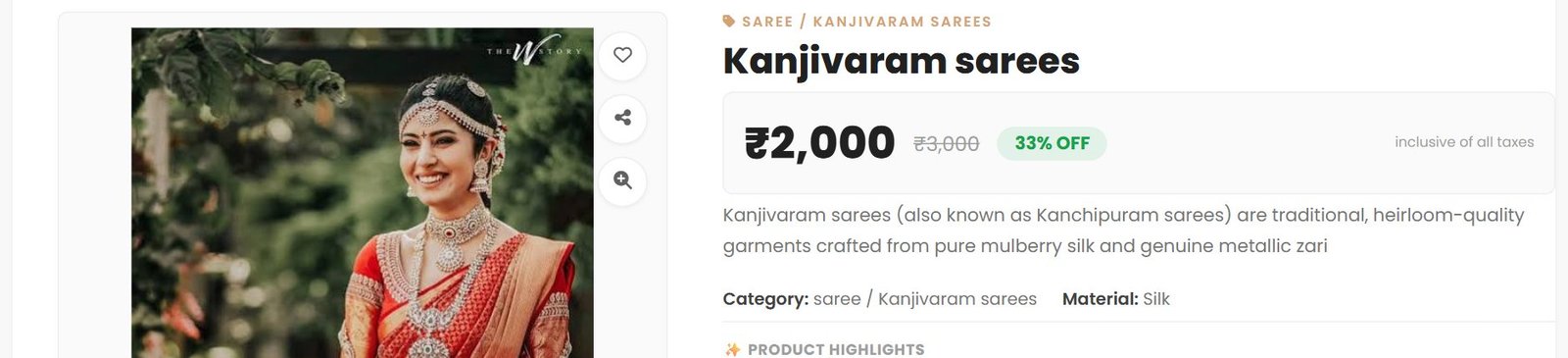
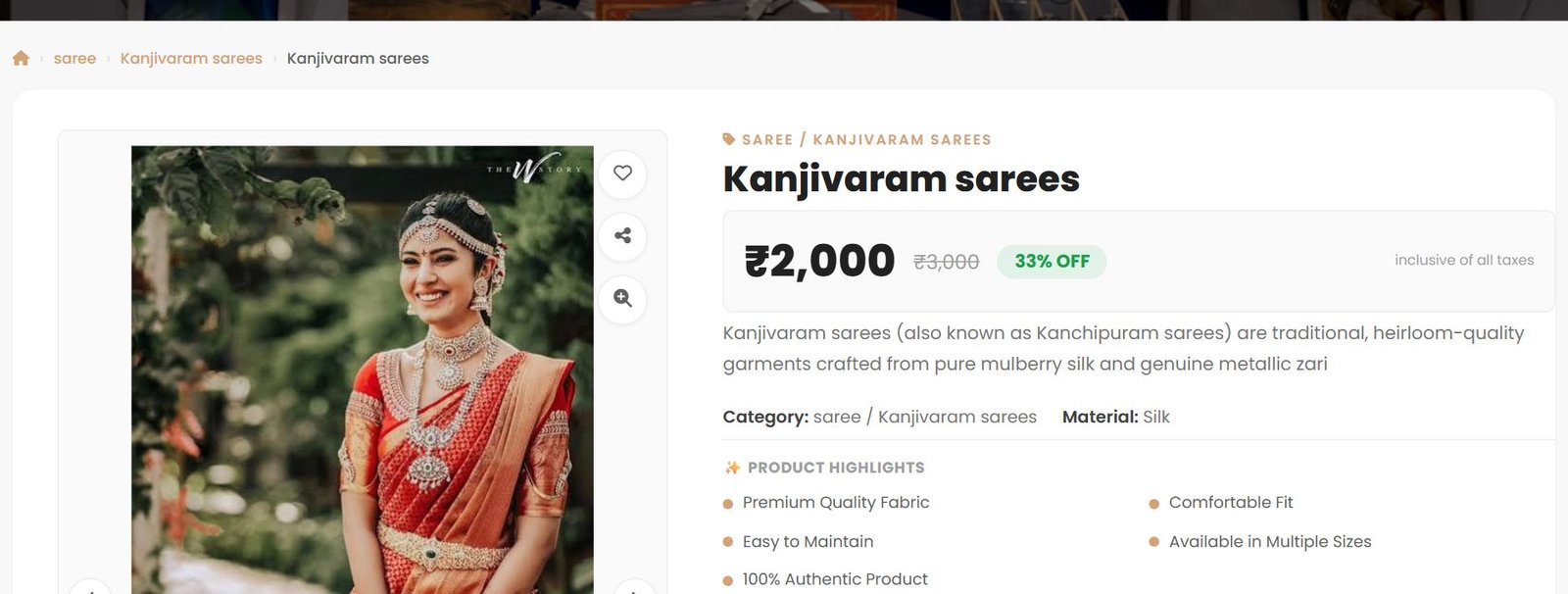
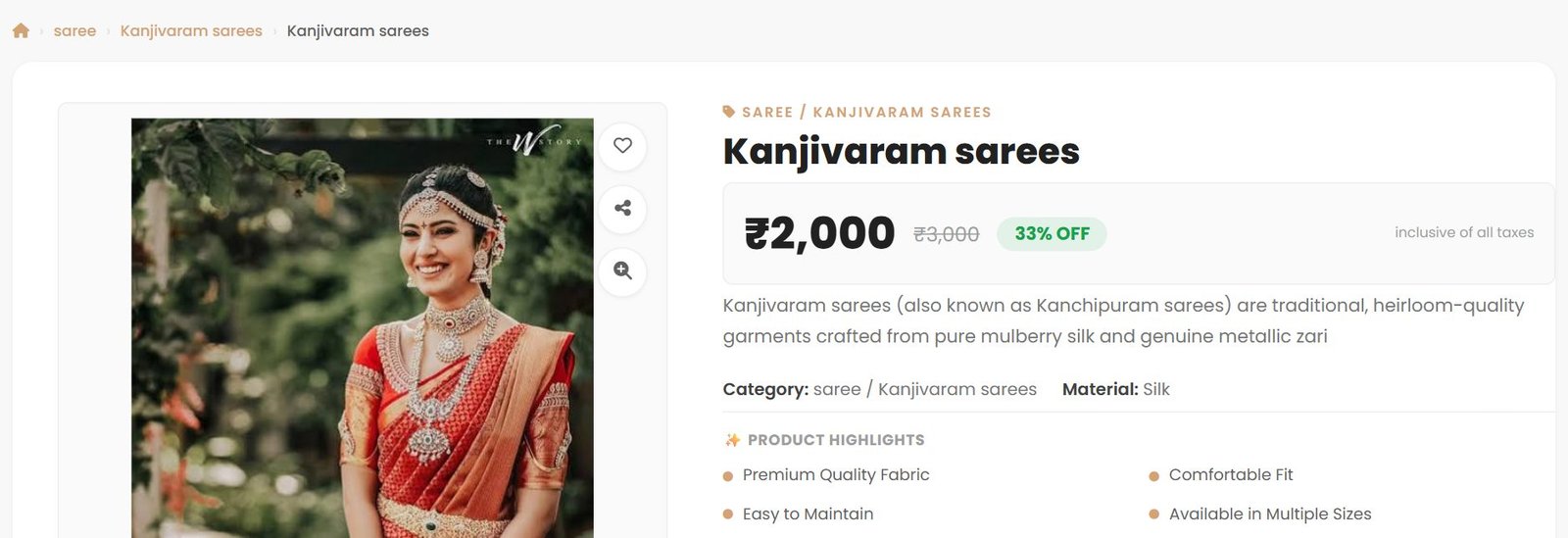
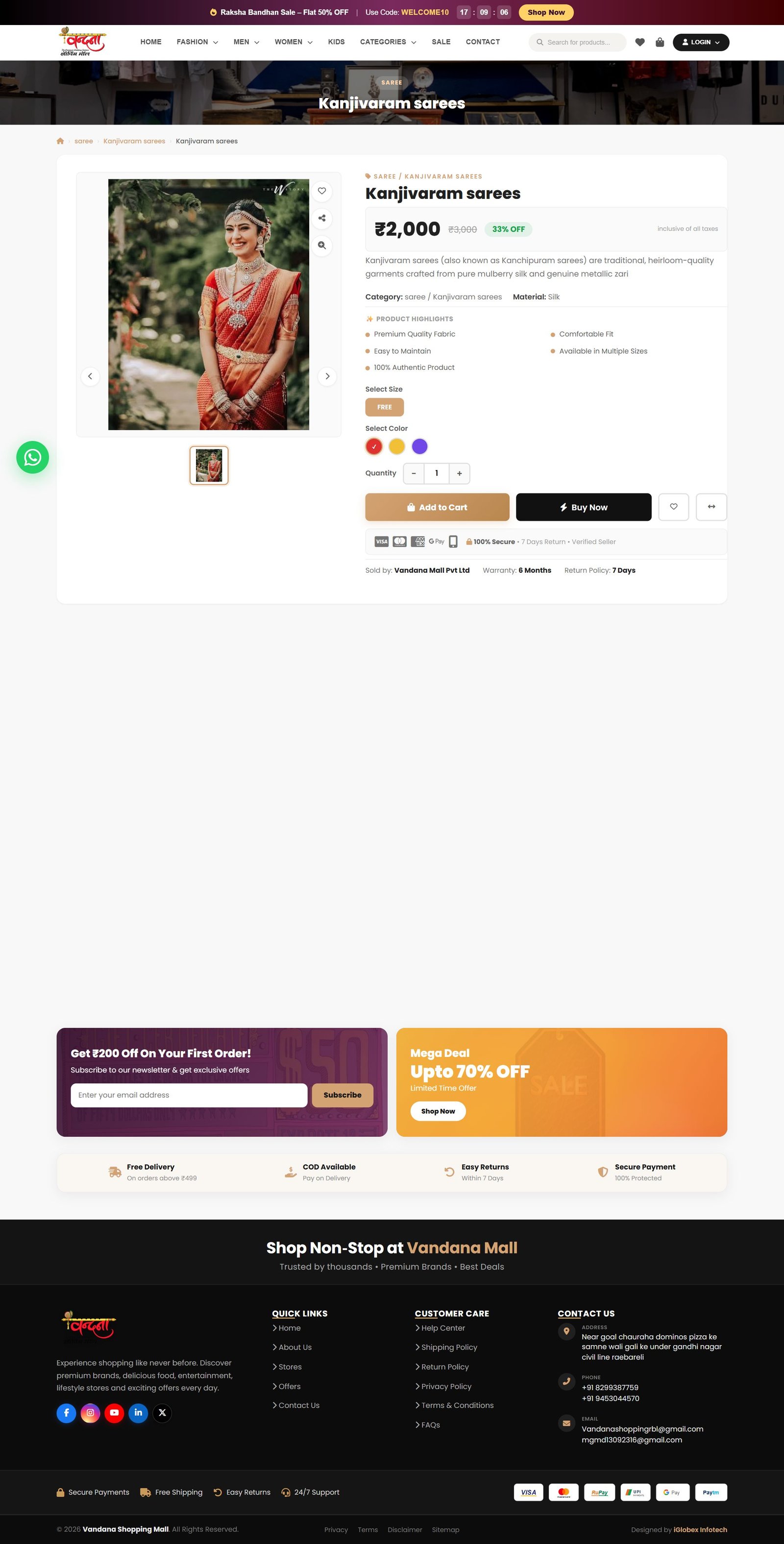
Clicking any product opens this page. This is where you pick a size and colour and add it to the cart.
5.1 Photos and zoom
Click the thumbnails to see the other photos. Hovering over the large photo turns on zoom, so you can see the work up close.
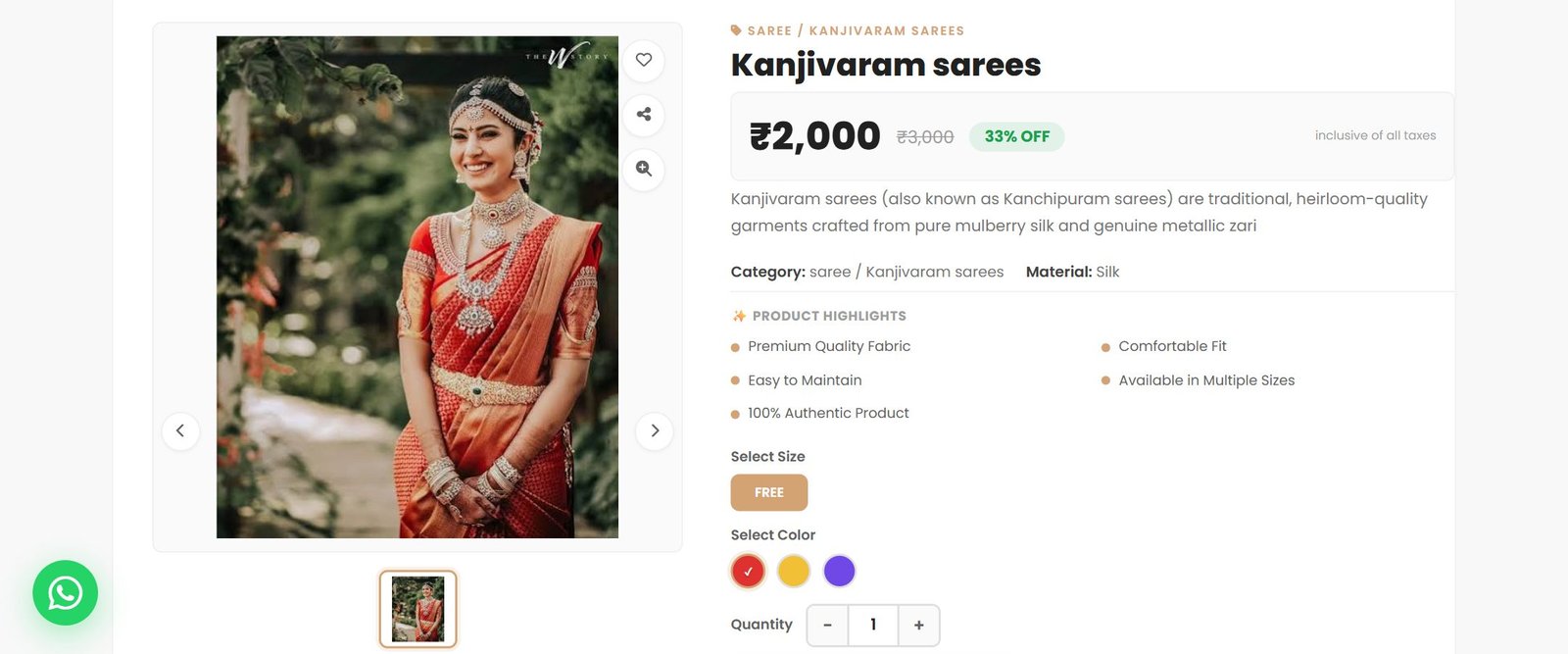
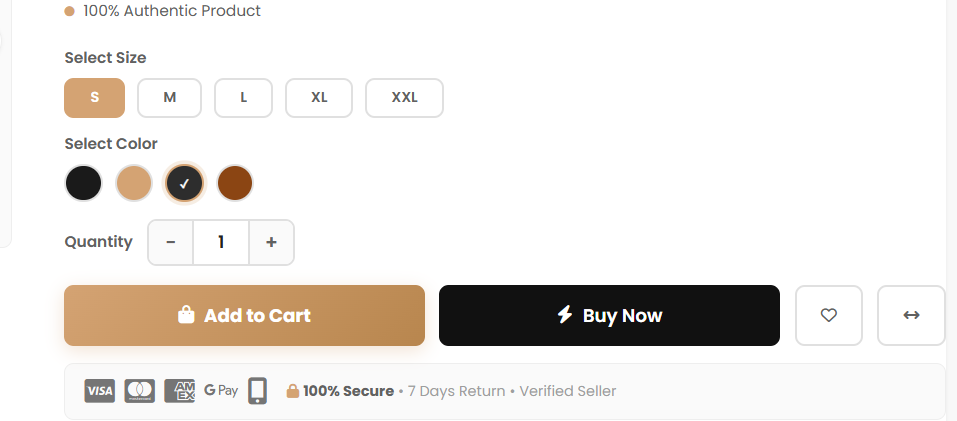
5.2 Choosing a size and colour
Products that come in more than one size or colour show buttons here. Pick a size and a colour first — Add to Cart will not work until you do.
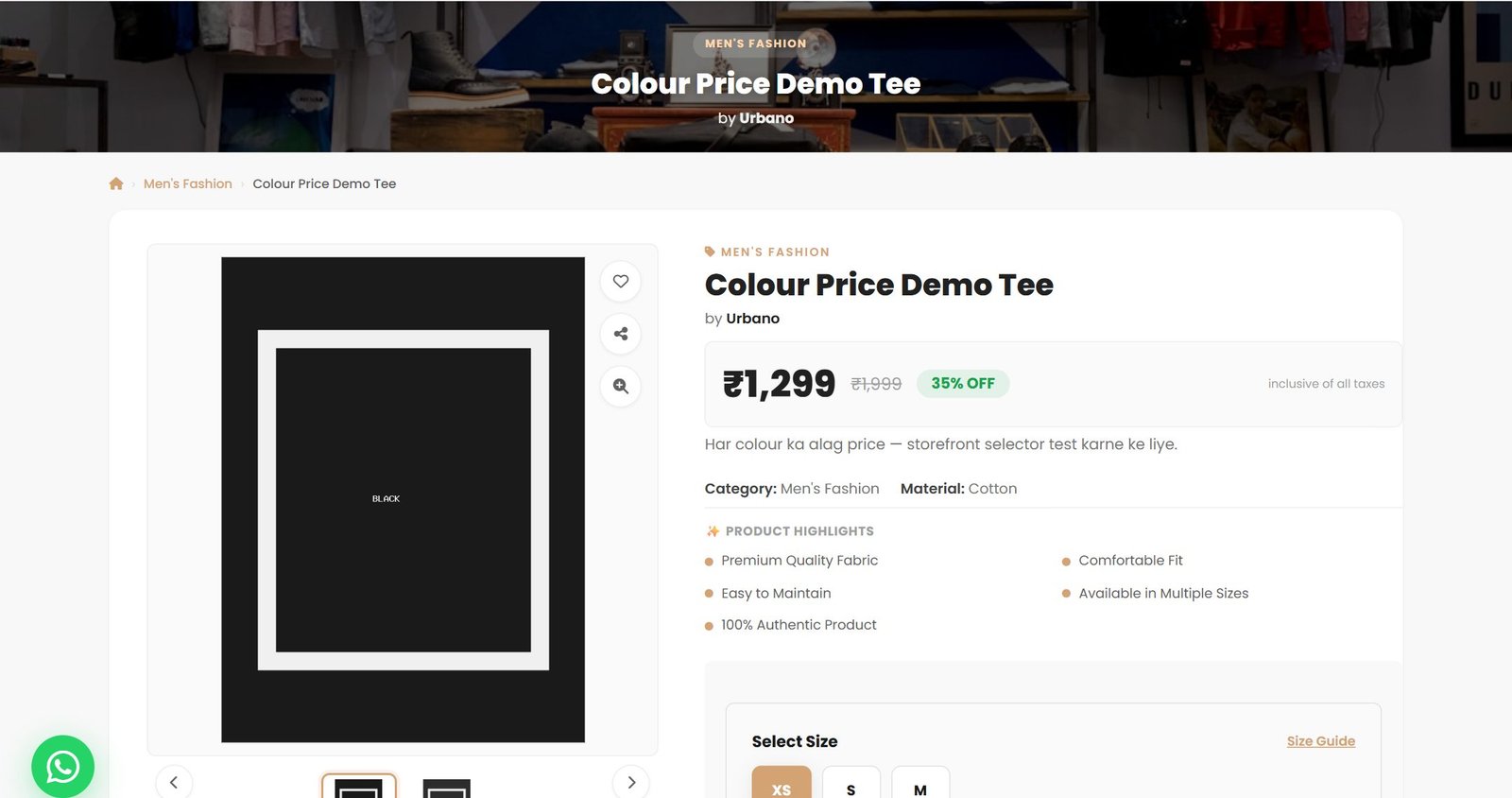
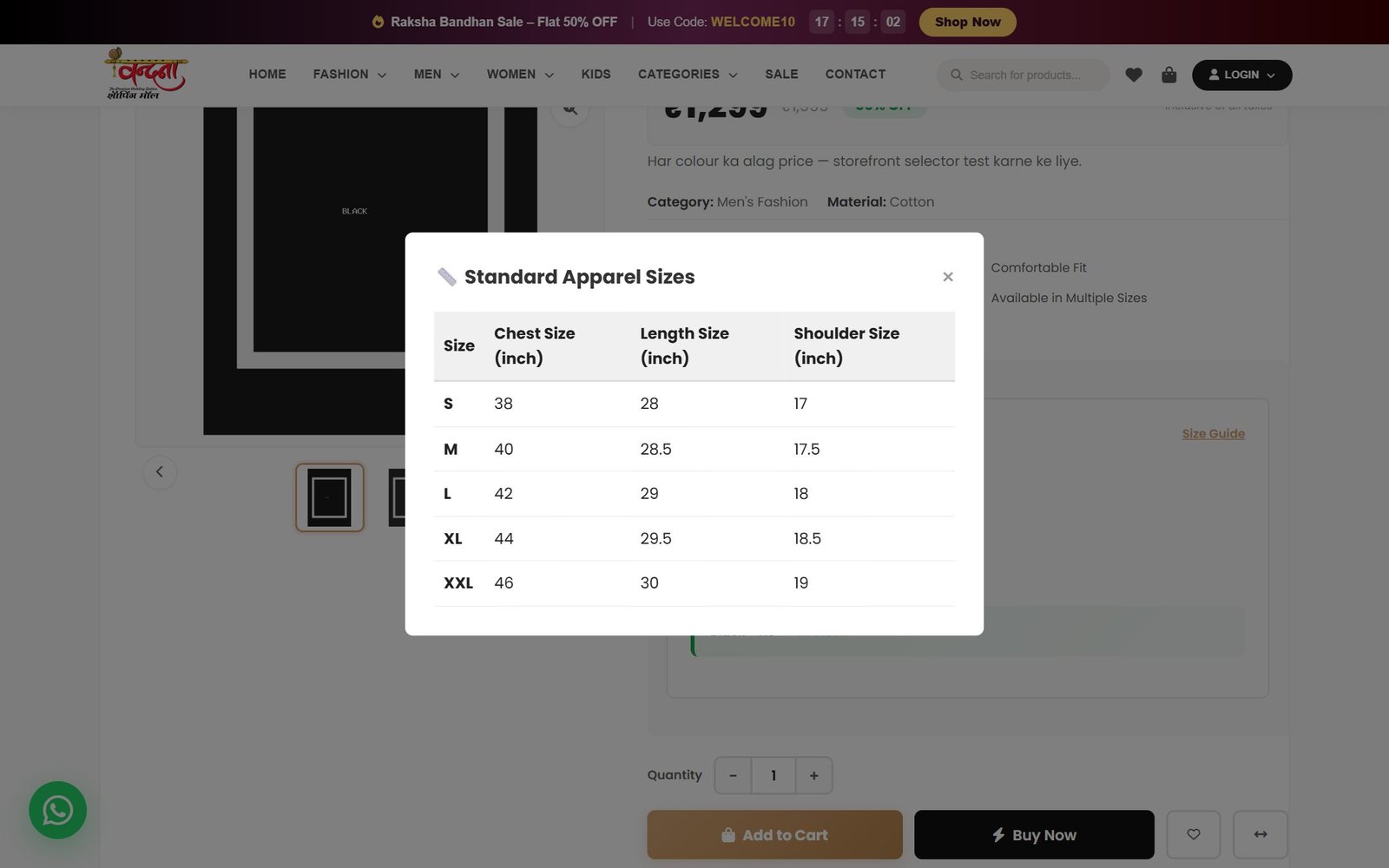
5.3 The size guide
If you are unsure about the size, press Size Guide — a full chart of chest, waist and length measurements opens.
5.4 The tabs
There are four tabs below the photo.


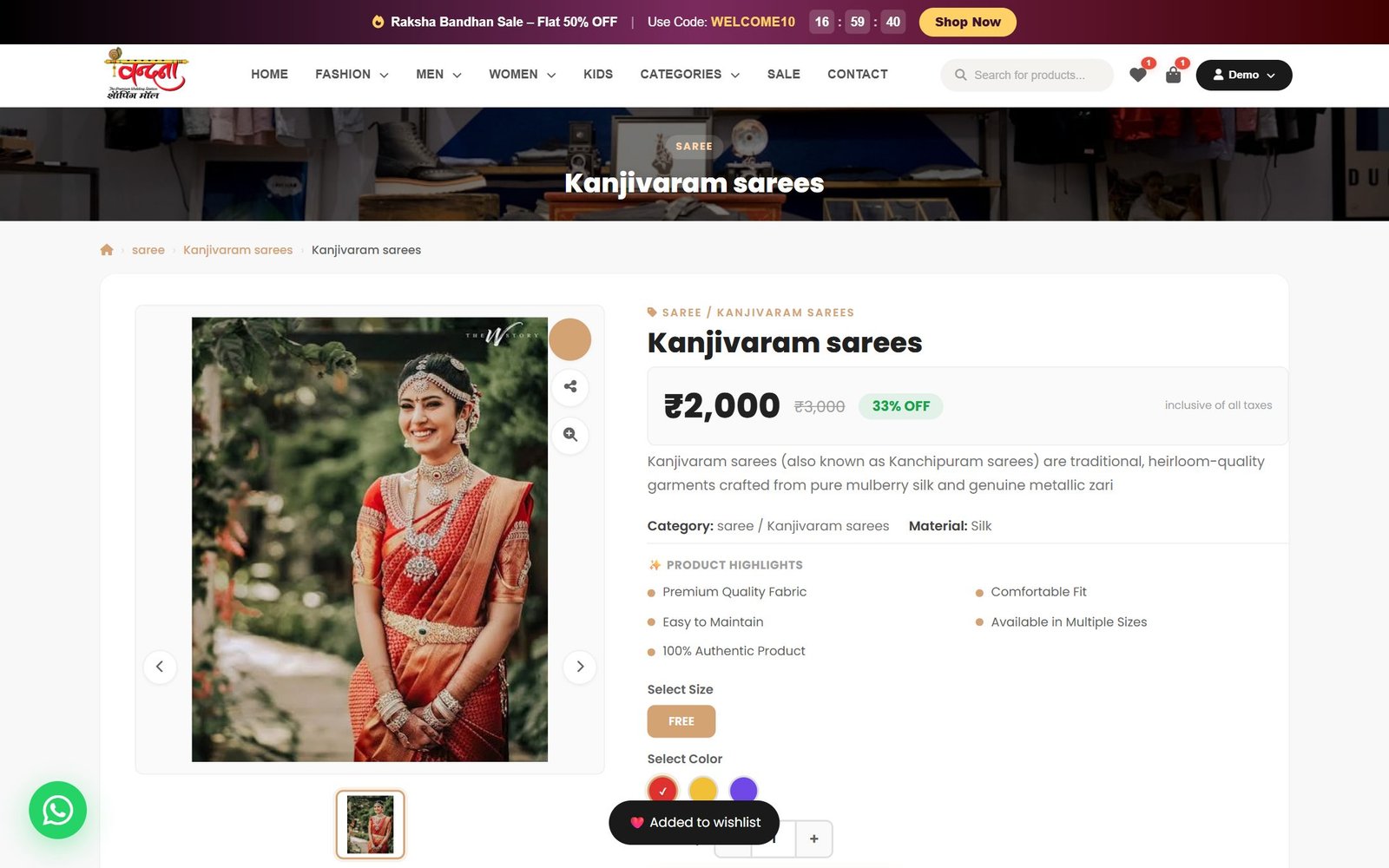
5.5 Wishlist, share and similar products
Three round buttons sit to the right of the photo — the heart saves it to your wishlist, share copies a link, and zoom enlarges it.
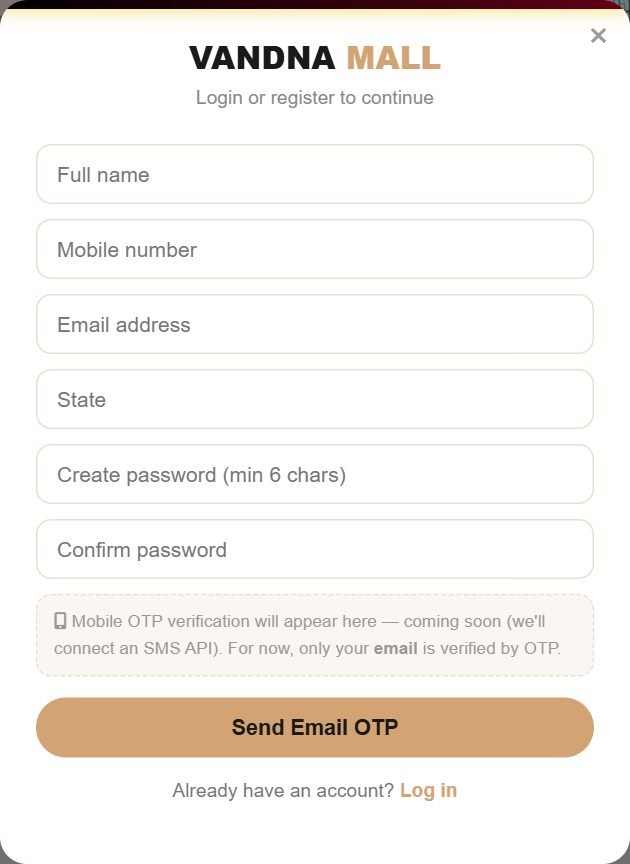
6Creating an account
You need an account to order. It takes about two minutes, once.
- Click Sign in / LOGIN in the header.
- Switch to Register in the popup.
- Fill in your full name, mobile number, email, state and a password of at least six characters.
- Press Send Email OTP — a six-digit code arrives by email.
- Enter the code and press Verify & Create Account.
7Signing in
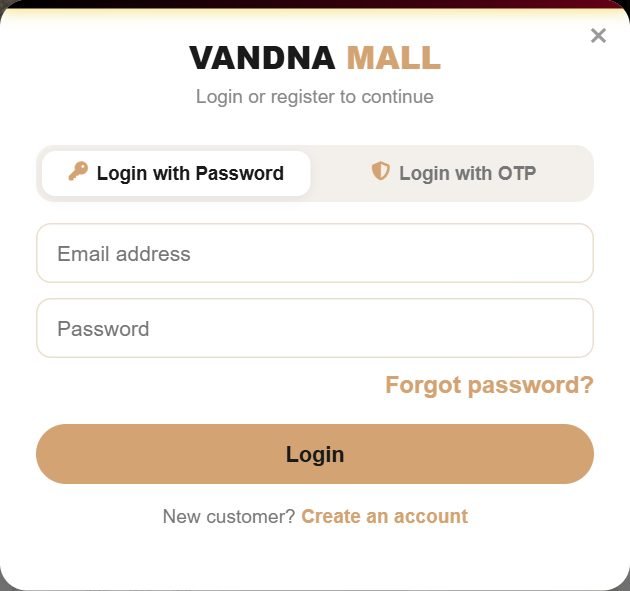
Two ways: with your password, or with a one-time code instead.
7.1 With a password
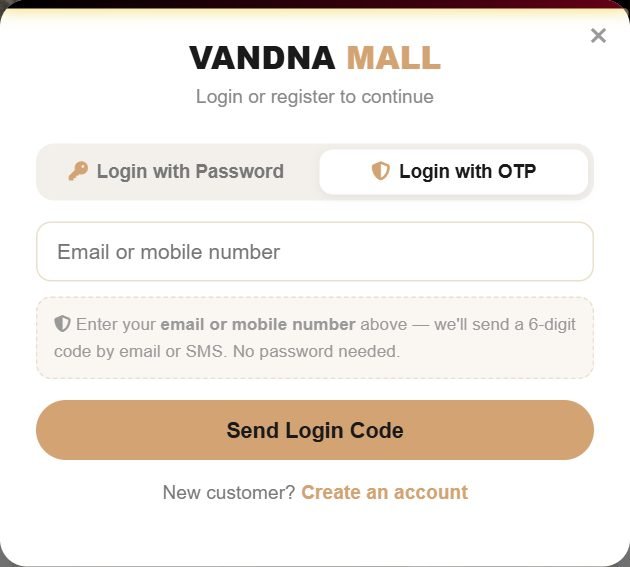
7.2 With a one-time code
- Choose the Login with OTP tab.
- Enter your email or mobile number.
- Press Send Login Code.
- Type the six-digit code and press Verify & Login.
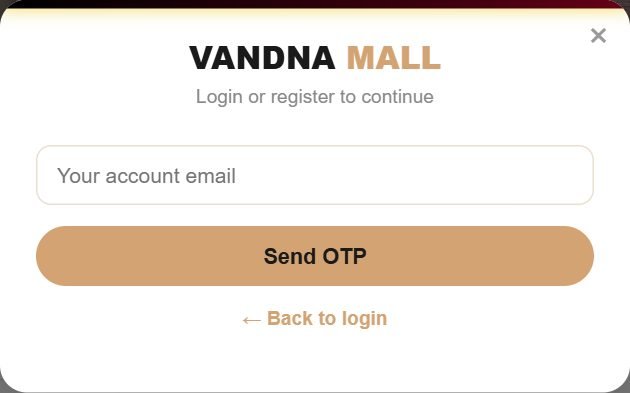
7.3 Forgotten password
7.4 Once you are signed in

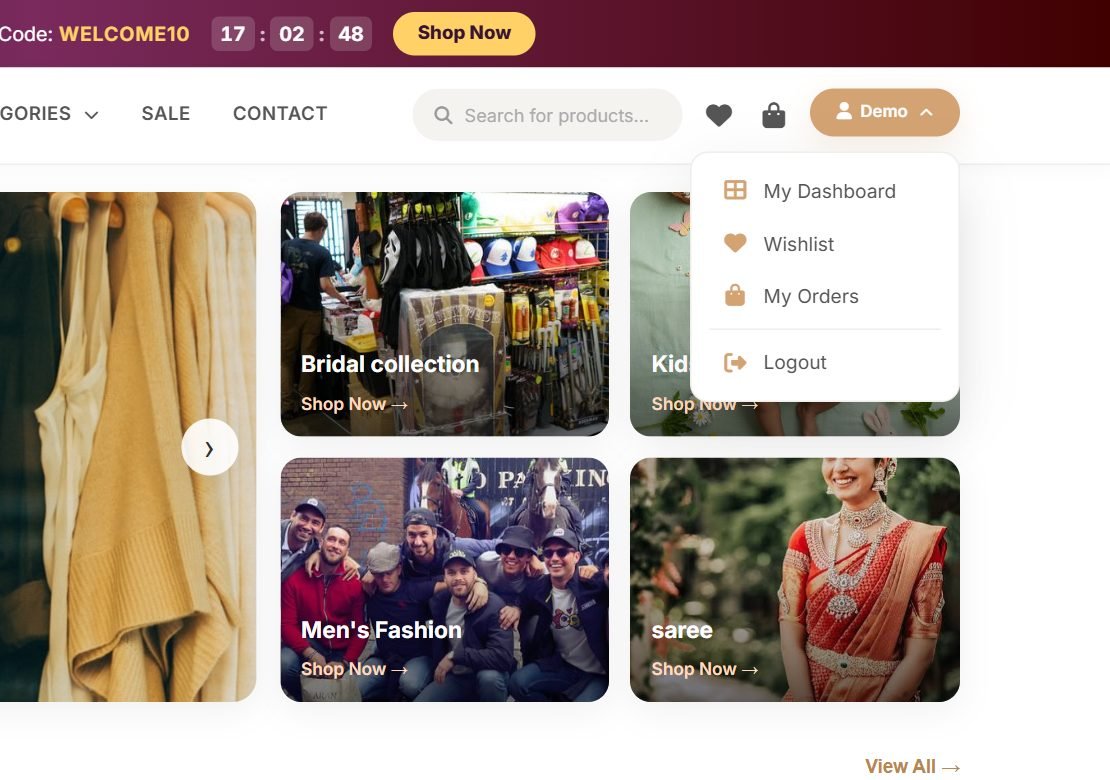
8The account dashboard
Everything about your account in one place, with the menu on the left following you around.
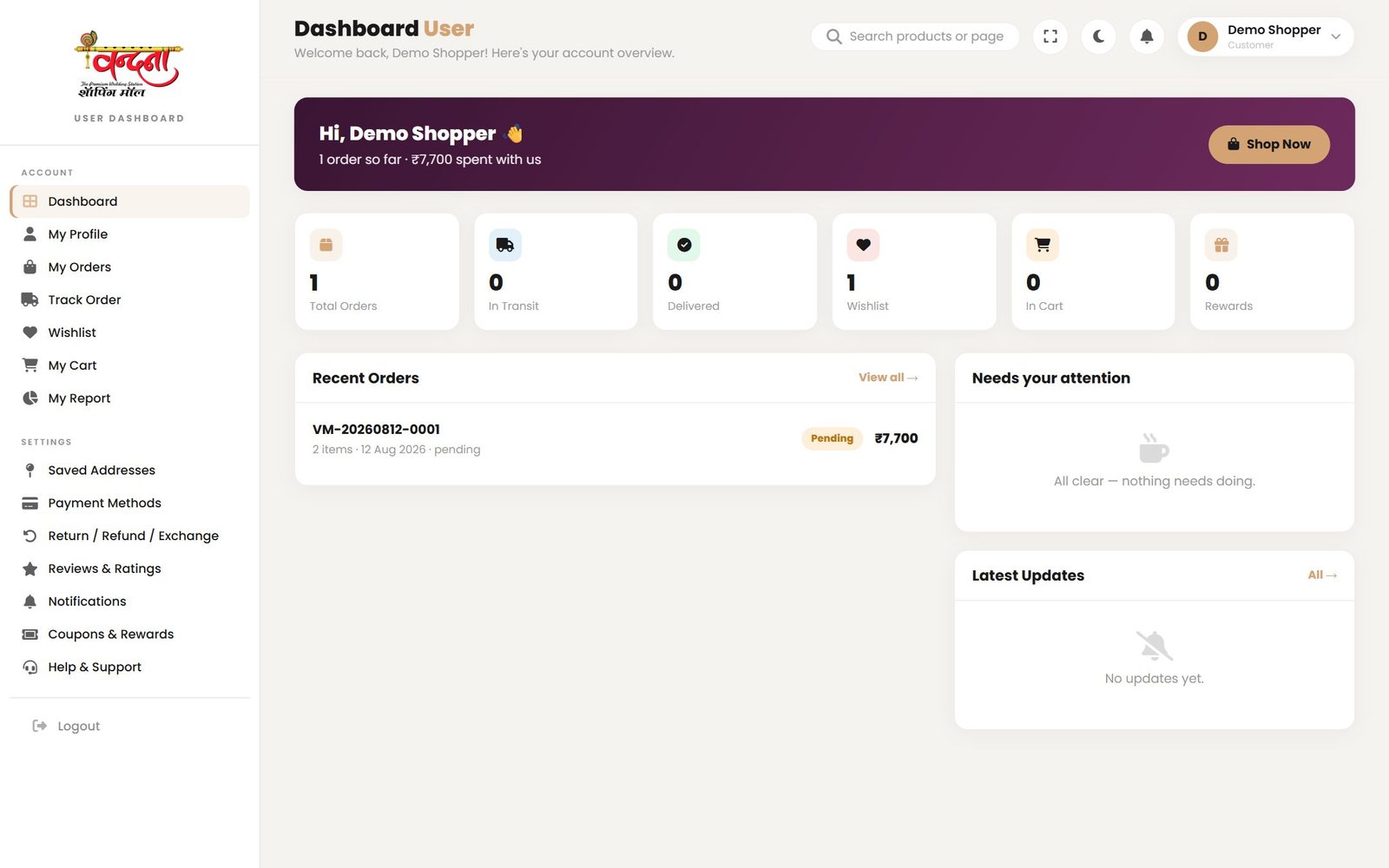
| Menu | What it does |
|---|---|
| Dashboard | Everything at a glance. |
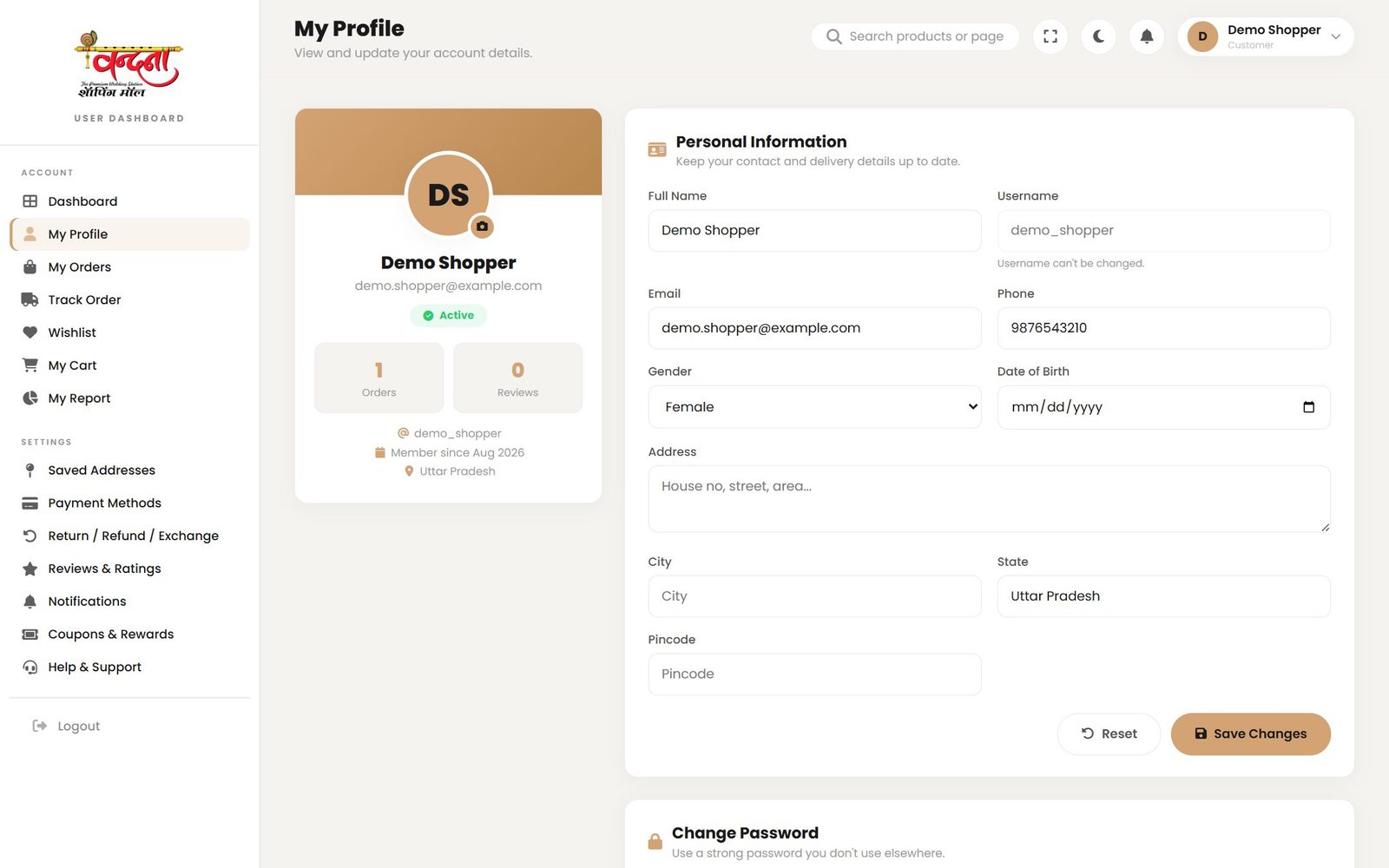
| My Profile | Change your name, mobile, email and password. |
| My Orders | Past and current orders. |
| Track Order | Where an order has reached. |
| Wishlist | Saved items. |
| My Cart | What is in the cart. |
| My Report | What you have spent and ordered. |
| Saved Addresses | Your delivery addresses. |
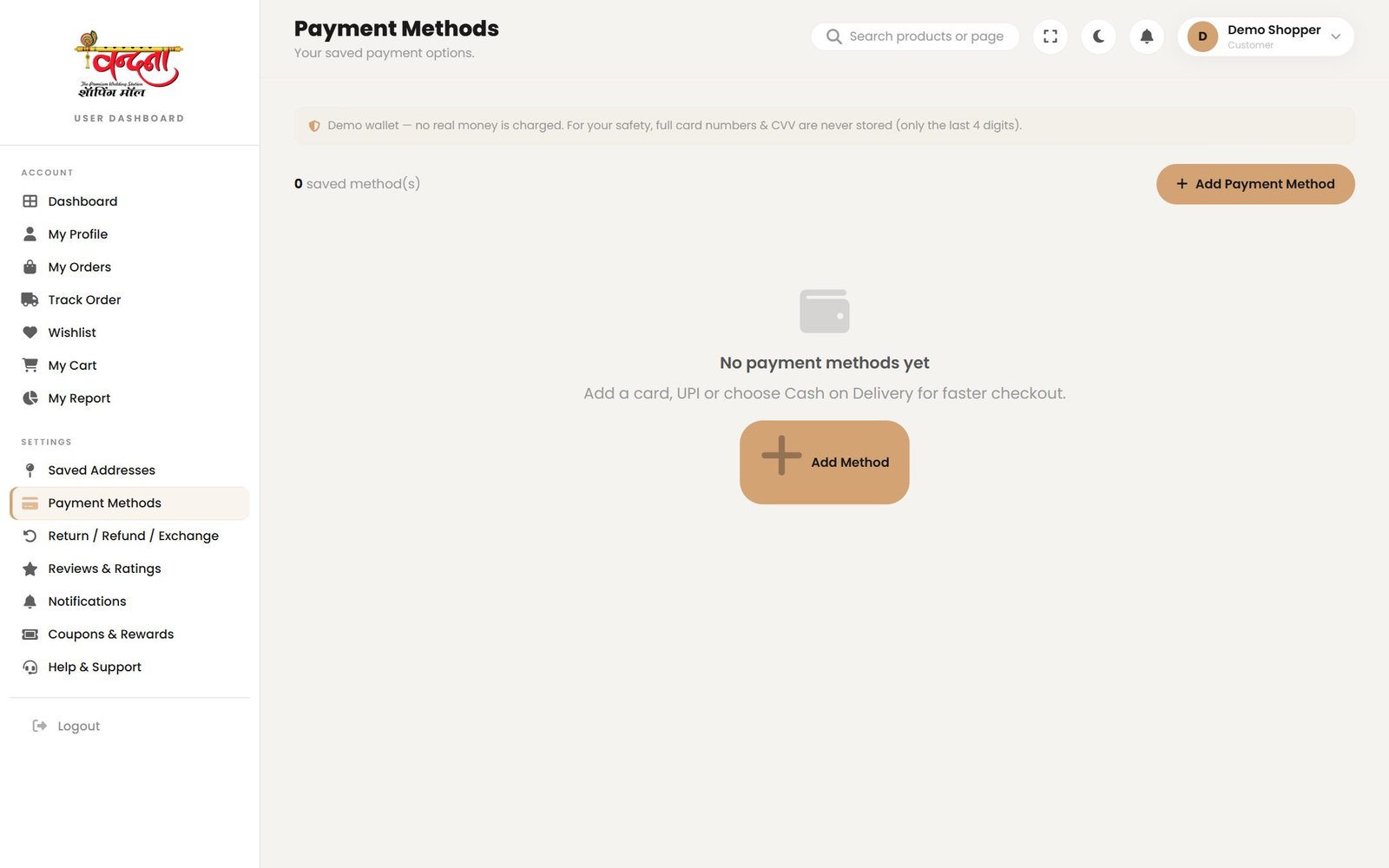
| Payment Methods | Saved payment options. |
| Return / Refund / Exchange | Sending something back. |
| Reviews & Ratings | The reviews you have written. |
| Notifications | Order updates and offers. |
| Coupons & Rewards | Coupons available to you. |
| Help & Support | Help and complaints. |
9The cart
9.1 Adding to the cart
- Pick a size and colour on the product page.
- Set the quantity with − and +.
- Press Add to Cart — a confirmation appears and the cart count in the header goes up.
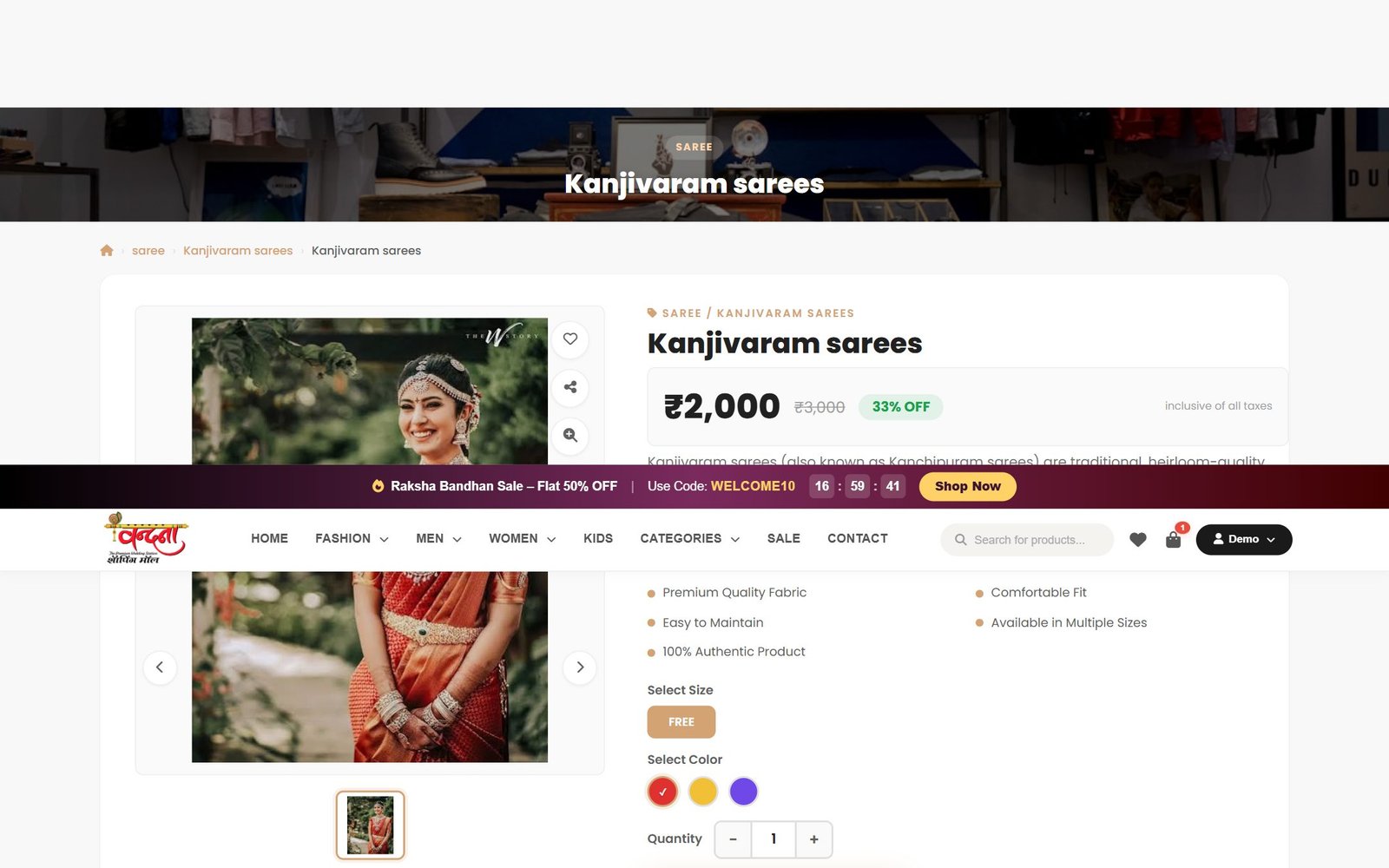
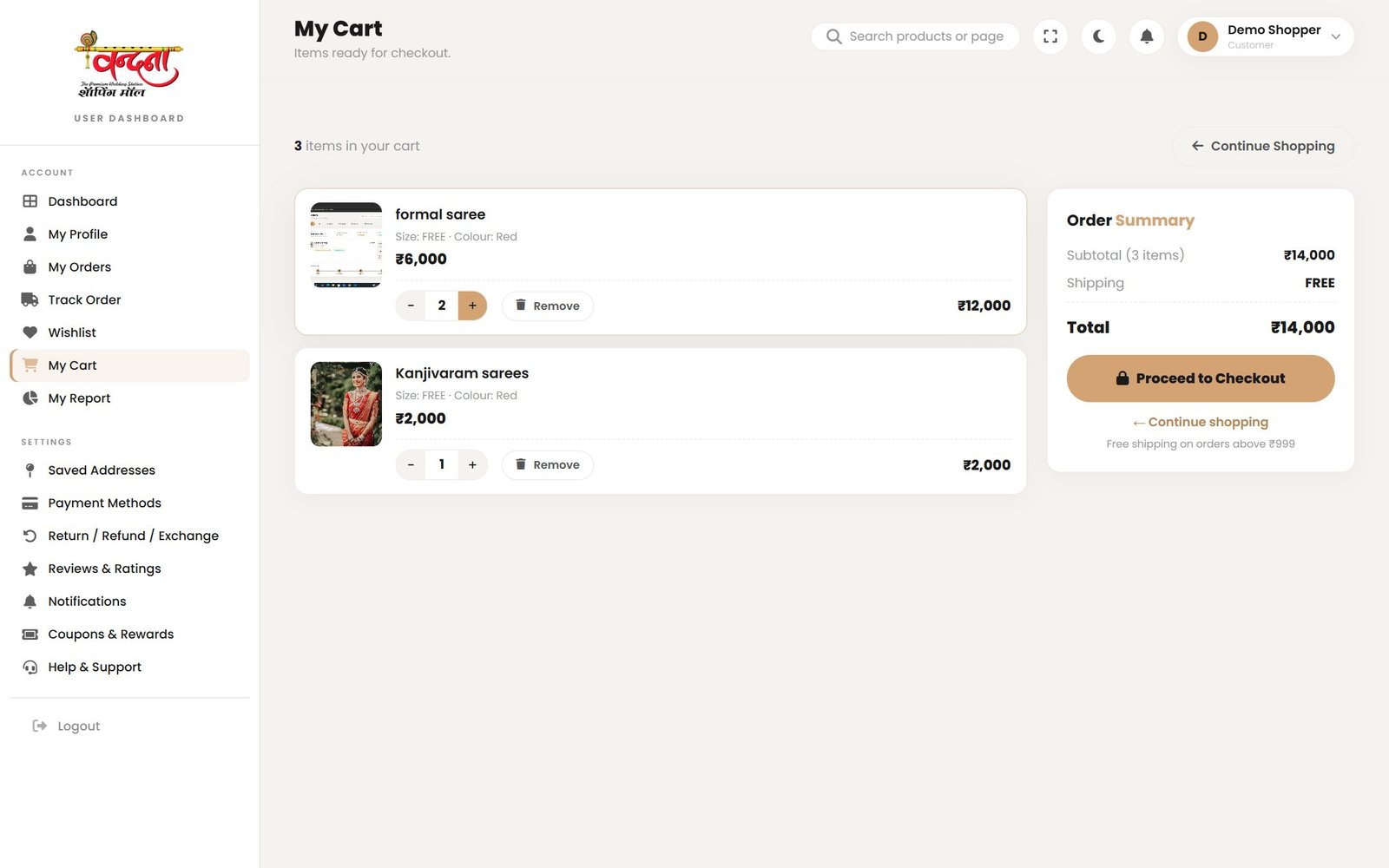
9.2 The cart page
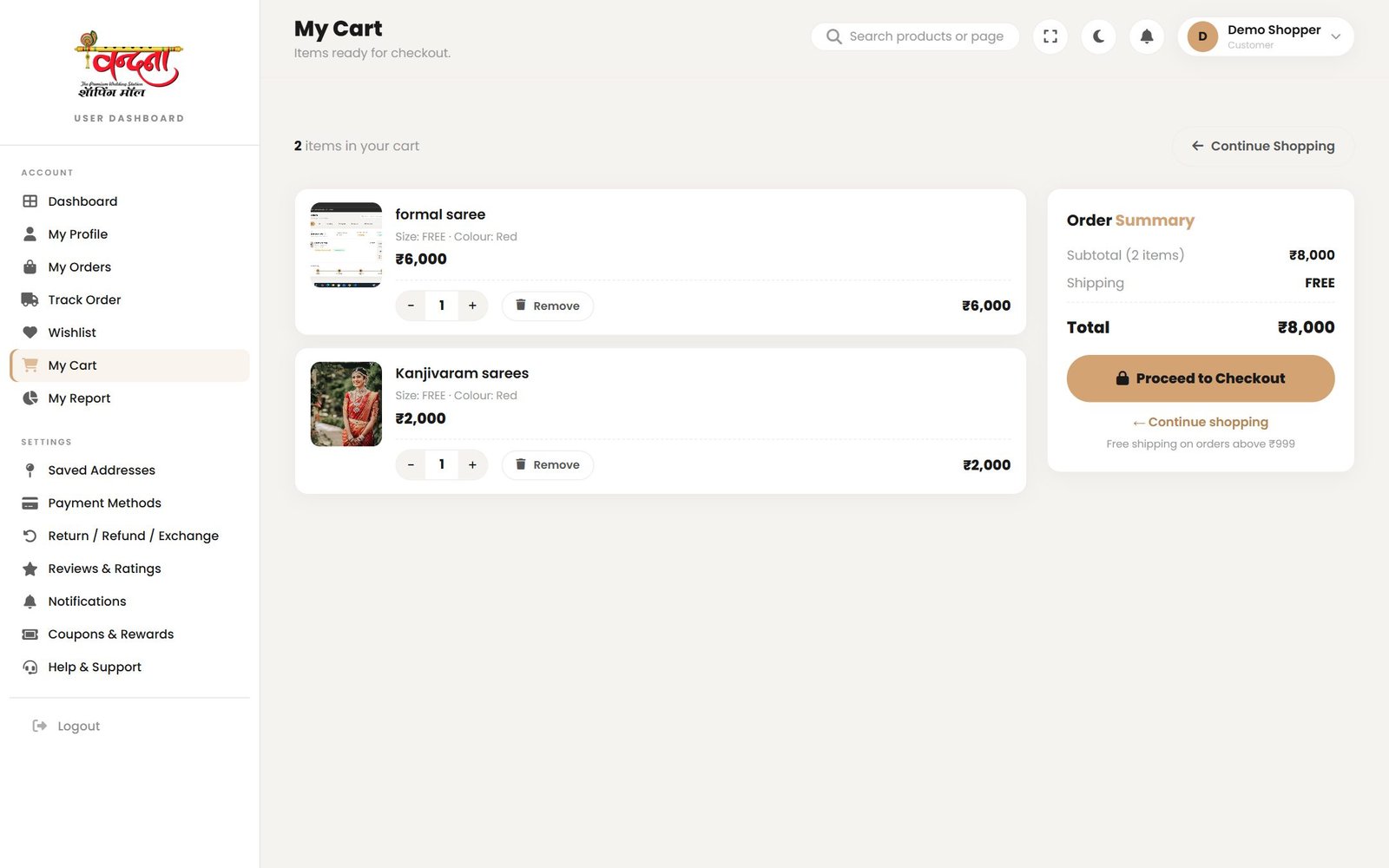
- − / + — change the quantity and the total follows.
- Remove — take the item out.
- Order Summary — subtotal, shipping and the final total.
- Proceed to Checkout — on to the next step.
10The wishlist
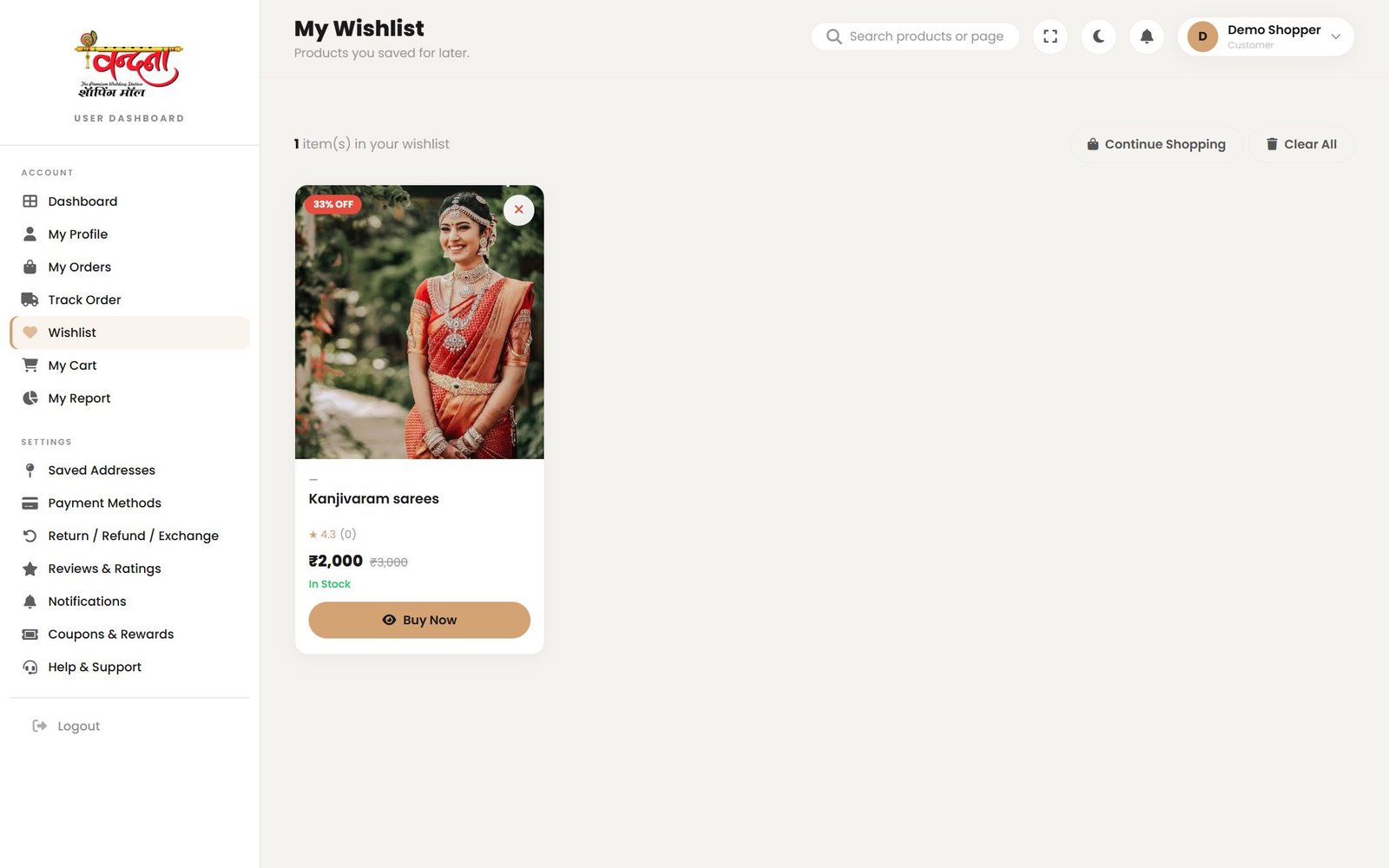
Not buying it today but you like it? Press the heart.
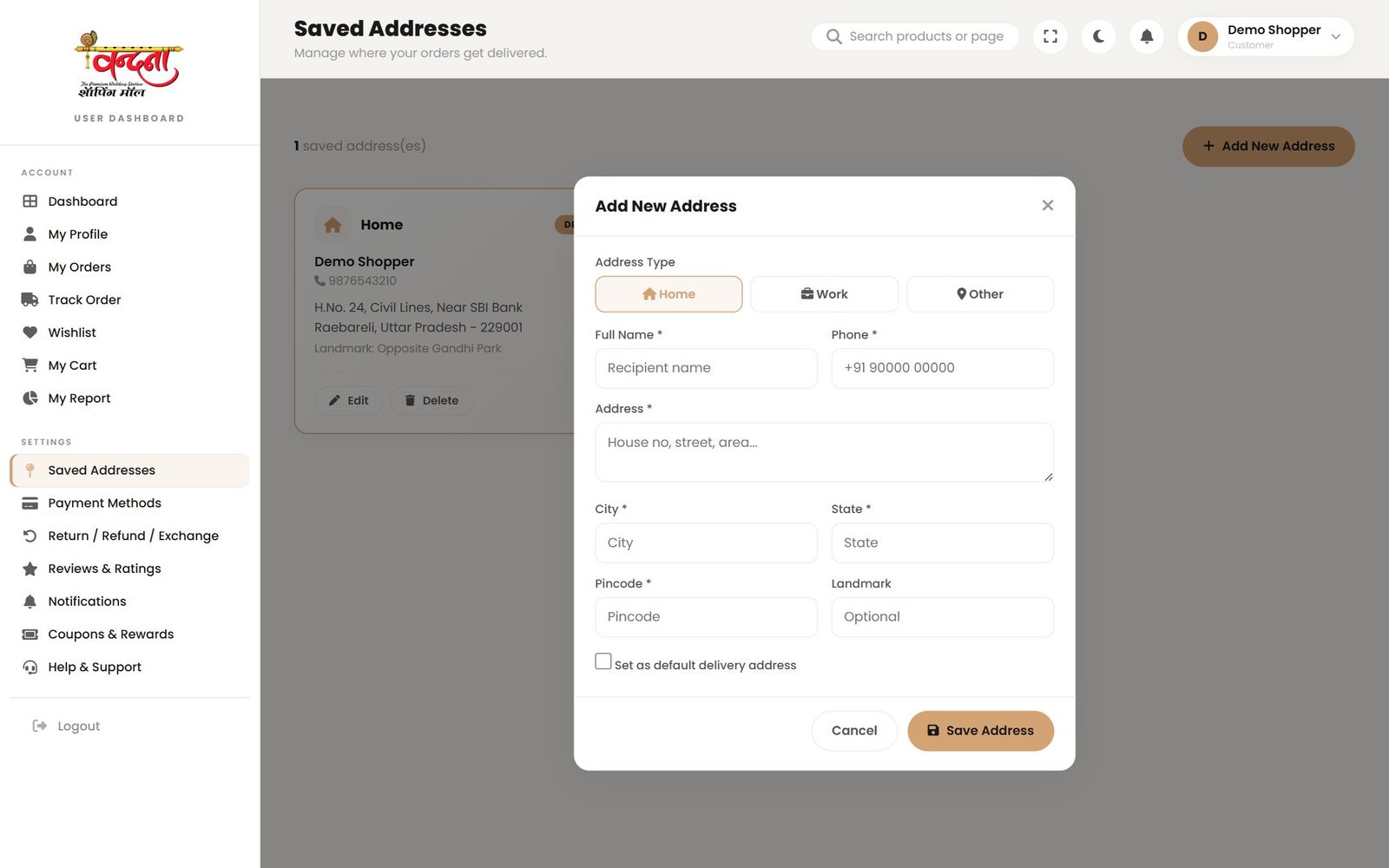
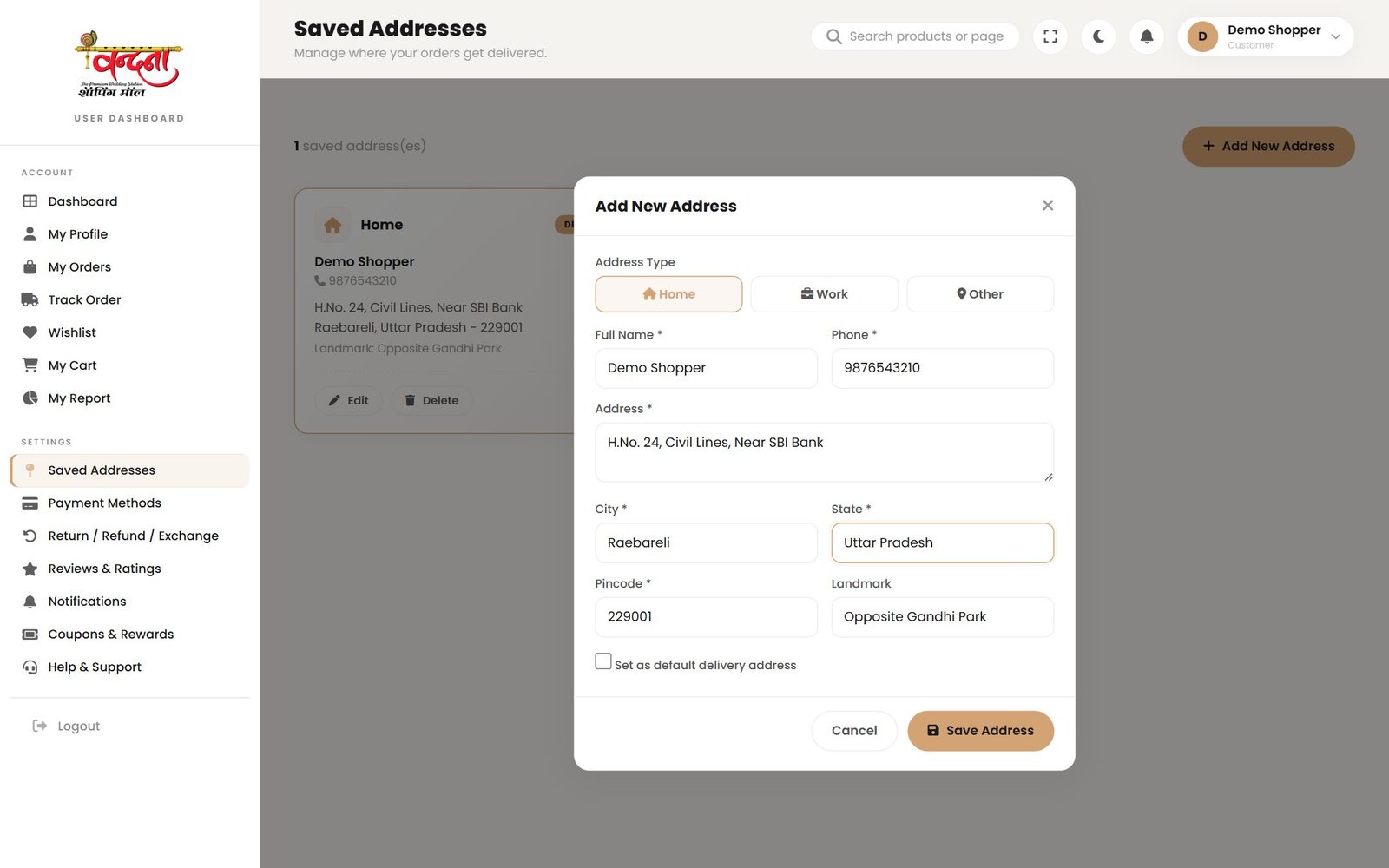
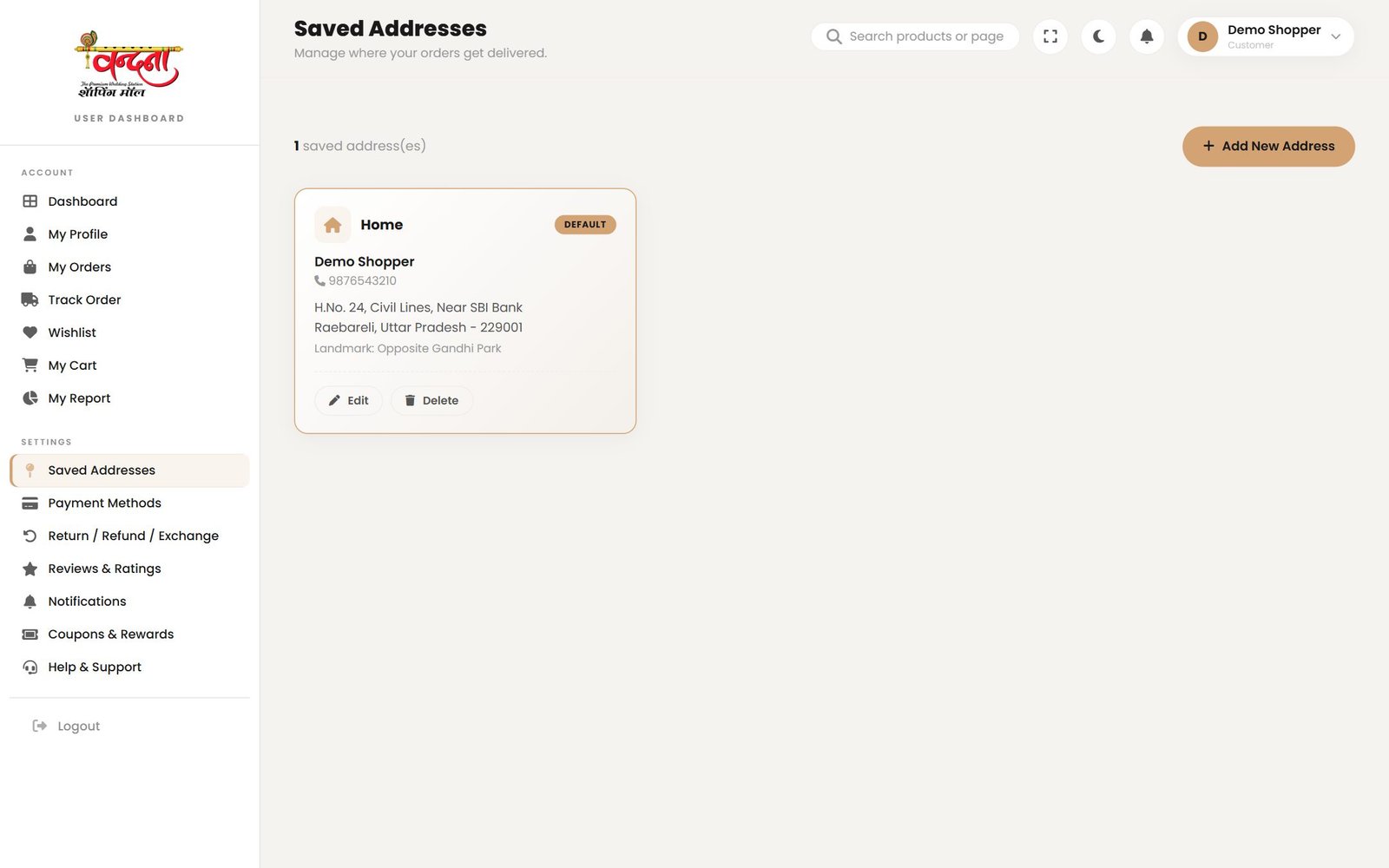
11The address book
Save an address once and you will not type it again.
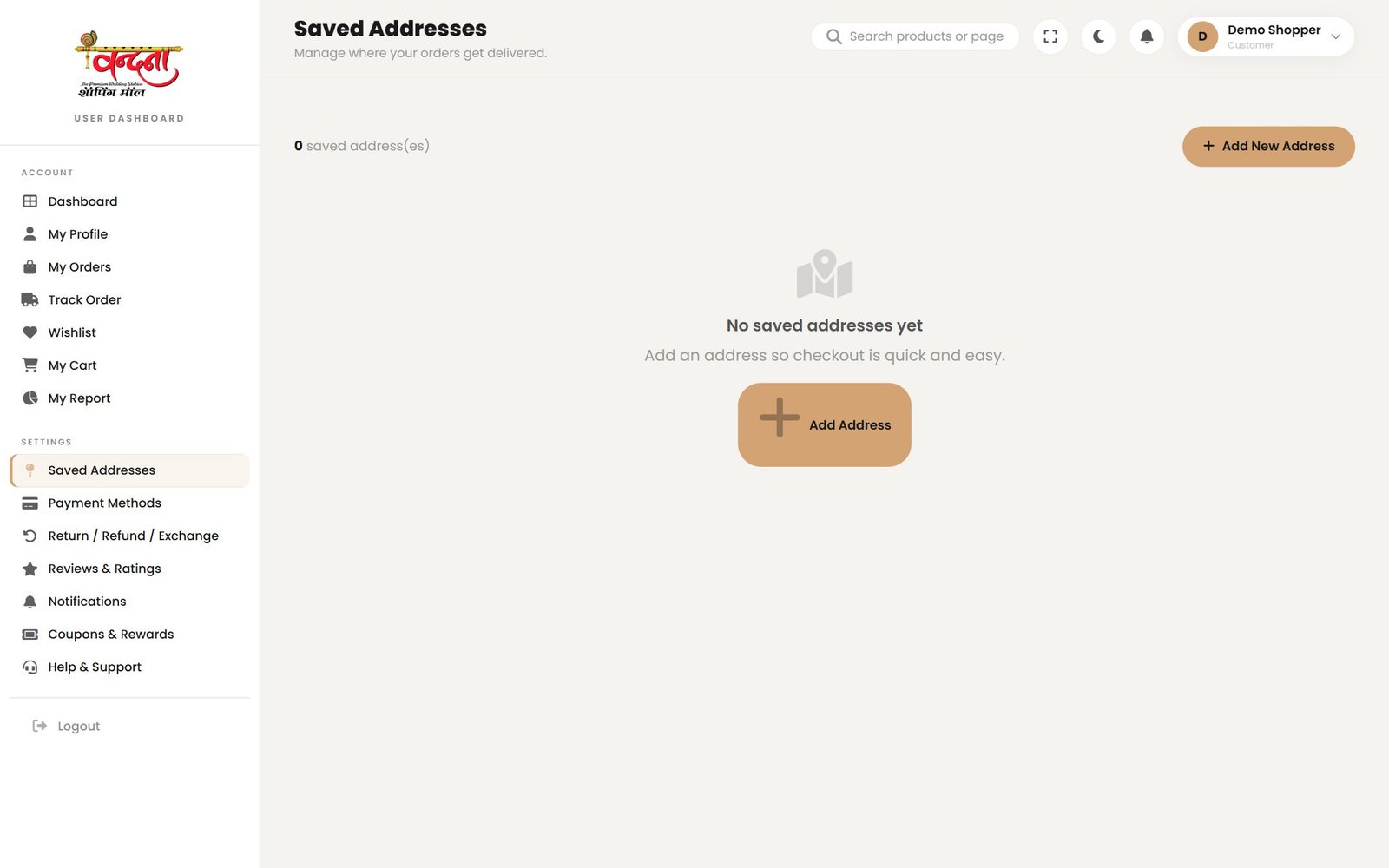
- Press Add New Address.
- Fill in the name, mobile number, full address, city, state and pincode.
- A landmark makes it easier for the delivery agent to find you.
- Label it Home, Work or Other.
- Mark it as your default address if you like.
- Press Save.
12Checkout and payment
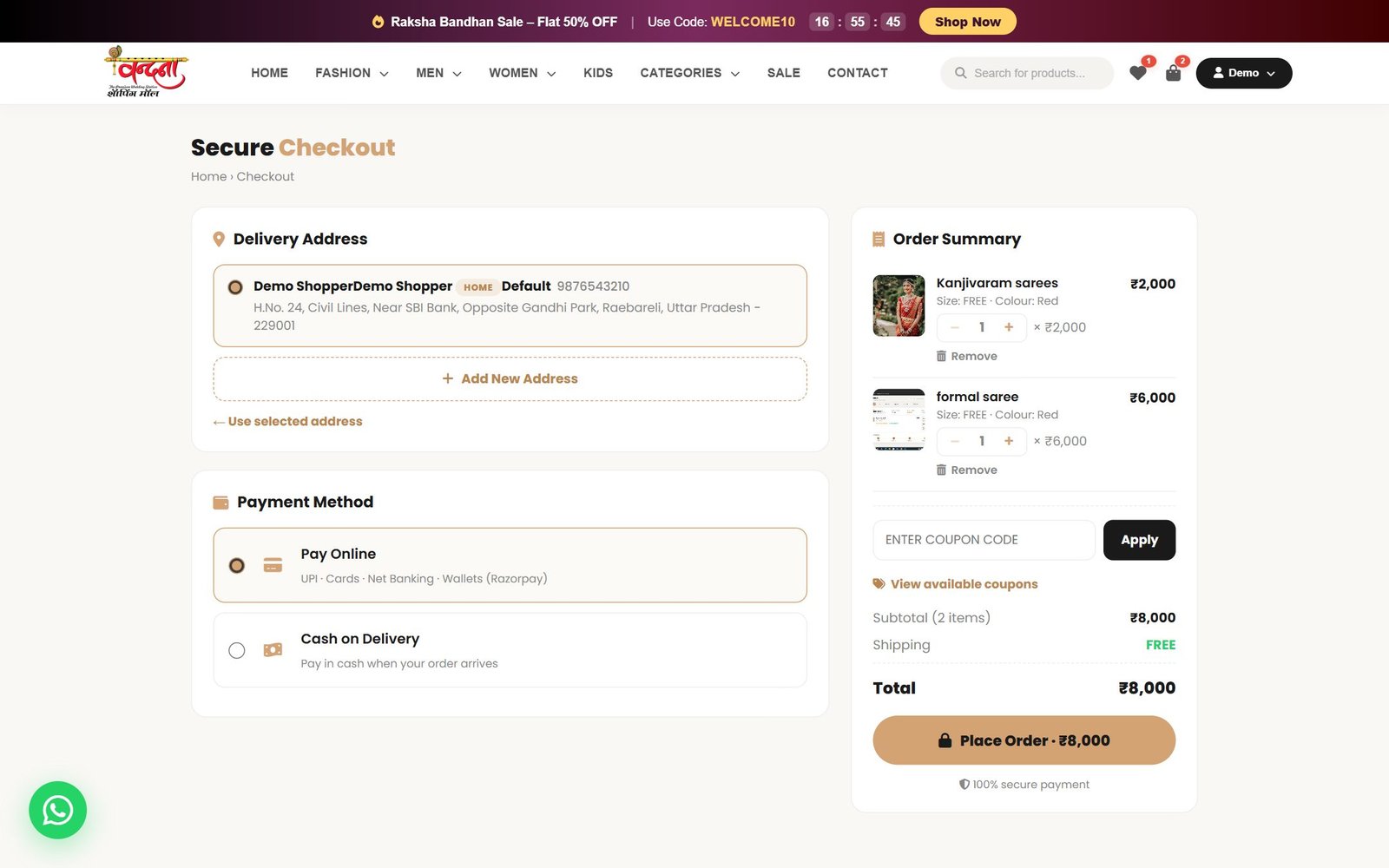
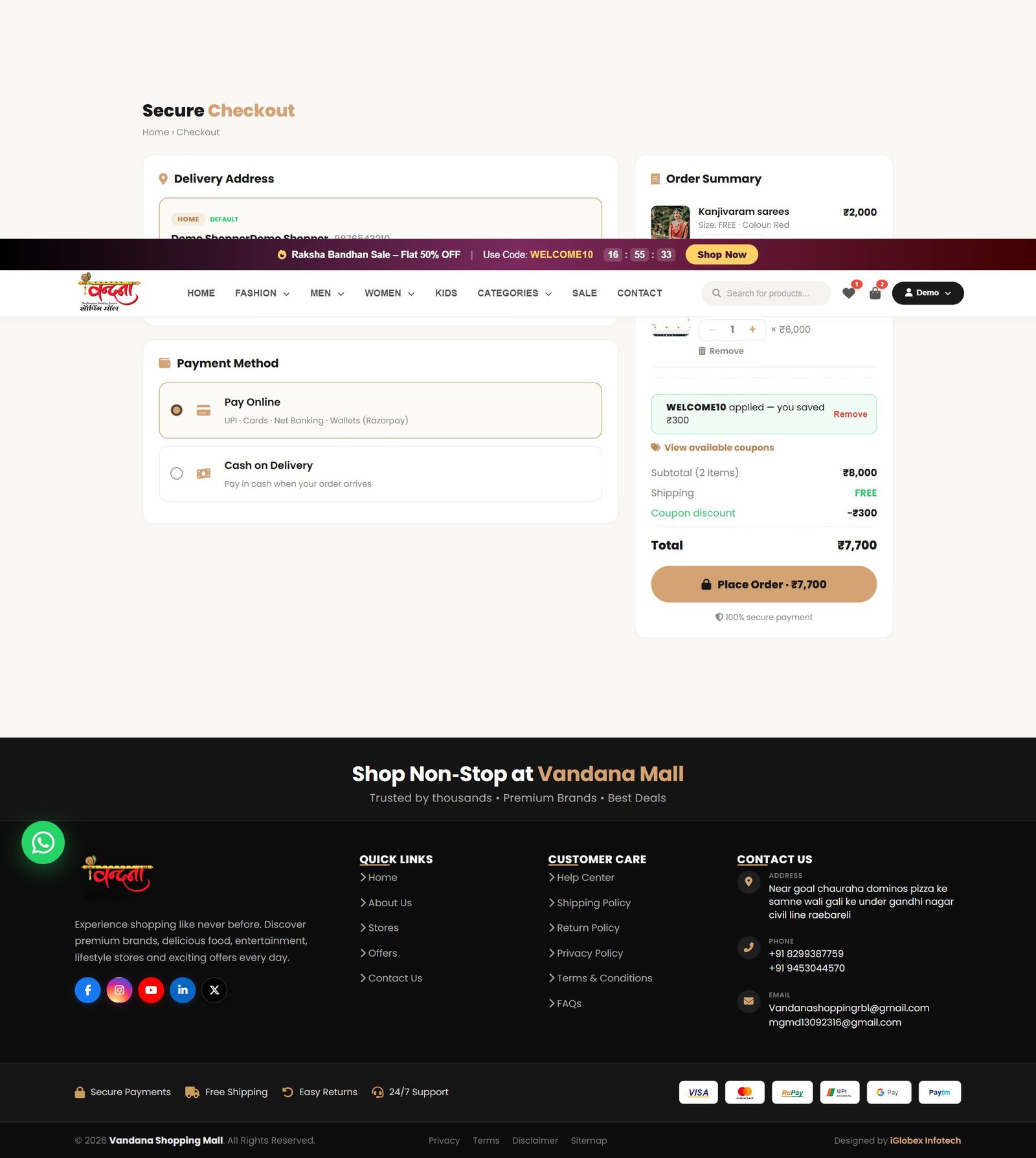
Pressing Proceed to Checkout in the cart opens this page.
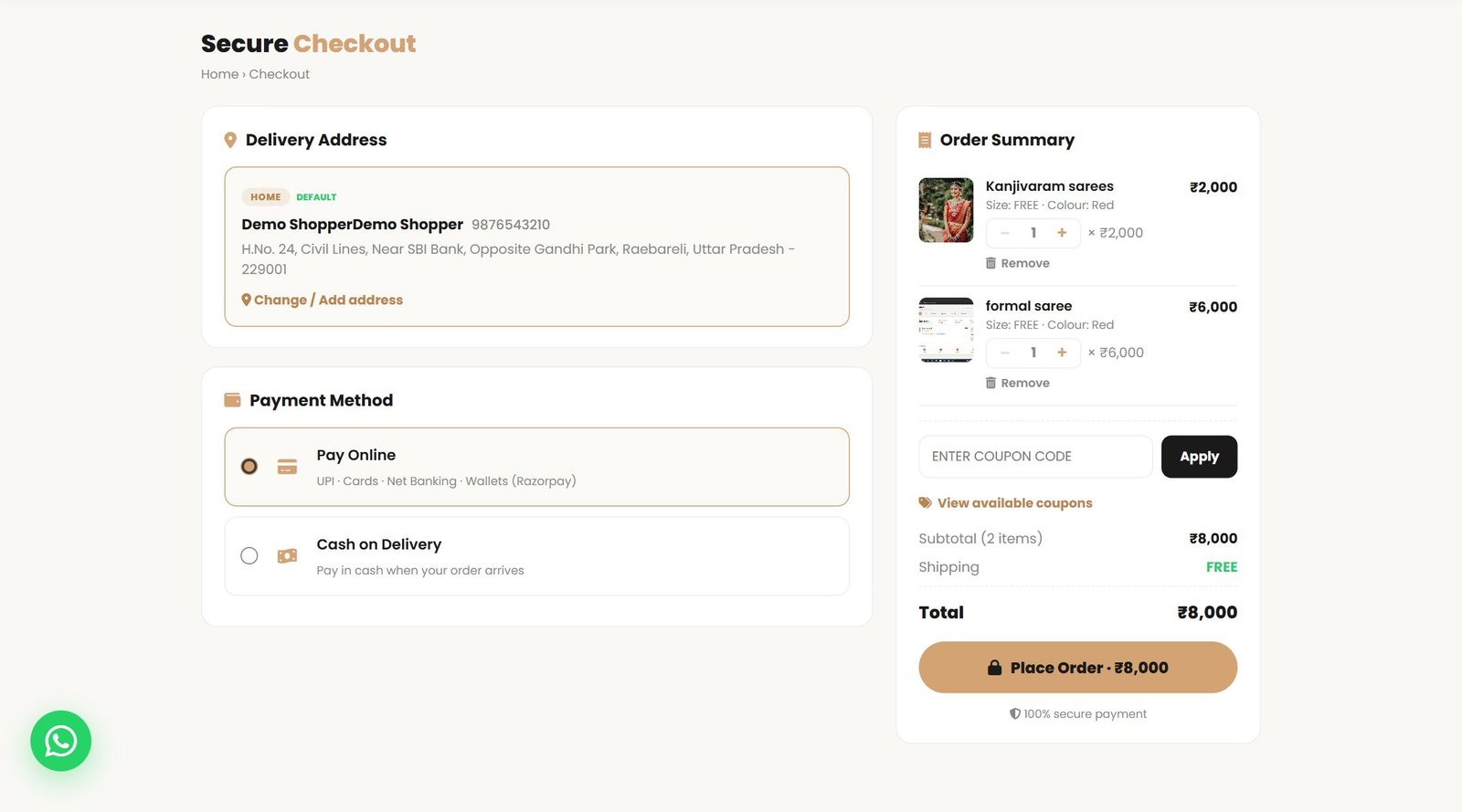
12.1 The delivery address
Use Change / Add address to pick a different address or add a new one.
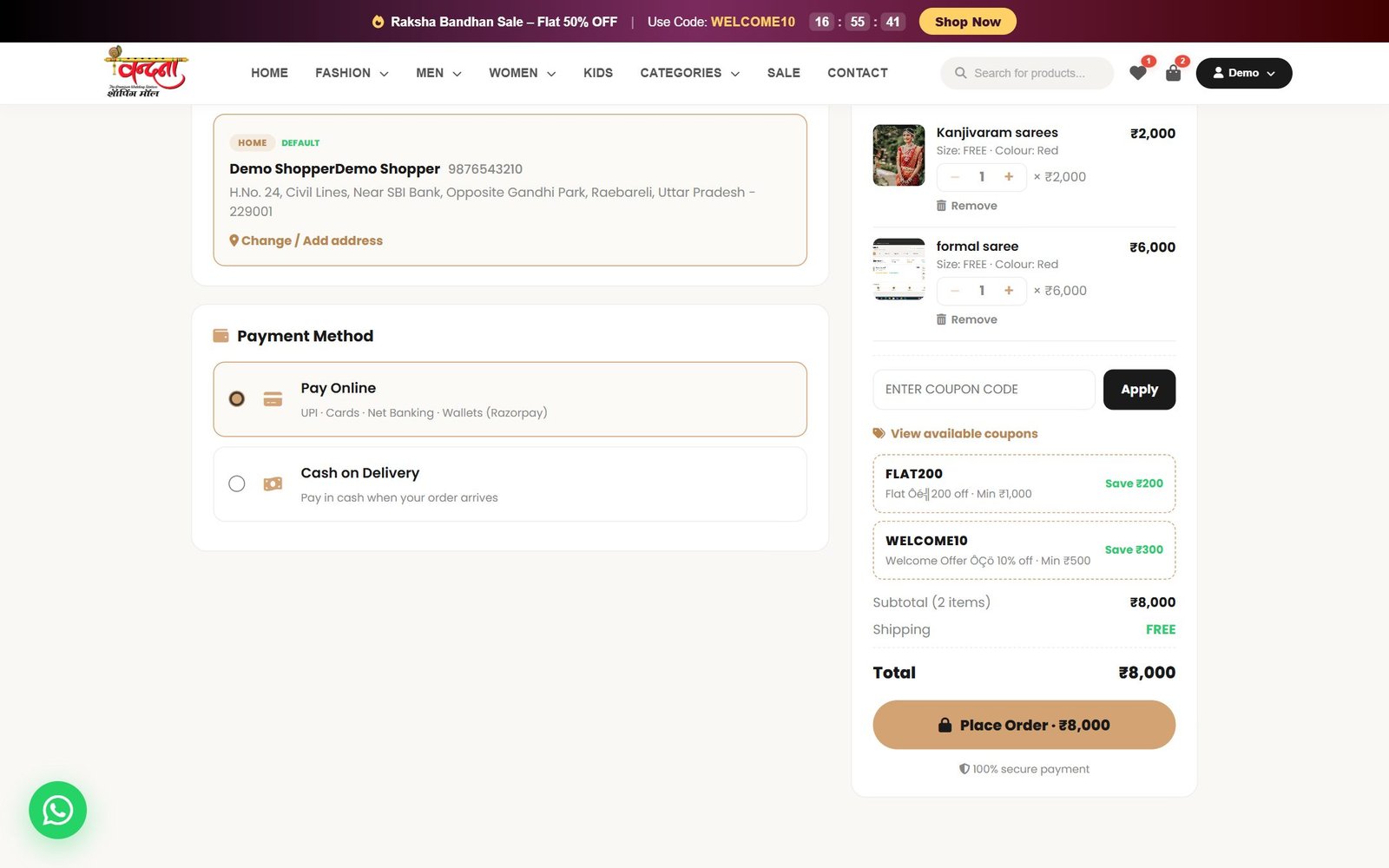
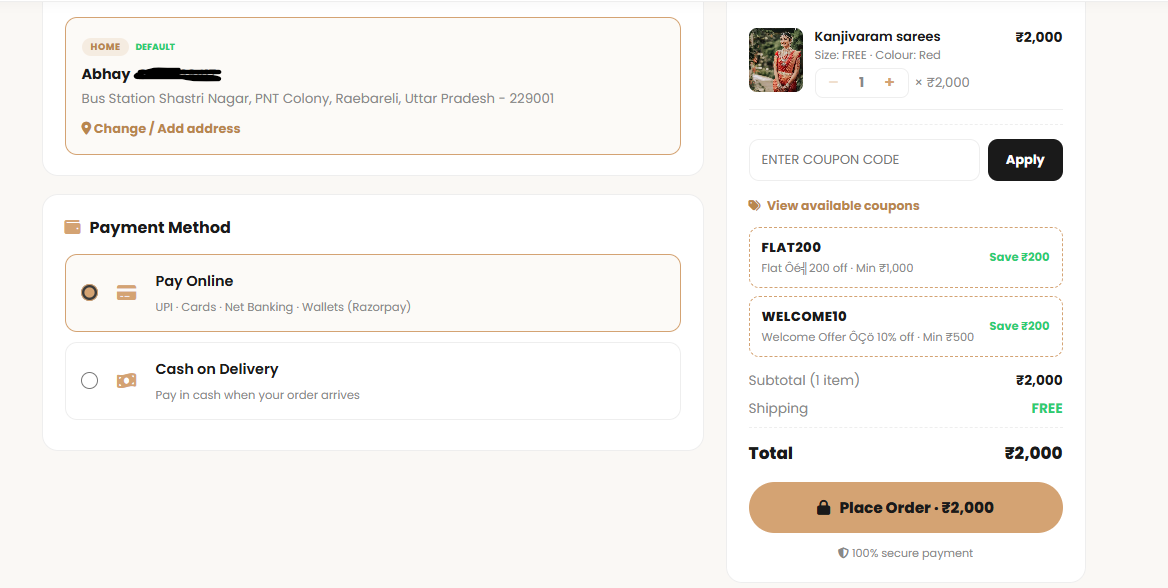
12.2 Applying a coupon
- Press View available coupons to see what you can use.
- Copy the code, or just remember it.
- Type it into the coupon box and press Apply.
- The discount comes off the total immediately.
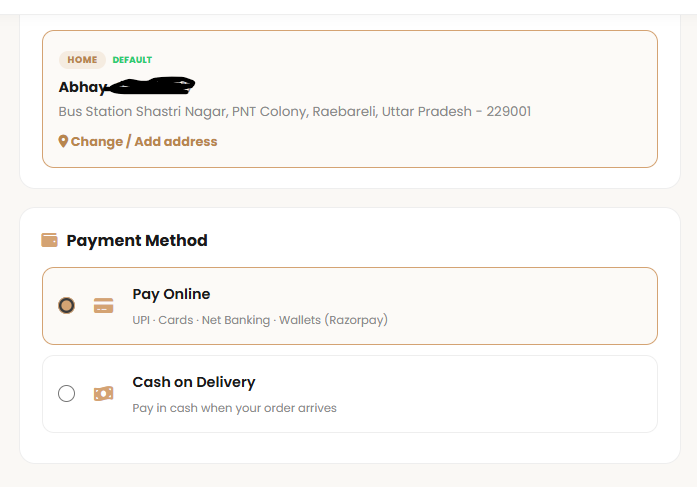
12.3 How to pay
| Option | What it does |
|---|---|
| Pay Online | A secure payment page opens for UPI, debit or credit card, net banking or a wallet. |
| Cash on Delivery | Pay the delivery agent in cash when the parcel arrives. |
12.4 Placing the order
When everything looks right, press Place Order — the final amount is written on the button itself.
13Confirmation and invoice
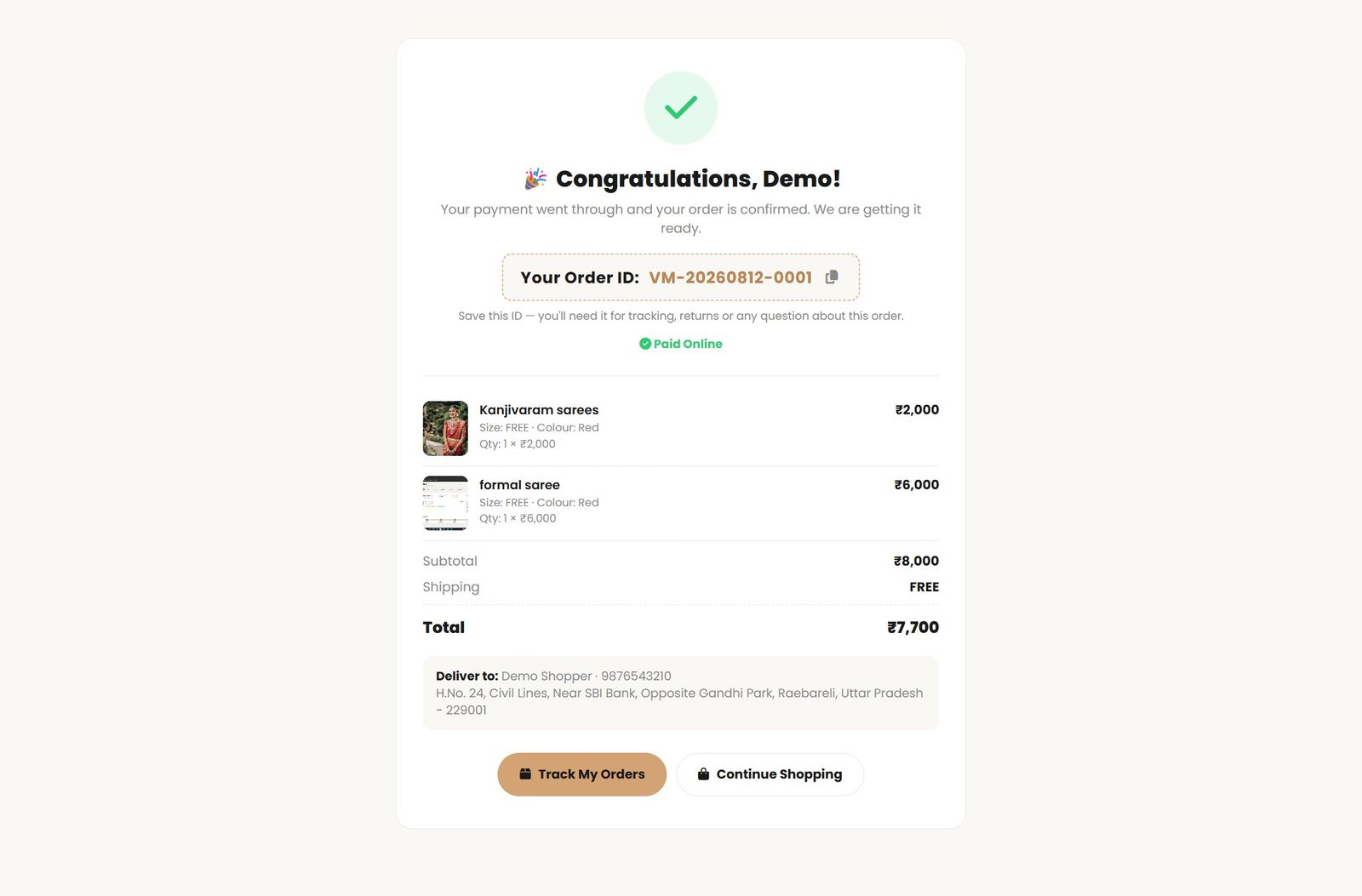
A confirmation email follows, and the order appears under My Orders.
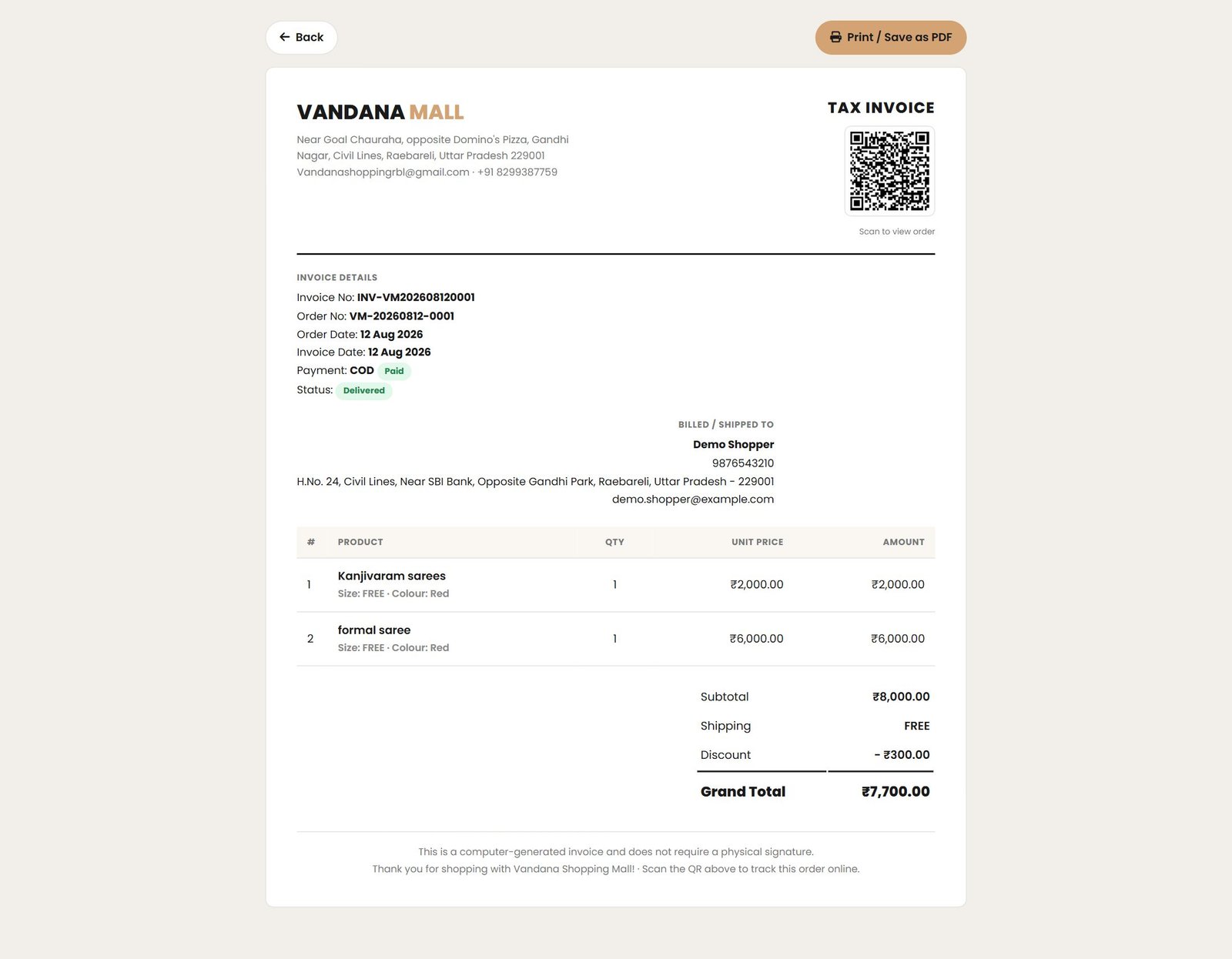
The invoice
14Orders and tracking
14.1 The order list
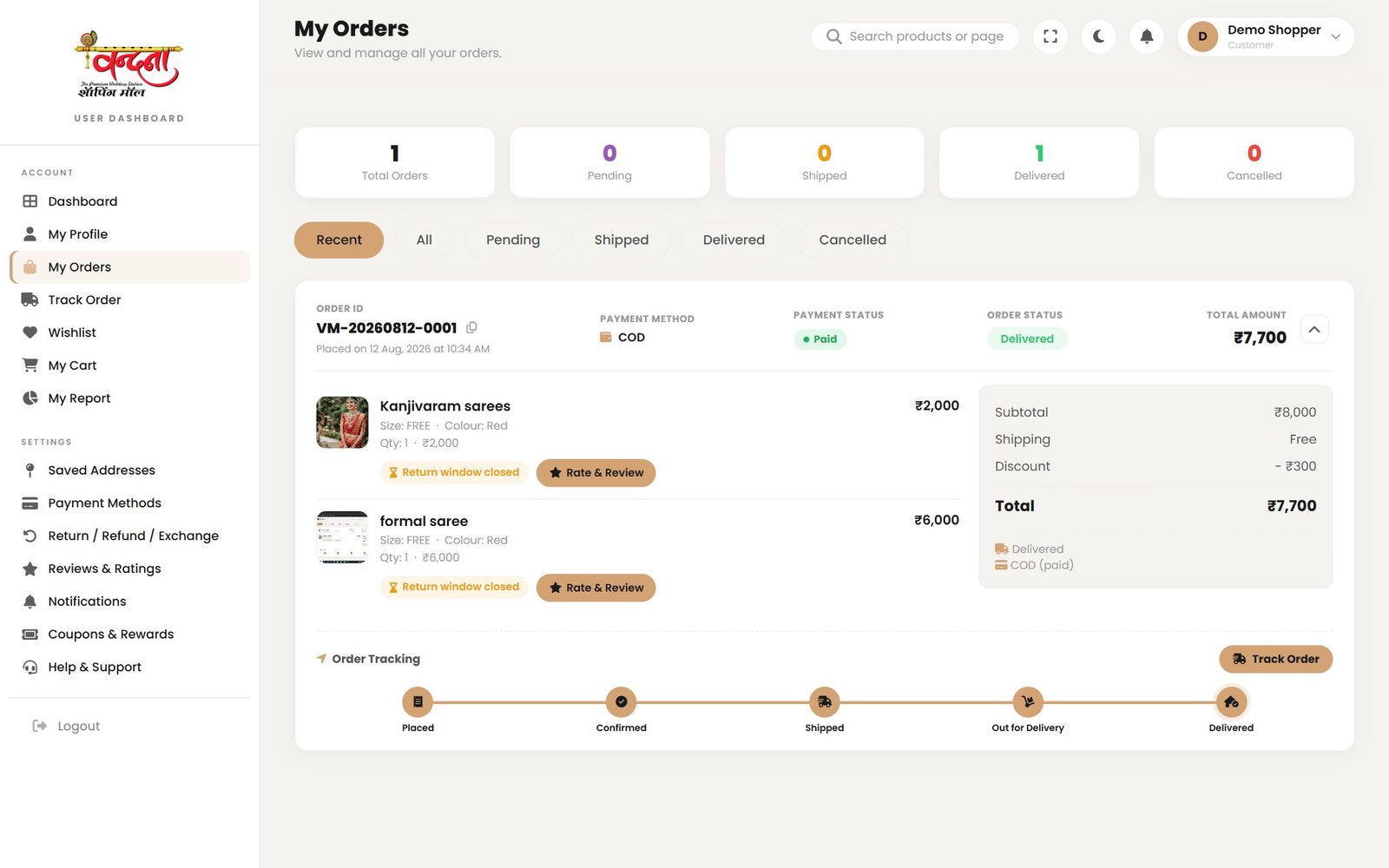
14.2 Where the order has reached
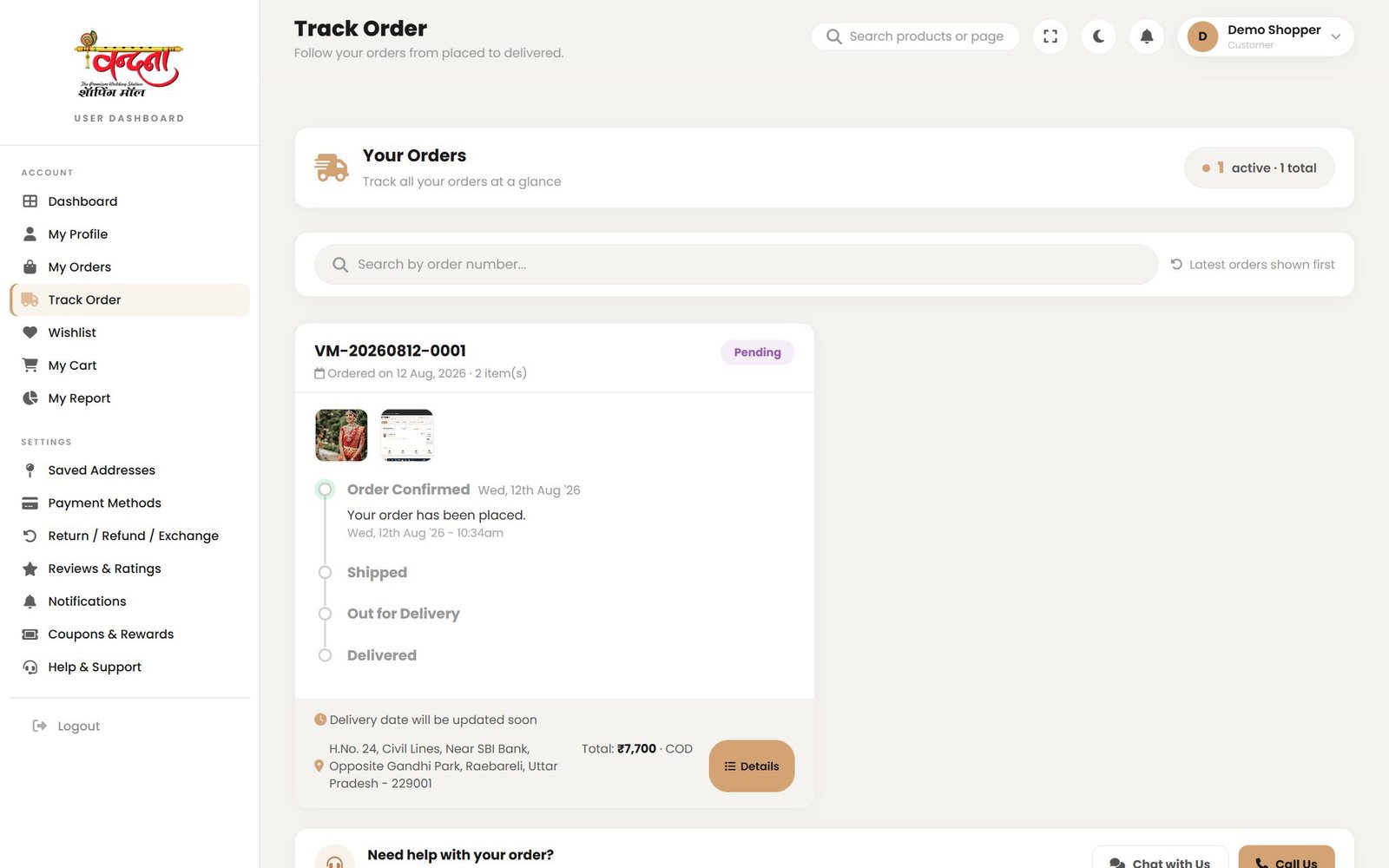
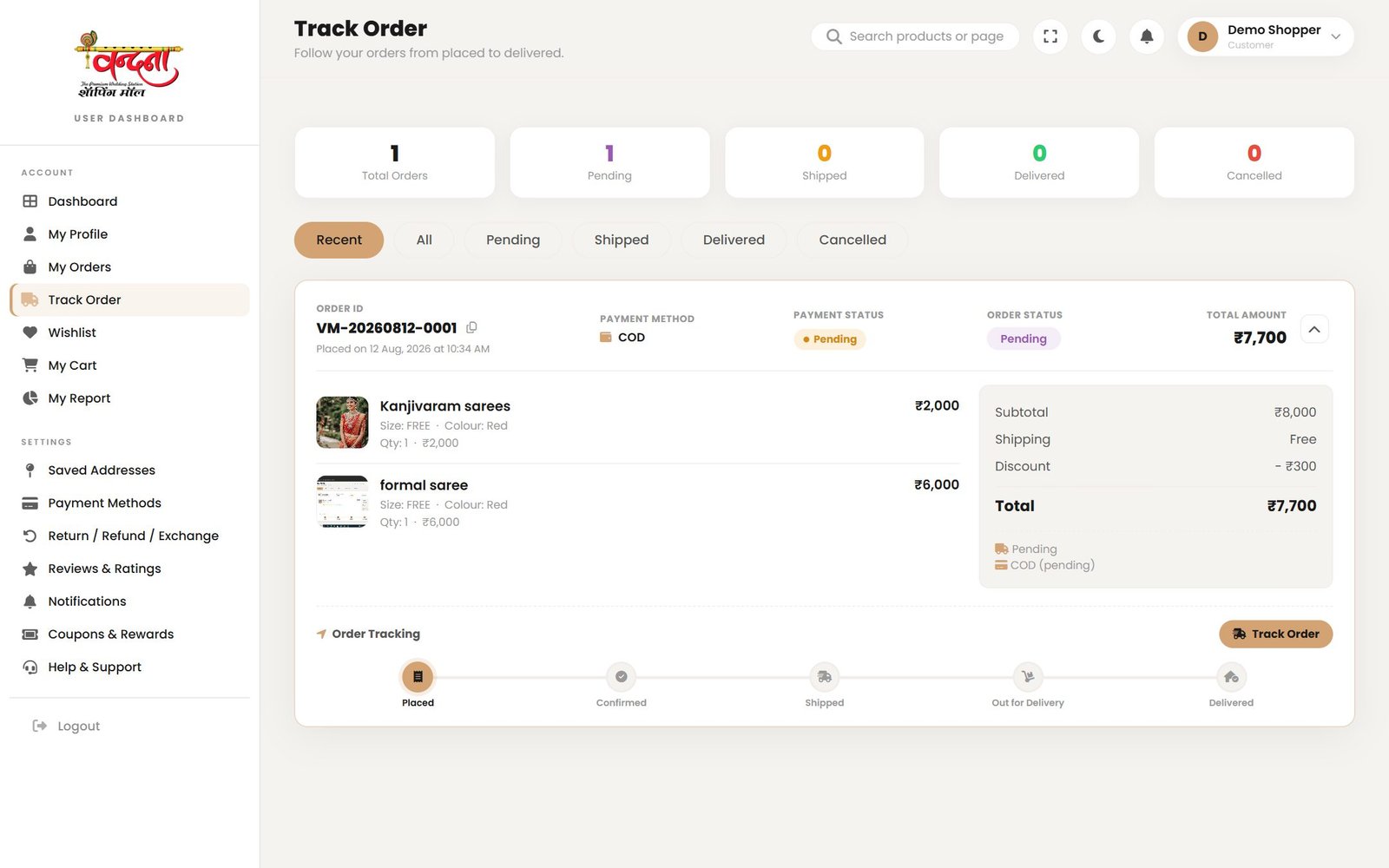
| Status | What it does |
|---|---|
| Pending | Received, waiting for the shop to confirm. |
| Confirmed / Processing | Being packed. |
| Shipped | On its way. |
| Out for delivery | Arriving today. |
| Delivered | Delivered. |
| Cancelled | Cancelled. |
15Returns, refunds and exchanges
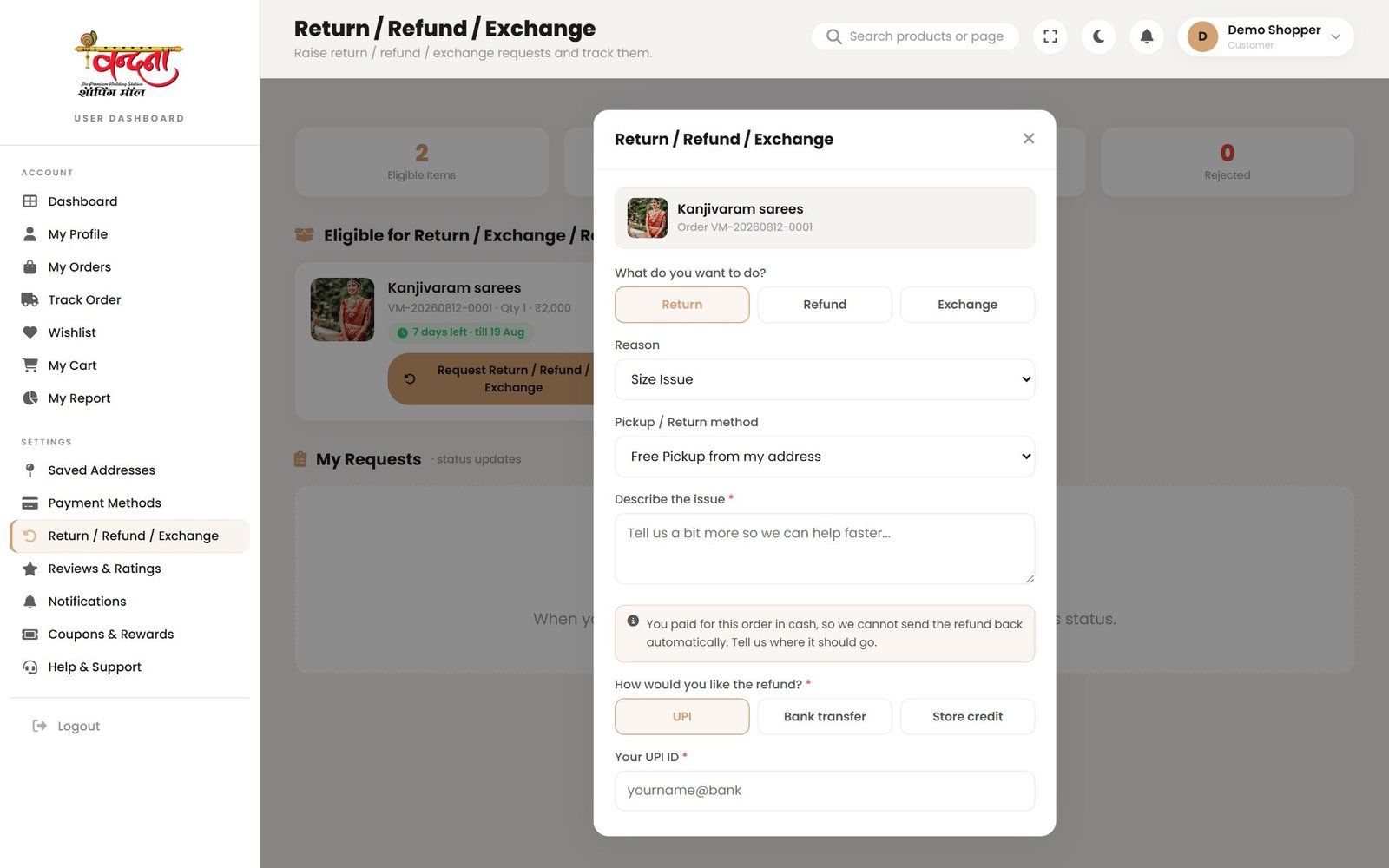
Not what you expected, or damaged? You can send it back within the return window.
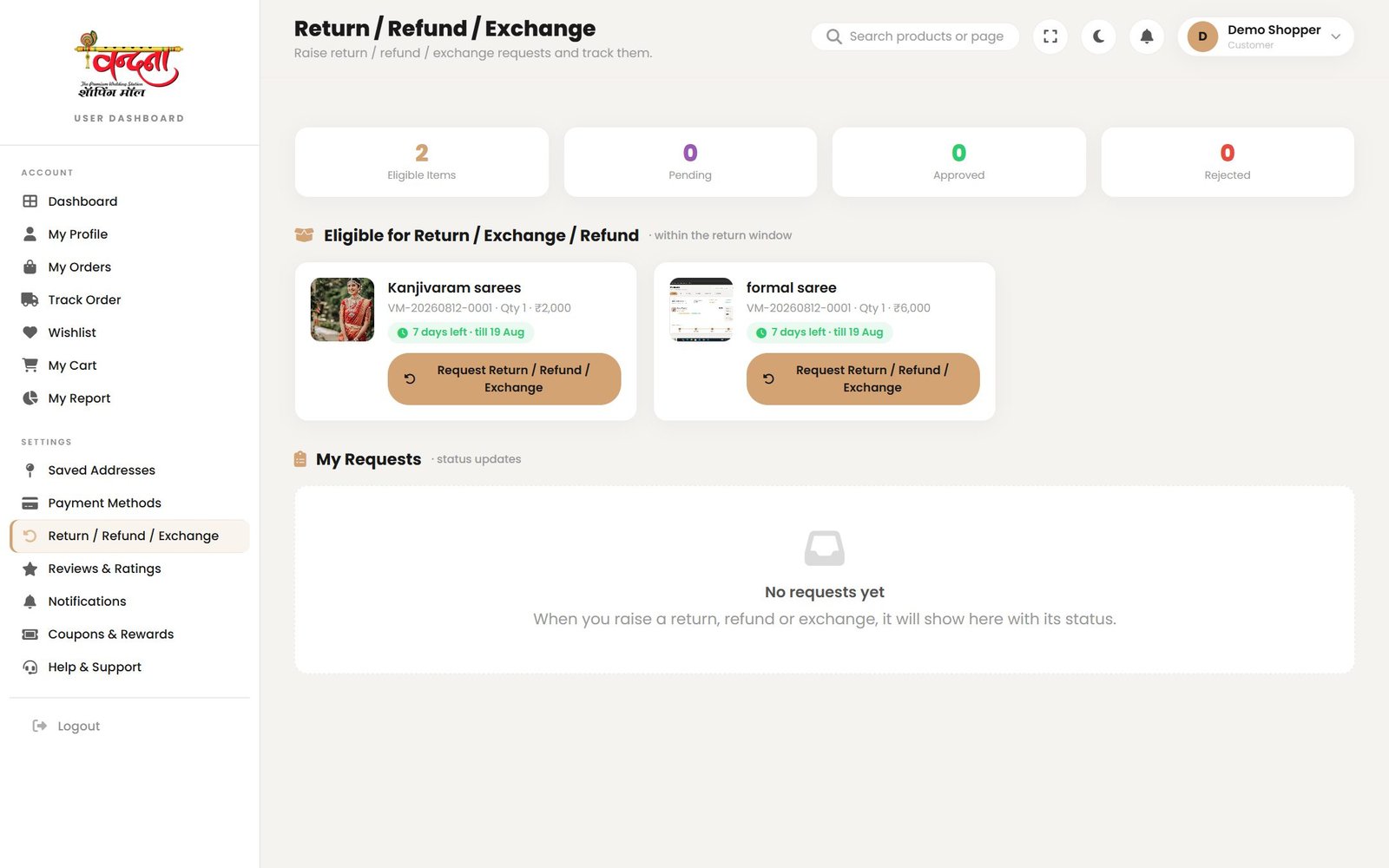
- Open Return / Refund / Exchange in the account menu.
- Press Request Return / Refund on the item you want to send back.
- Pick a reason — size issue, damaged product, wrong item and so on.
- Choose a pickup method — free collection from your address, or send it yourself.
- Give your UPI ID for the refund.
- Add a little detail and press Submit Request.
16Leaving a review
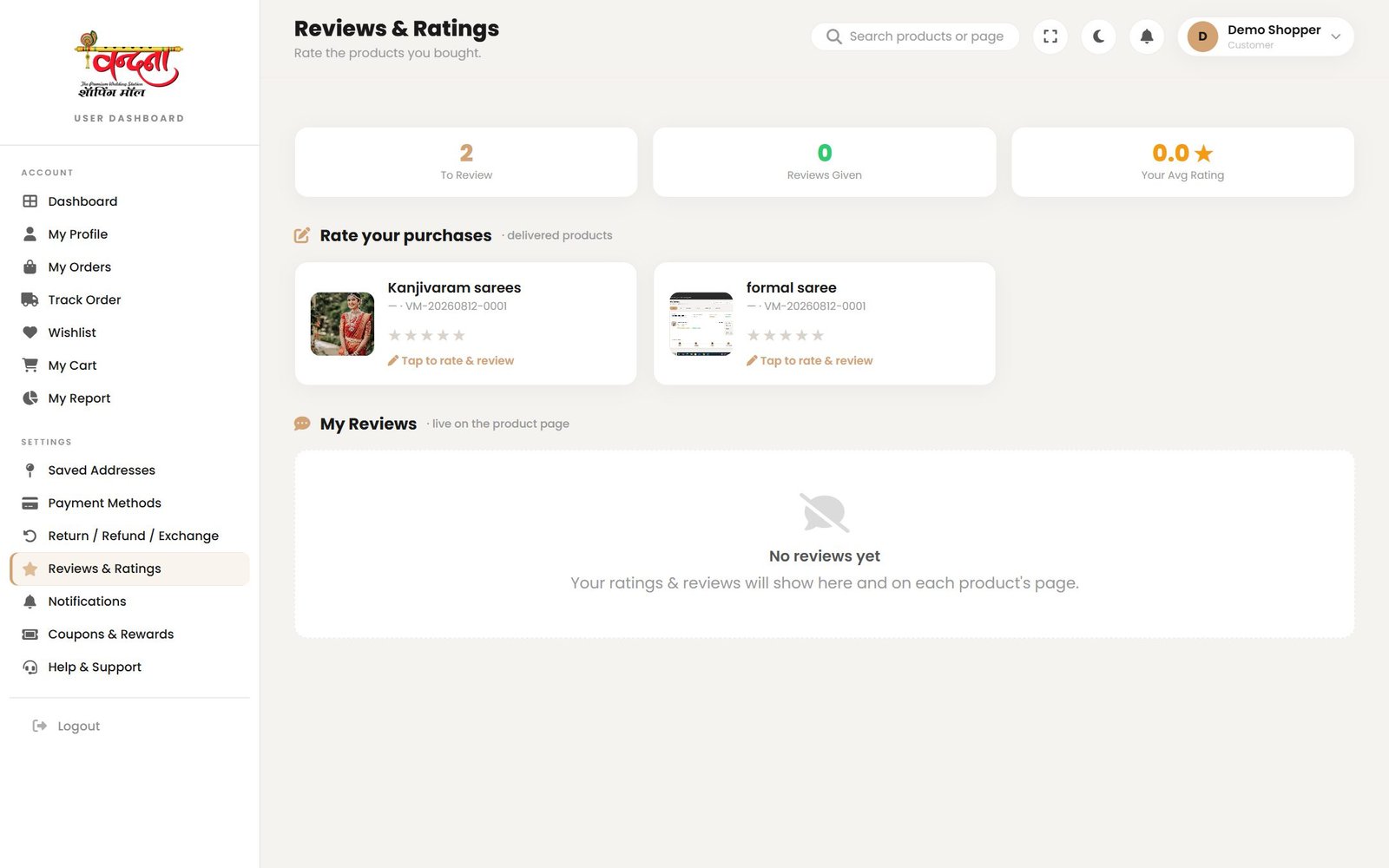
You can write about anything you have bought.
- Open that product's page.
- Go to the Reviews tab and press Write a Review.
- Tap the stars to rate it out of five.
- Add a short title and say how it went.
- Attach a photo or video if you want.
- Press Submit Review.
17Profile and settings
17.1 My Profile
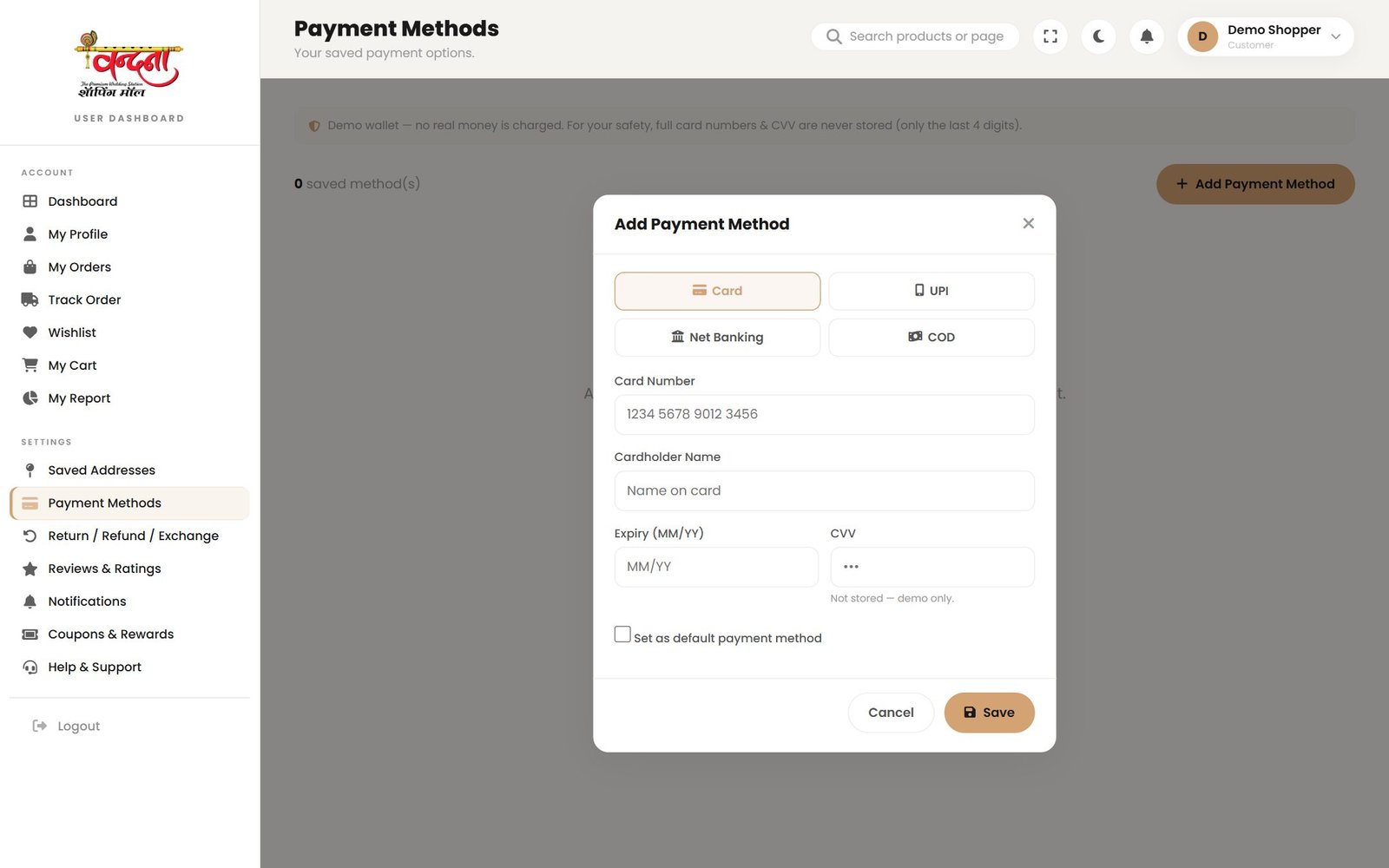
17.2 Payment methods
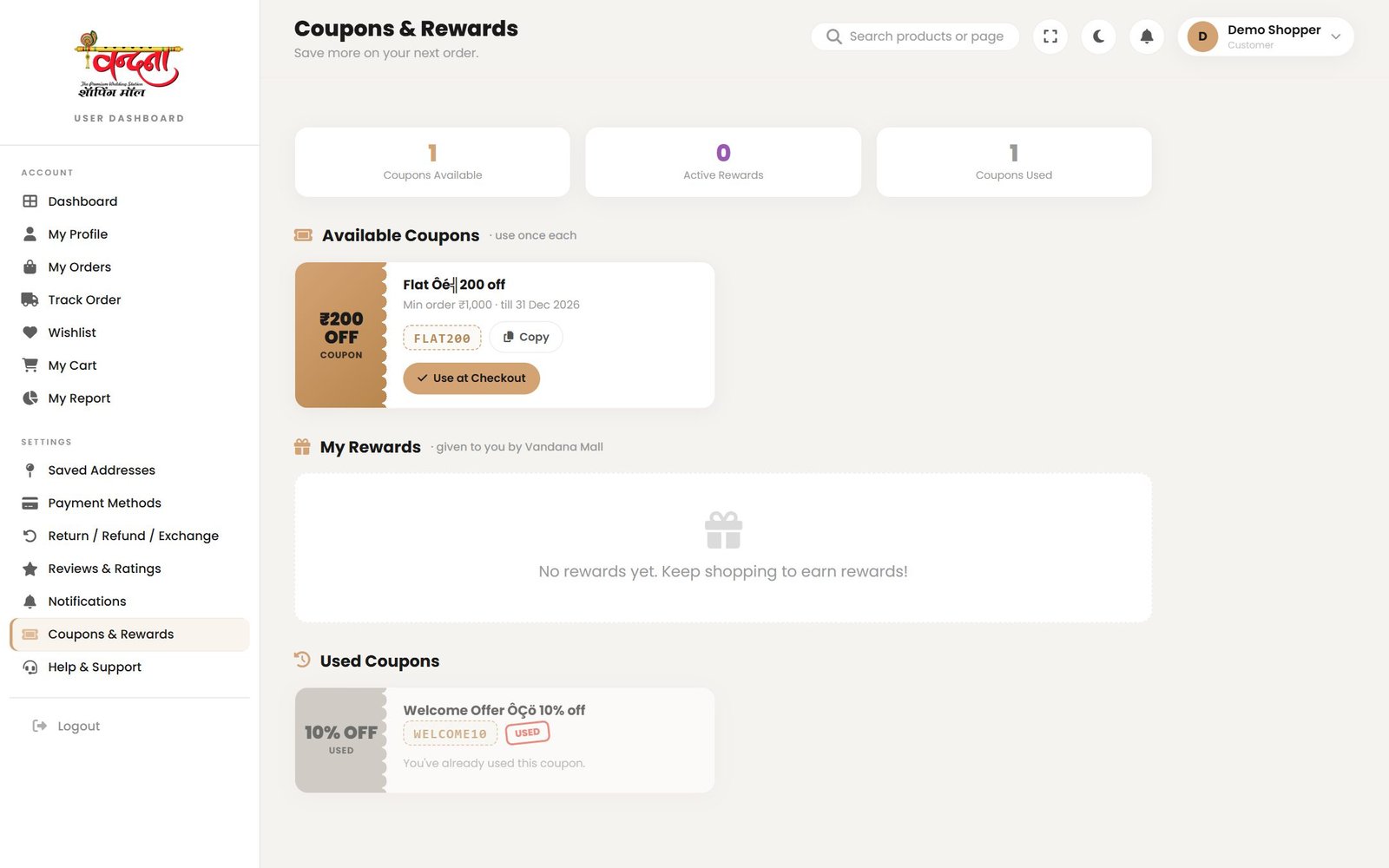
17.3 Coupons and rewards
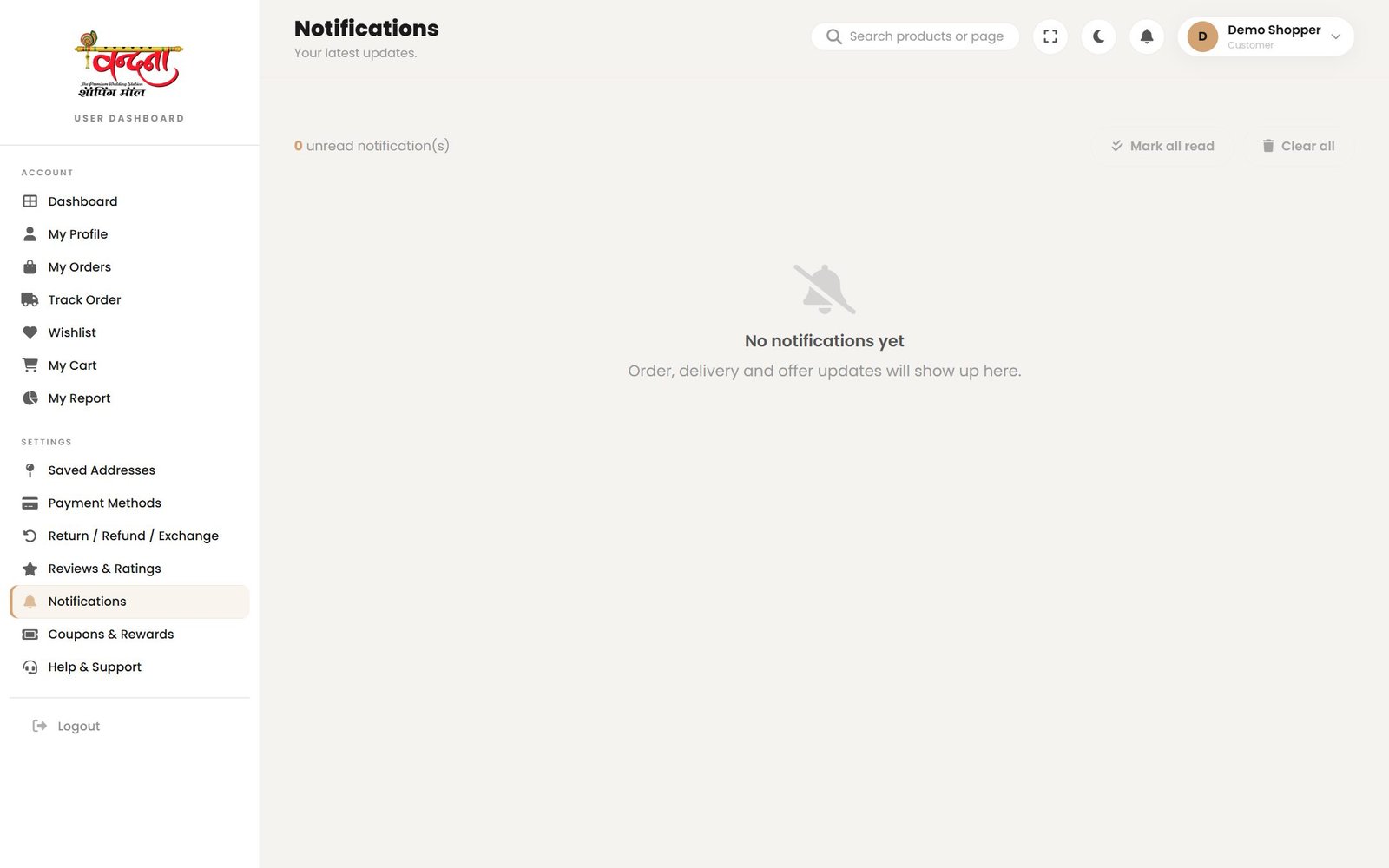
17.4 Notifications
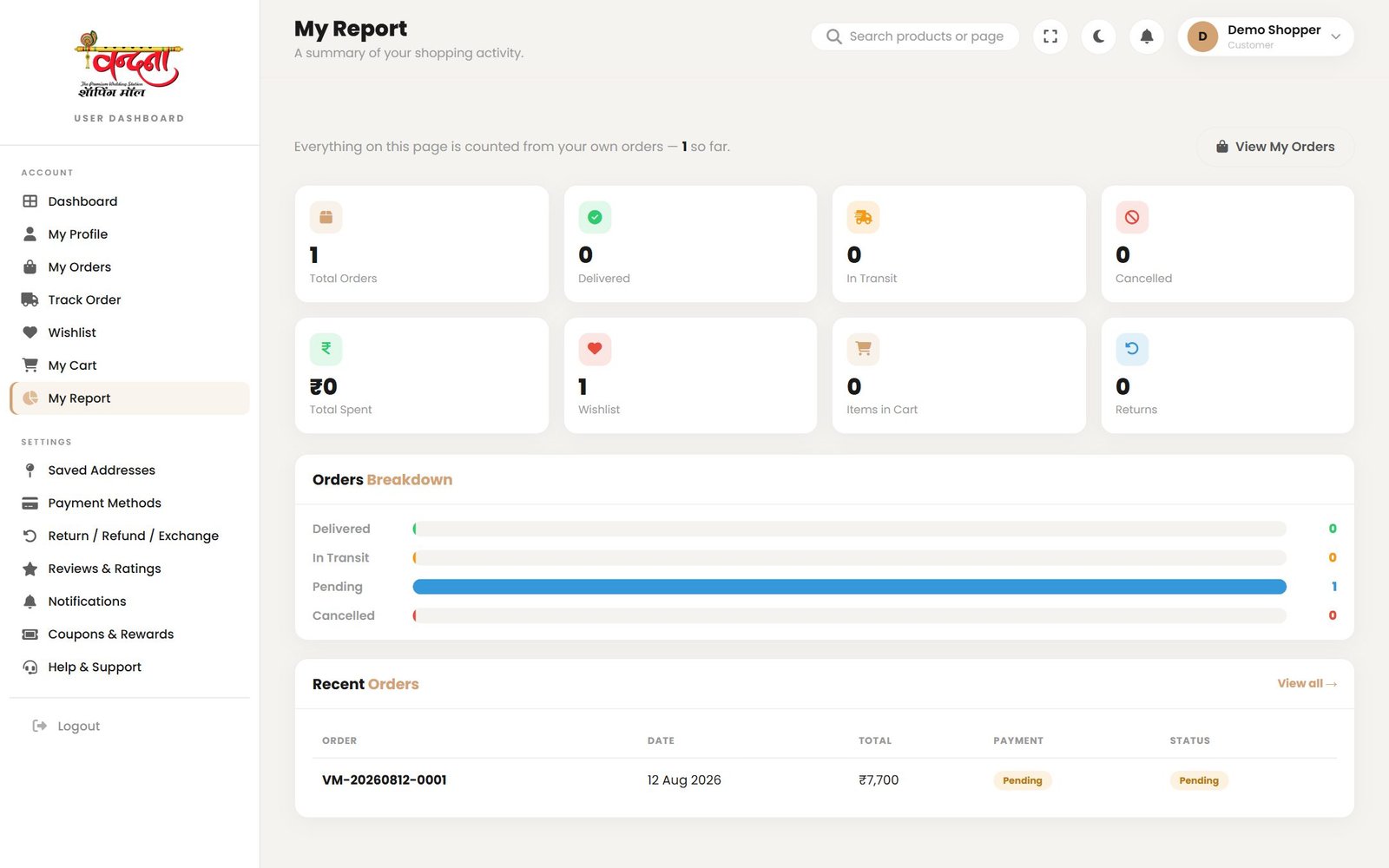
17.5 My Report
18Help and support
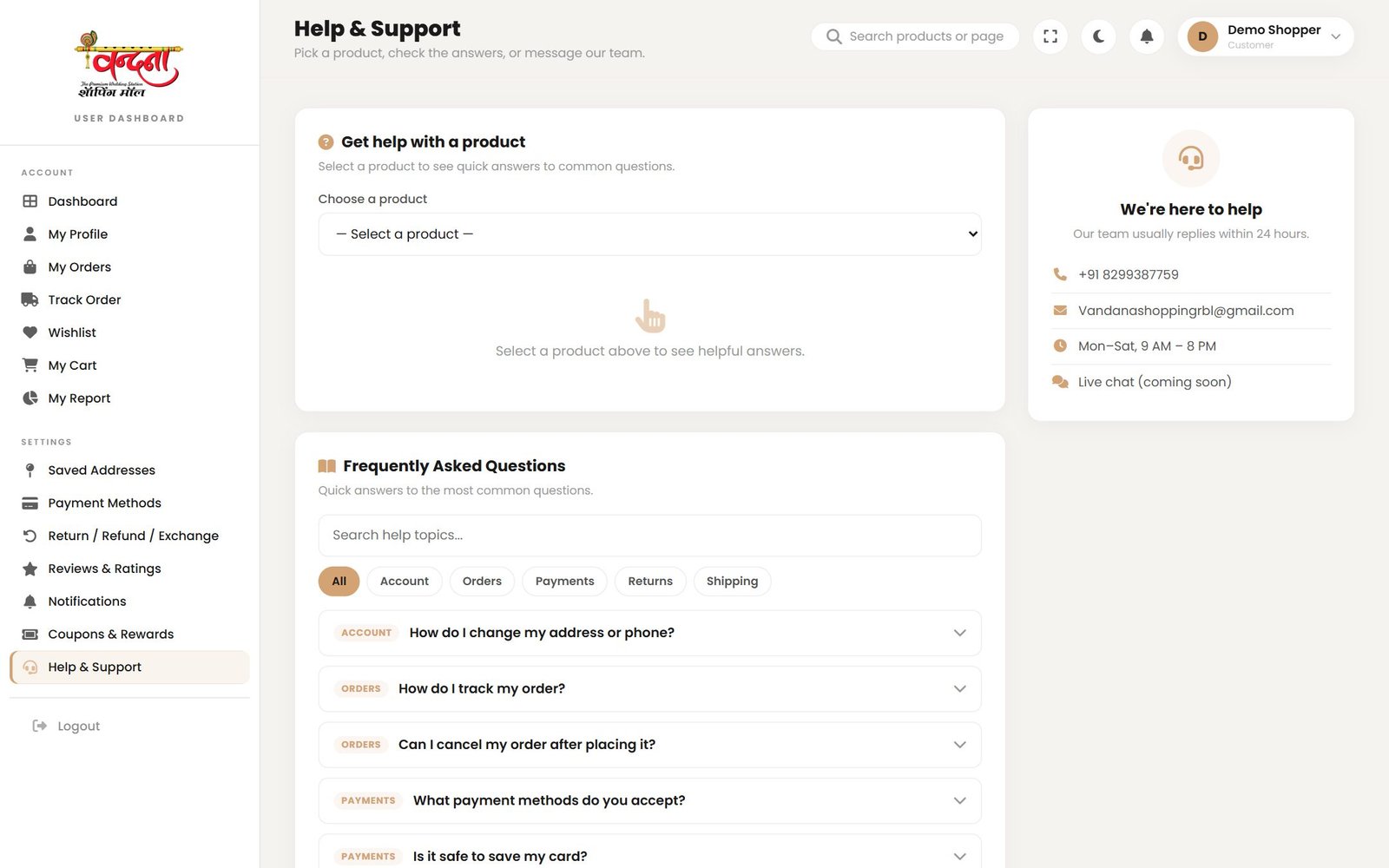
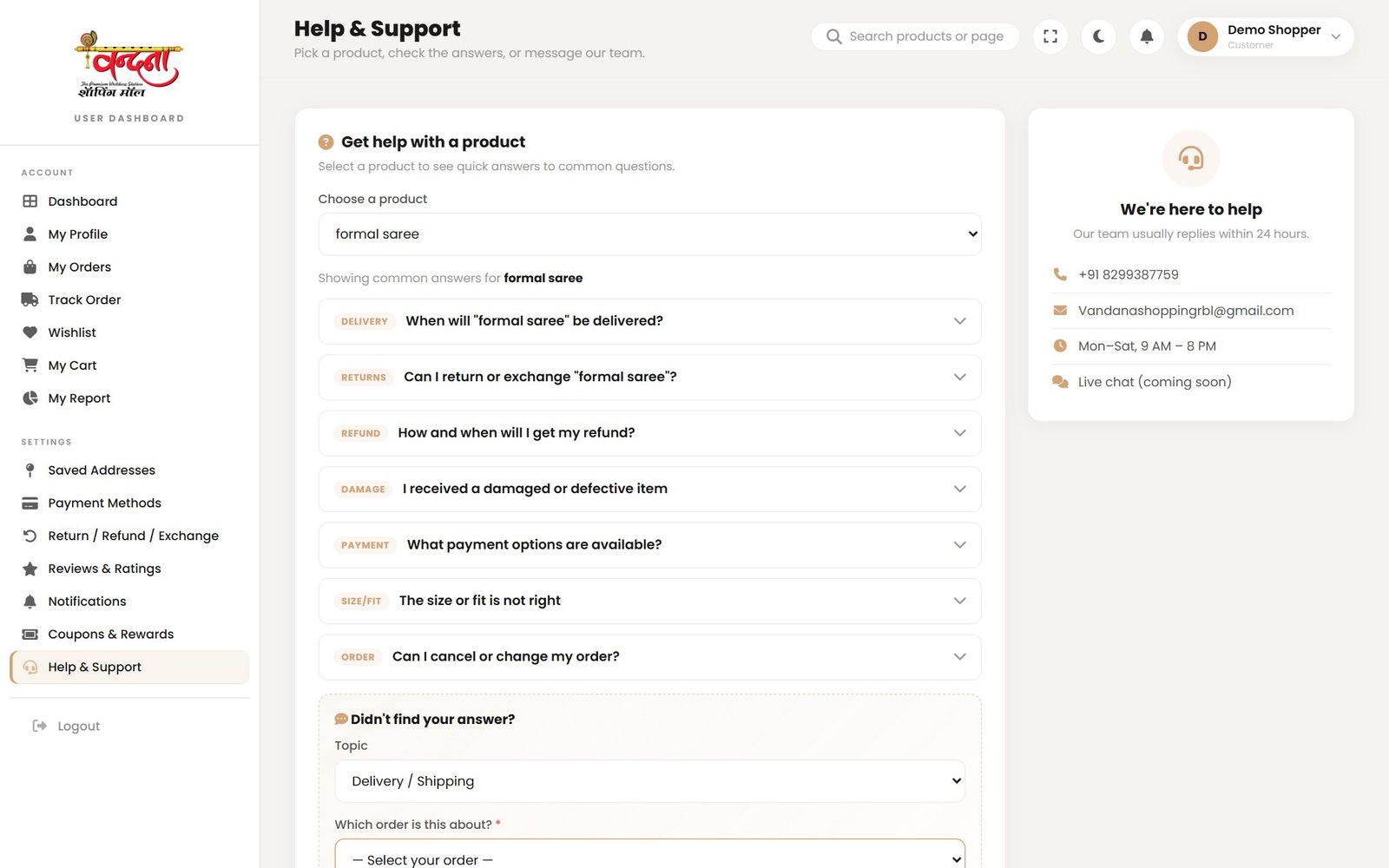
- Search the FAQs first — most questions are answered there.
- If it is about a particular order or product, pick that product at the top.
- Describe the problem and send it.
- For something urgent, use Chat with Us or Call Us.
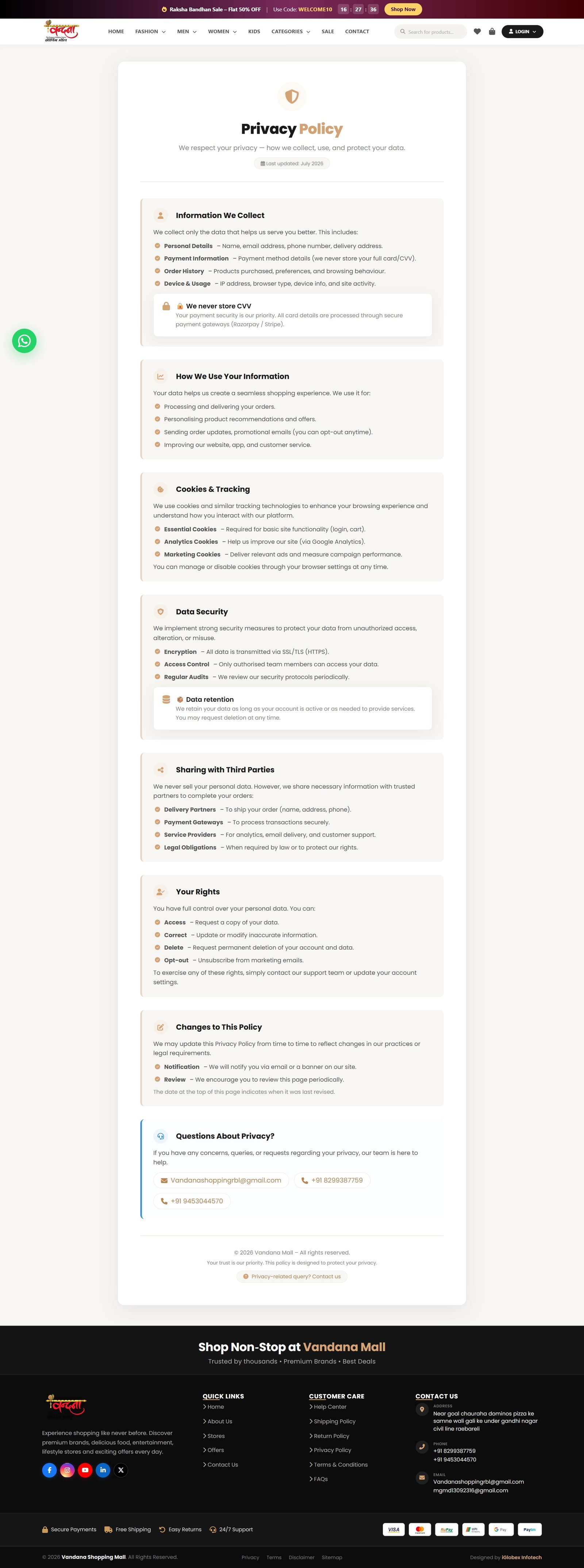
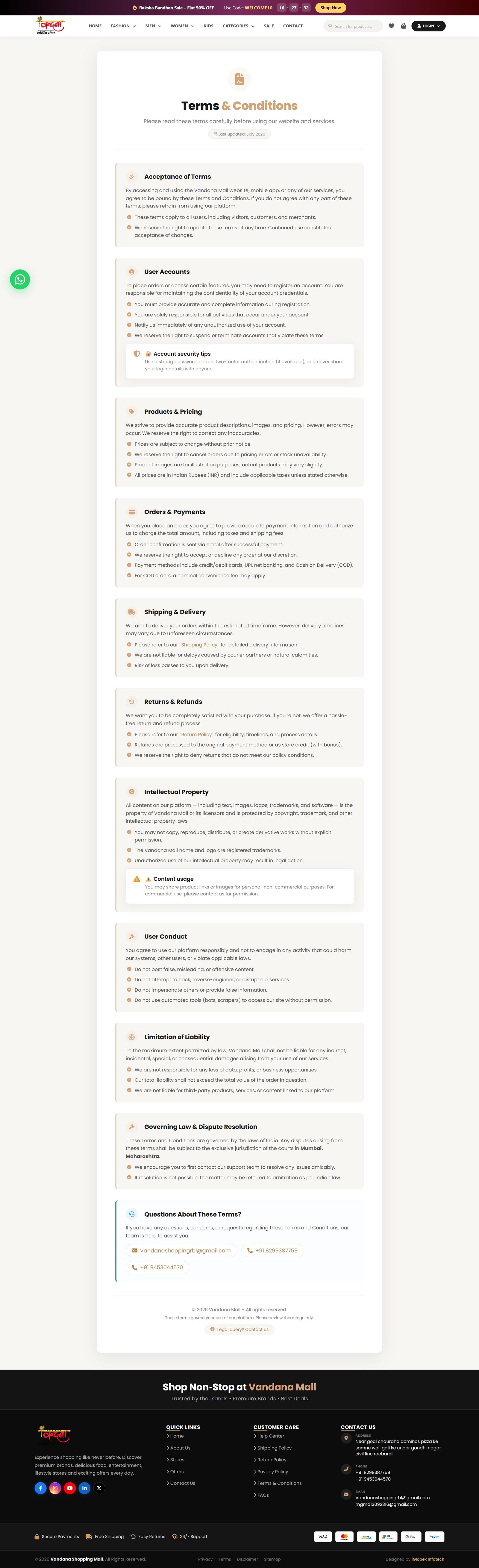
19Policy and information pages
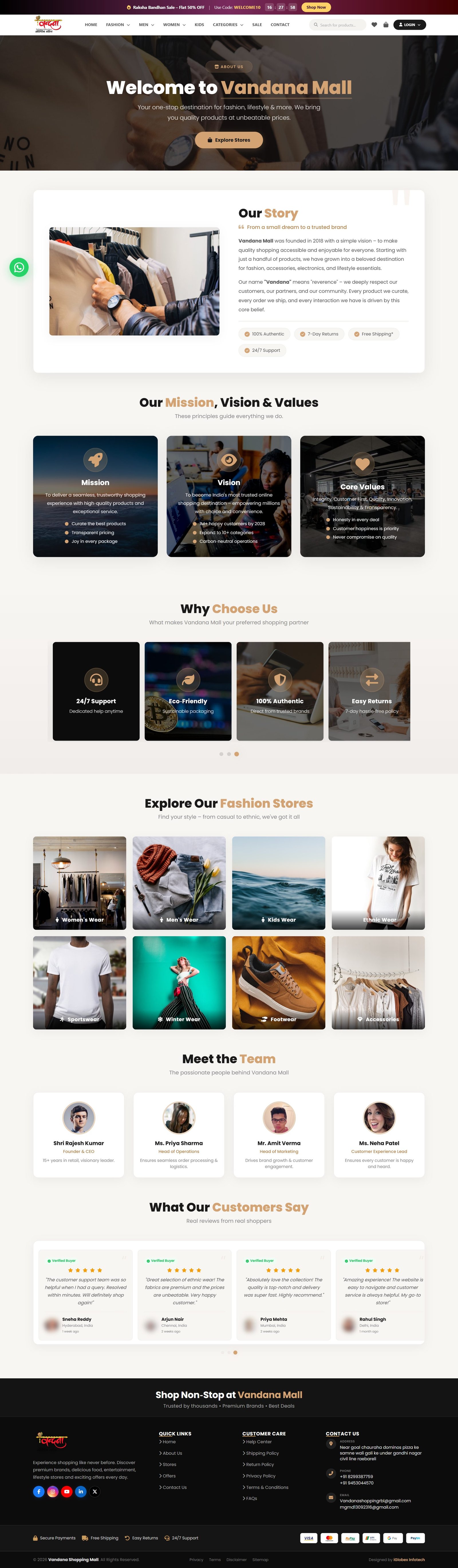
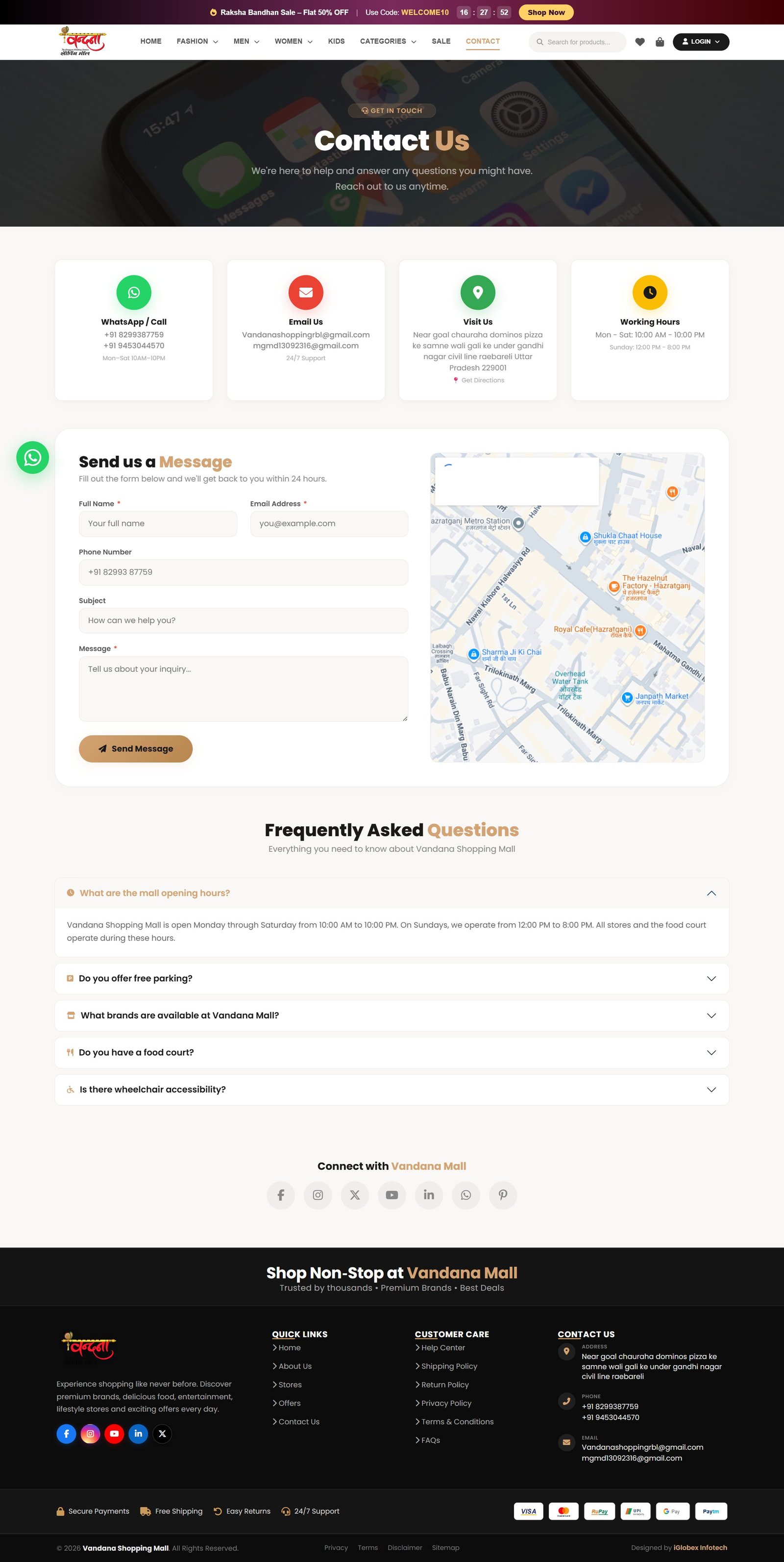
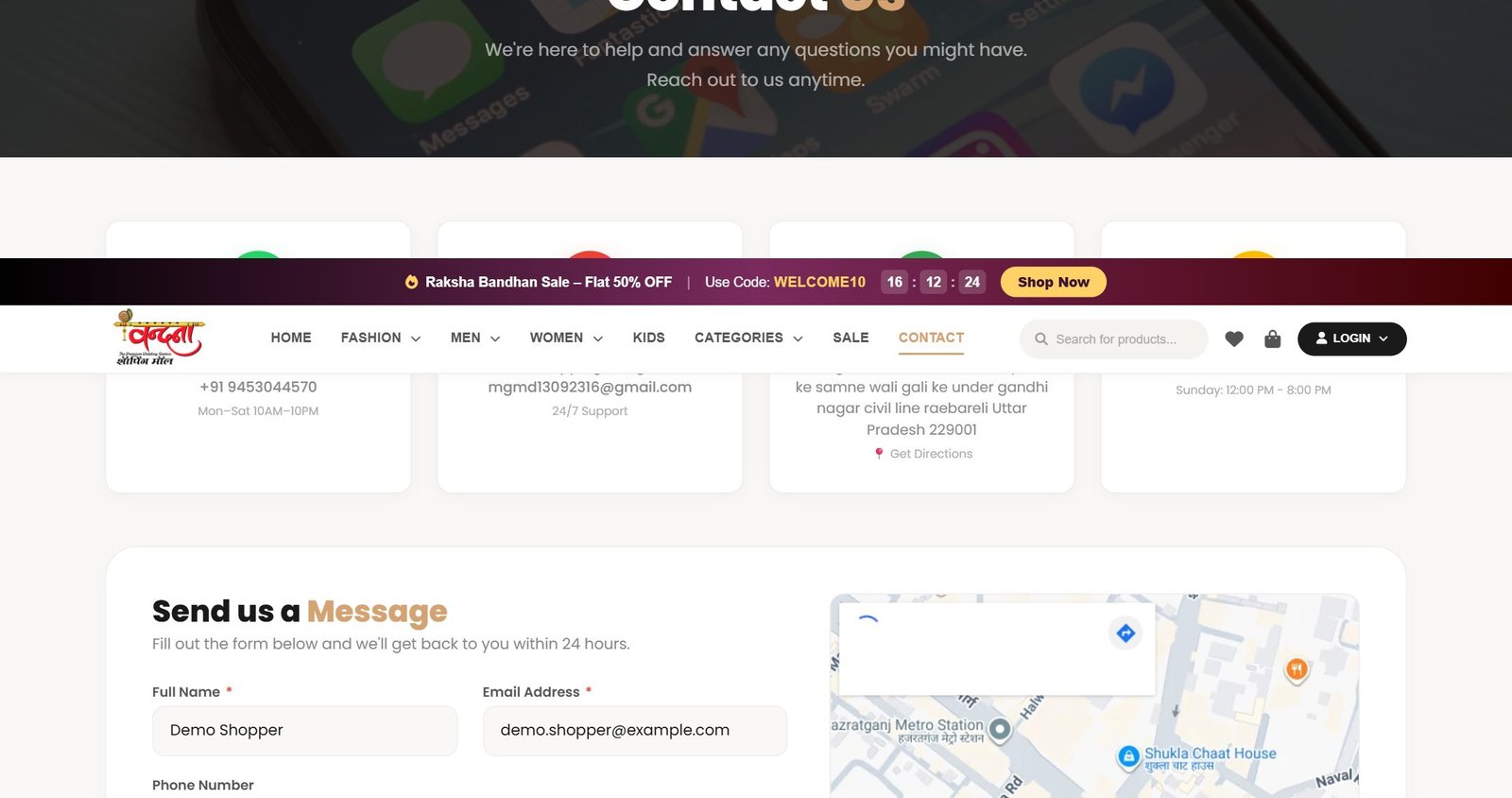
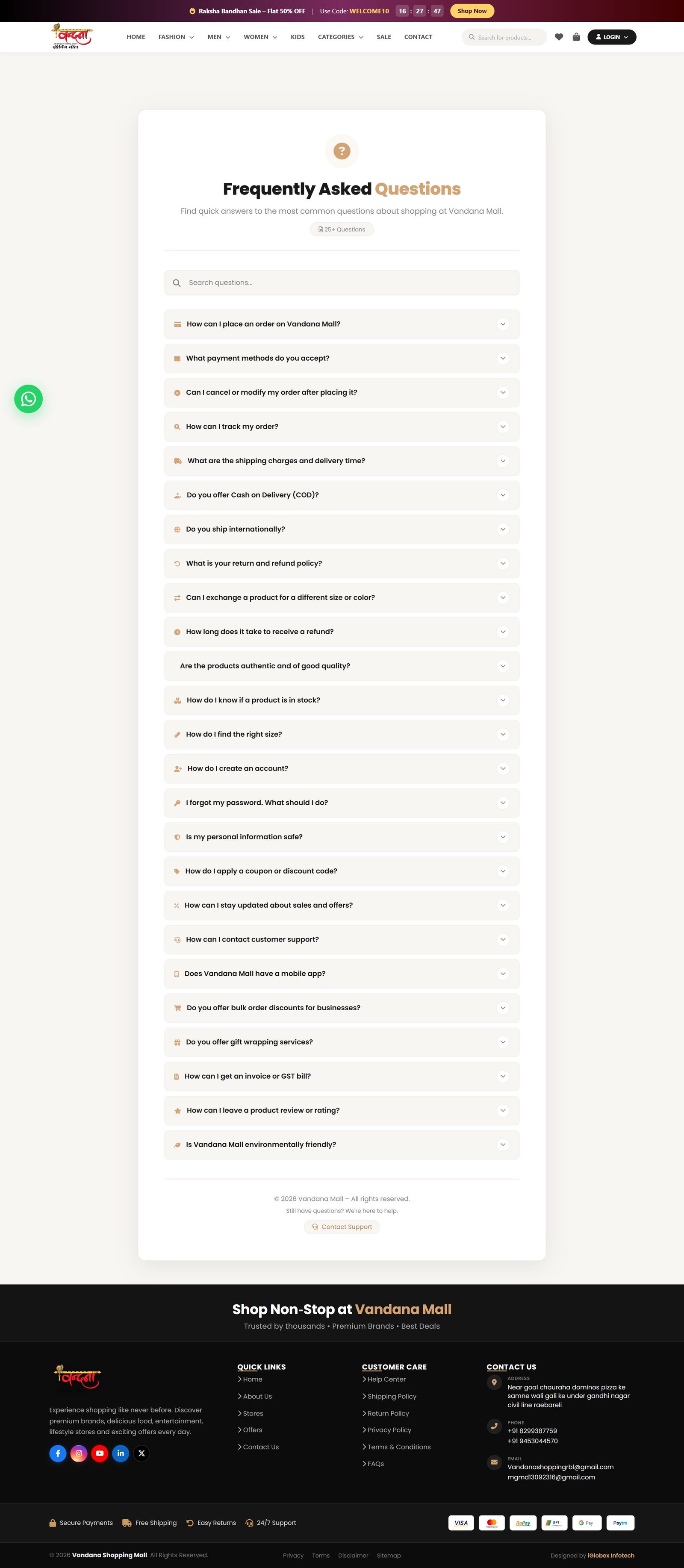
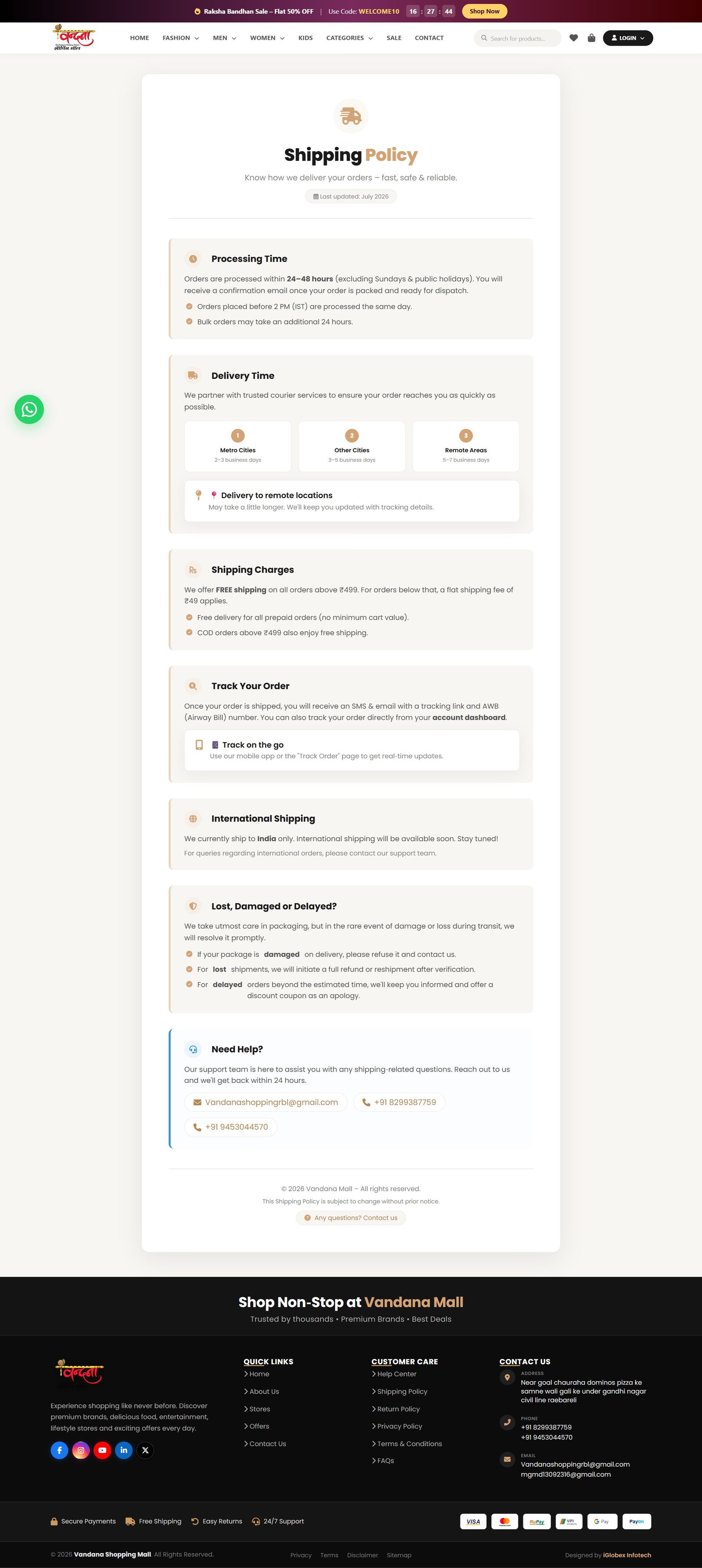
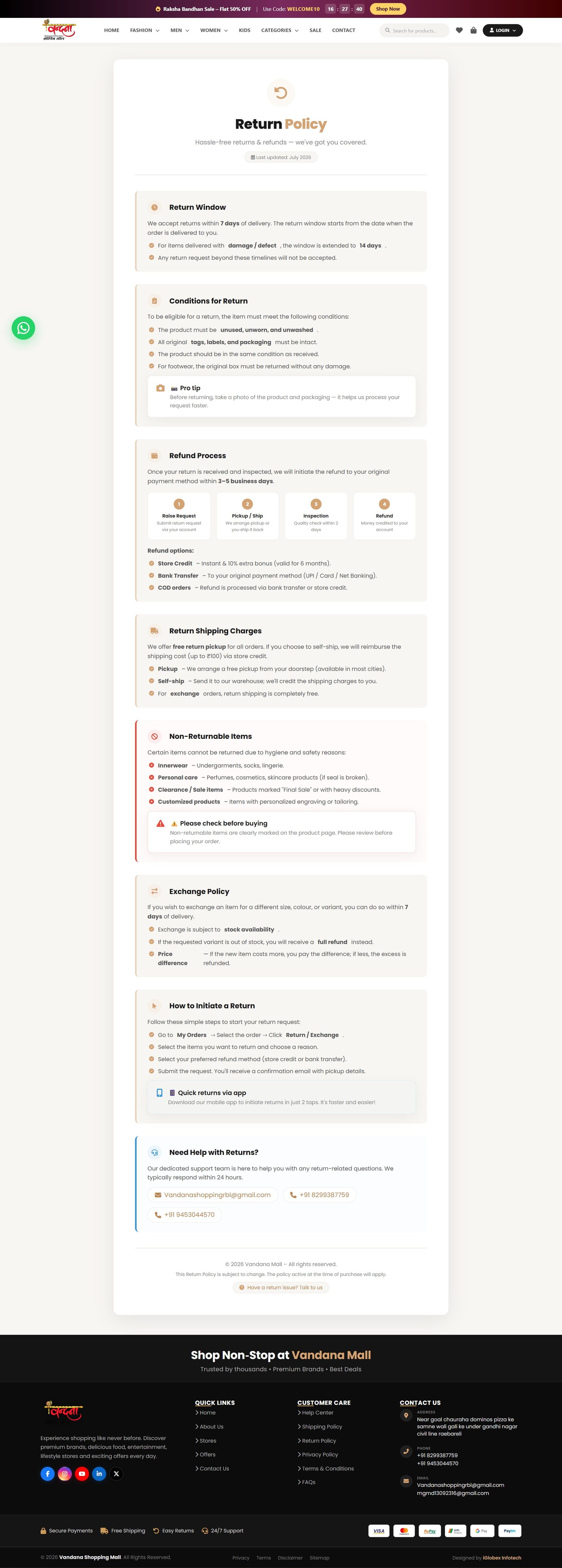
All of these open from the footer links.
20Common questions and problems
| Problem | What it does |
|---|---|
| Nothing happens when I press Add to Cart | Pick a size and a colour first — the button does nothing until both are chosen. |
| A login popup appeared | The cart and wishlist need an account. Once you sign in, the item goes into the cart by itself. |
| The OTP has not arrived | Check the spam folder, wait a minute, then press Resend. Codes expire after ten minutes. |
| The coupon will not apply | The order has to meet the coupon's minimum and the coupon has to still be valid. The conditions are listed under "View available coupons". |
| A size cannot be selected | That size is out of stock. Try another size or colour. |
| There is no return option | Returns only appear on delivered orders and only inside the window. Once it closes, the item is no longer listed. |
| Where do I find my order number | On the confirmation page, in the confirmation email, and above each order under My Orders. |
| I need the bill | Open the order under My Orders and print or save the invoice as a PDF. |
Vandana Shopping Mall — User Guide · Version 1.0 · Screenshots taken from the live site.